
Articles is your community's library of policies, guidelines, how-tos, and other reference material written by your Community Leaders. This article covers finding an article, reading it, and sharing a link to it. To write or organize articles, see the article on managing articles.
Who can do this
Everyone in your community can read published articles. Some articles are shared only with certain roles, so you may not see every article your community has. If Articles isn't in your main navigation menu, your community hasn't turned it on. Some options may be unavailable or appear differently depending on your level of account access.
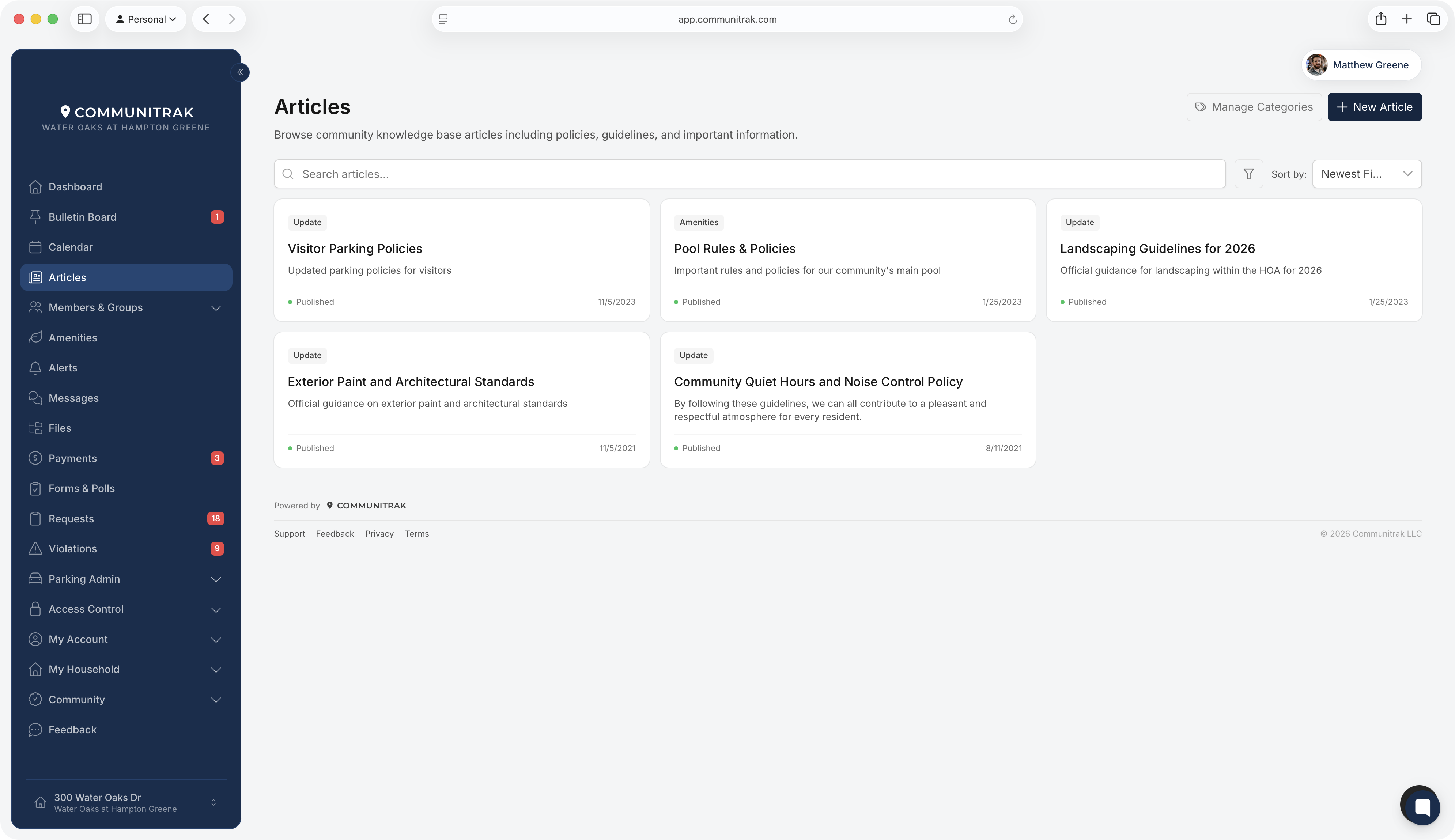
Open the Articles page
Log in to Communitrak at https://app.communitrak.com.
Click Articles in the main navigation menu.
Articles appear as cards. Each card shows the article's image (if it has one), category, title, short summary, and the date it was published.
Find an article
Search: type in the Search articles... box to match article titles and summaries.
Filter by category: click the filter button next to the search box, then choose a Category. Click Clear Filters to go back to all articles.
Sort: use Sort by to choose Newest First, Oldest First, Title (A-Z), or Title (Z-A). On a phone, tap the sort icon instead.
When you open an article and come back, the list keeps your search, filters, sort, and place on the page.
Read an article
Click a card to open the article. At the top you'll see its image and caption, category, title, and summary, followed by the date it was published and, if it has been edited since, the date it was last updated. The full article follows. If the author chose to sign it, their name and photo appear at the bottom.
Click the back arrow to return to the list.
Share an article
Open the article.
Click Copy Link at the top of the page. On a phone, tap the link icon.
Paste the link into a message, email, or text.
Anyone who opens the link and isn't signed in is asked to sign in first, then taken straight to the article. The link only works for members of your community who are allowed to see that article.
Things to know
You aren't notified when a new article is published. Check the Articles page, or watch for your Community Leaders to share a link on the Bulletin Board or in a message.
If a link says You do not have permission to view this article, the article is shared only with certain roles, or it isn't published yet.
Articles don't have comments. If you have a question about one, message your Community Leaders.
Writing articles takes a permission your community grants by role. If you'd like to contribute, ask your Community Leaders.
If you have questions or need help, chat with Communitrak Support from any page using the messenger icon in the bottom-right corner.