Every community member has a profile page. This article covers what Community Leaders see and can change there: contact details, household, groups, finances, roles, leadership, and membership status. For what residents see, see Finding Your Neighbors in the Member Directory.
Anyone with the View Member Profiles permission can open a profile, and residents have it by default. Each section and action below needs its own permission, named where it applies. Community Admins and Community Leaders have all of them by default.
Some options may be unavailable or appear differently depending on your level of account access.
Log in to Communitrak at https://app.communitrak.com.
In the main navigation menu, expand Members & Groups and click Community Members.
Click the member's name or photo.
You can also open a profile from a household's member list, a member group, and other places a member's name appears.
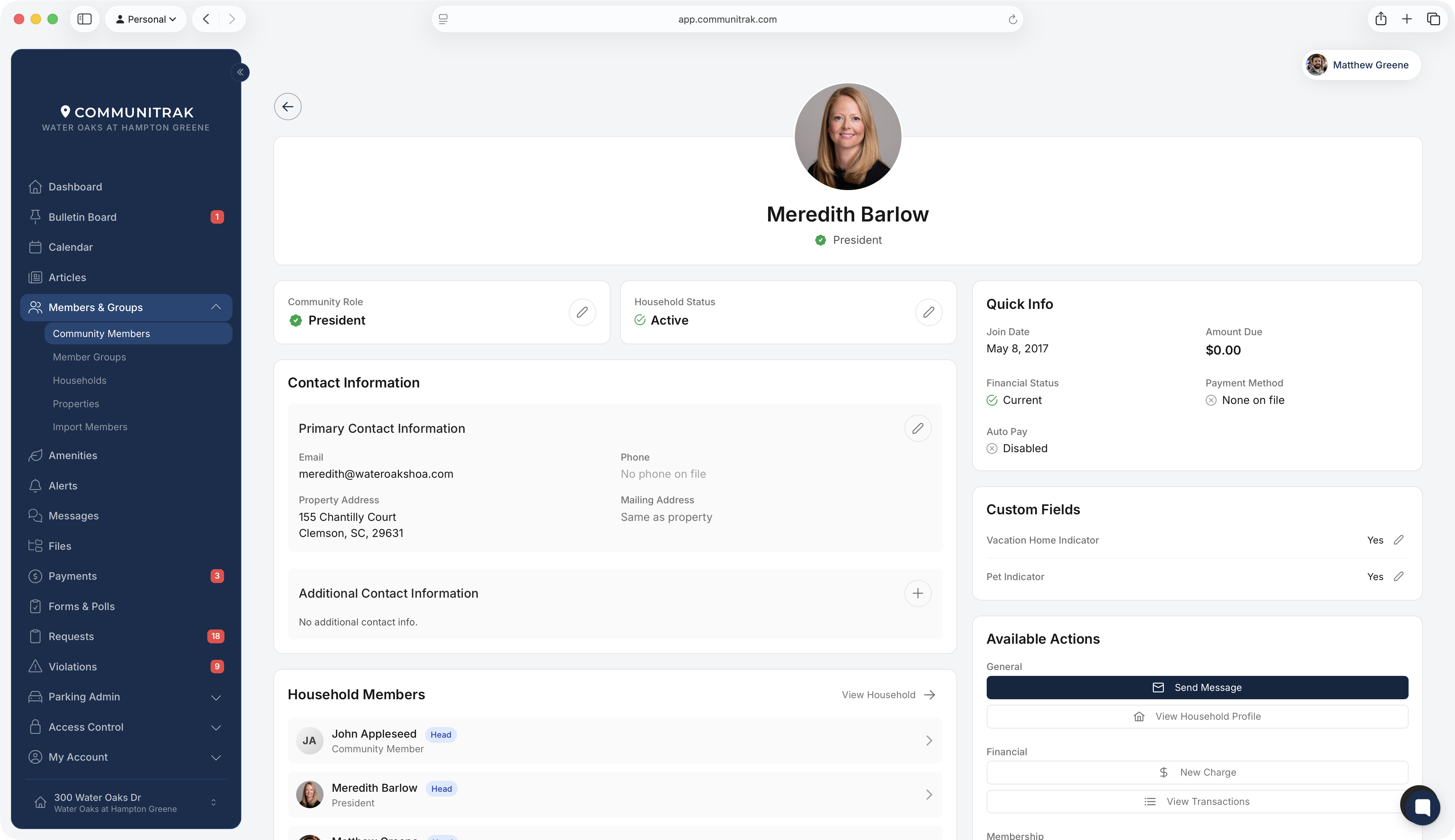
The profile card shows the member's photo, name, and title, plus two pills:
The Community Role pill. It turns green with a check badge when the member is marked as a community leader. With the Change Member Role permission, click it to edit the role, leadership, and title.
The household role pill, Head of Household or Household Member. With the View & Update Household Information permission, click it to open Update Household Role. A Head of Household can also change this for the other people in their own household.
If the member has more than one property in the community, a row of properties appears under their name. Click one to switch to that membership. Name, email, phone, role, title, and leadership are shared across all of their properties. Household, status, and billing belong to the property you're viewing.
A member who hasn't activated their account shows an Account Pending Activation card:
Resend Invitation emails their invitation again. It requires the Invite Members and Invite Members via Email permissions, and a Head of Household can also use it for pending members of their own household.
Add Email Address appears when there's no email on file, since no invitation can be sent without one. It requires the Update Member Contact Info permission.
Cancel & Remove cancels the invitation and removes the person from the household. It can't be undone. It requires the Manage Invite Status permission, and a Head of Household can also use it for pending members of their own household.
A deactivated member shows a Membership Deactivated card. They can't sign in or use the community through this household, but their information is kept. With the Update Member Status permission, click Set as Active to restore them.
The Community Role card repeats the member's role and leader badge, with a pencil icon if you have the Change Member Role permission.
The Household Status card shows whether the member's household is Active or Inactive, or No Household. With the Update Household Status permission, click the pencil to open Update Household Status, choose Active Household or Inactive Household, and click Update Status. This changes the status of the whole household, not only this member. To deactivate one person, use Set as Inactive instead (see Available Actions below).
The Primary Contact Information panel shows Email, Mobile Phone, Property Address, and Mailing Address. Below it, Additional Contact Information lists any extra emails, phone numbers, and addresses.
Each field needs its own permission: View Member Email, View Member Phone, View Member Property Address, View Member Mailing Address, and View Member Additional Contacts. Residents have all five by default, and still only see what each member chooses to share. With the Admin View for Members permission, you see every field regardless of the member's privacy choices, and additional contacts the member marked private are labeled (Private). A field you can't see reads Not available.
Click the email address to send a Communitrak Message or open your own email app, or click Send Message at the top of the card.
Click the pencil icon on the Primary Contact Information panel:
Update Name, Update Email, and Update Phone require the Update Member Contact Info permission, and only work while the member's account is still pending. Once a member activates their account, these details are theirs to change from My Account.
Mailing Address and Move to Another Household require the View & Update Household Information permission.
With the Update Member Contact Info permission, the pencil or plus icon on Additional Contact Information opens Manage Additional Contacts.
Household Members lists everyone in the member's household, with Head and Pending Activation tags. With the View Households permission, View Household opens the household's page.
Group Memberships lists the member groups they belong to and when they joined. It requires the View Member Groups permission. With the Manage Member Groups permission, click the plus icon to Add to Group, or use the menu on a group to Make Group Admin, Remove as Admin, or Remove from Group.
Recent Transactions shows this member's last 10 transactions when the Financial module is on. It requires the View Community Financials permission, except for members of your own household.
Amenity Reservations shows the household's upcoming reservations when the Amenities module is on. It requires the Manage Reservations permission.
Quick Info shows the member's Join Date. With the View Community Financials permission, or for members of your own household, and with the Financial module on, it also shows the household's Amount Due (unpaid charges), Financial Status (Current or Past Due), Payment Method (click it to see the methods on file), and whether Auto Pay is enabled.
If your community has set up custom fields, they appear in a Custom Fields card. Viewing requires the View Custom Fields permission, and editing values requires the Edit Custom Field Values permission.
The Available Actions card shows the actions you have permission for.
Send Message opens a new message to this member. It requires the Send New Message permission. Messaging a member who isn't a community leader also requires the Send Direct Message to Non-Leader Members permission.
View Household Profile opens the member's household. It requires the View Households permission.
These appear when the Financial module is on and you have the View Community Financials permission, or the member is in your own household.
New Charge opens Create New Charge to bill this member. It requires the Create a Charge permission. See Posting a Charge to a Member or Household.
View Transactions opens this member's full transaction history.
Move to Another Household moves the member into a different household, where they join as a regular Household Member. It requires the View & Update Household Information permission.
Set as Inactive deactivates this one member's membership in the household, for example when one person moves out and the rest of the household stays. They can no longer sign in or use the community through this household, and their record is kept. If they were the household's only Head of Household, another member is promoted automatically. It requires the Update Member Status permission.
Set as Active reactivates an inactive member. It requires the Update Member Status permission.
If the whole household is moving out, set the household inactive from the Household Status card instead.
When your community uses Communitrak Access Control, an Access Control card shows the member's cards, PINs, and Touch Passes. It requires the Manage Access Control permission. See Managing Access Cards, PINs, and Touch Passes.
This requires the Change Member Role permission.
Click the Community Role pill at the top of the profile, or the pencil icon on the Community Role card.
Choose a Community Role. The role decides what the member can do in Communitrak. Roles are managed under Community → Roles.
Under Is this member part of the community's leadership?, choose Community leader or Not a leader.
Optionally set a Title, such as Treasurer or Secretary. A title shows under the member's name.
Click Save Changes.
Only a Community Admin can move a member onto or off Community Admin, or any role with billing or AI usage permissions. For everyone else, those roles are marked Admin only in the dropdown. If the member already holds one, their role is locked, and you can still edit their title and leadership. Communitrak also won't move your community's last active Community Admin to another role.
Leadership is stored on the member, not on their role. You can mark someone as a leader without moving them onto a leadership role, and take a leader off the leadership list without changing their permissions.
Choosing a role pre-selects the leadership answer, based on whether that role is flagged Leader by default under Community → Roles. It's only a starting point. Change the answer and your choice is what saves.
Leadership grants no permissions. A community leader carries the leader badge, appears on the Leaders tab and the Dashboard's Community Leaders card, can be messaged by any resident and through the all-leaders option, always appears in the directory, and counts as a board member in the architectural review settings.
One person can belong to more than one community, and has a separate profile, role, and leadership in each.
Deactivating a member removes their access to the community through that household but keeps their information for record-keeping.
Only a Community Admin can change the status of, or remove, a member who holds Community Admin or a role with billing or AI usage permissions. Your community's last active Community Admin can't be set inactive or removed. Make someone else a Community Admin first.
Until you verify your own email address, contact details for members outside your household read Not available, even with Admin View for Members.
The HOA, not Communitrak, owns and is legally responsible for resident records stored on this platform. In privacy terms, the HOA is the data controller and Communitrak is the data processor, which means we can only add, change, or remove resident records on the HOA's instructions.
Because of this, we're not able to delete member accounts on request. Associations are generally required to retain certain records, such as assessments, violations, and governance history, for a period of time under state law and their own governing documents.
If a resident asks to be removed, they need to contact your HOA's board or management. Once the HOA authorizes the removal, Communitrak handles it.
If you have questions or need help, chat with Communitrak Support from any page using the messenger icon in the bottom-right corner.
