A household is the group of members who live together at a property. The Households page lists every household in your community, and each household's page is where you manage its status, addresses, members, PIN, and charges.

The Households page and each household's page require the View Households permission. Other actions need their own permissions, listed with each action below. Some options may be unavailable or appear differently depending on your level of account access.
Log in to Communitrak at https://app.communitrak.com.
In the main navigation menu, expand Members & Groups and click Households.
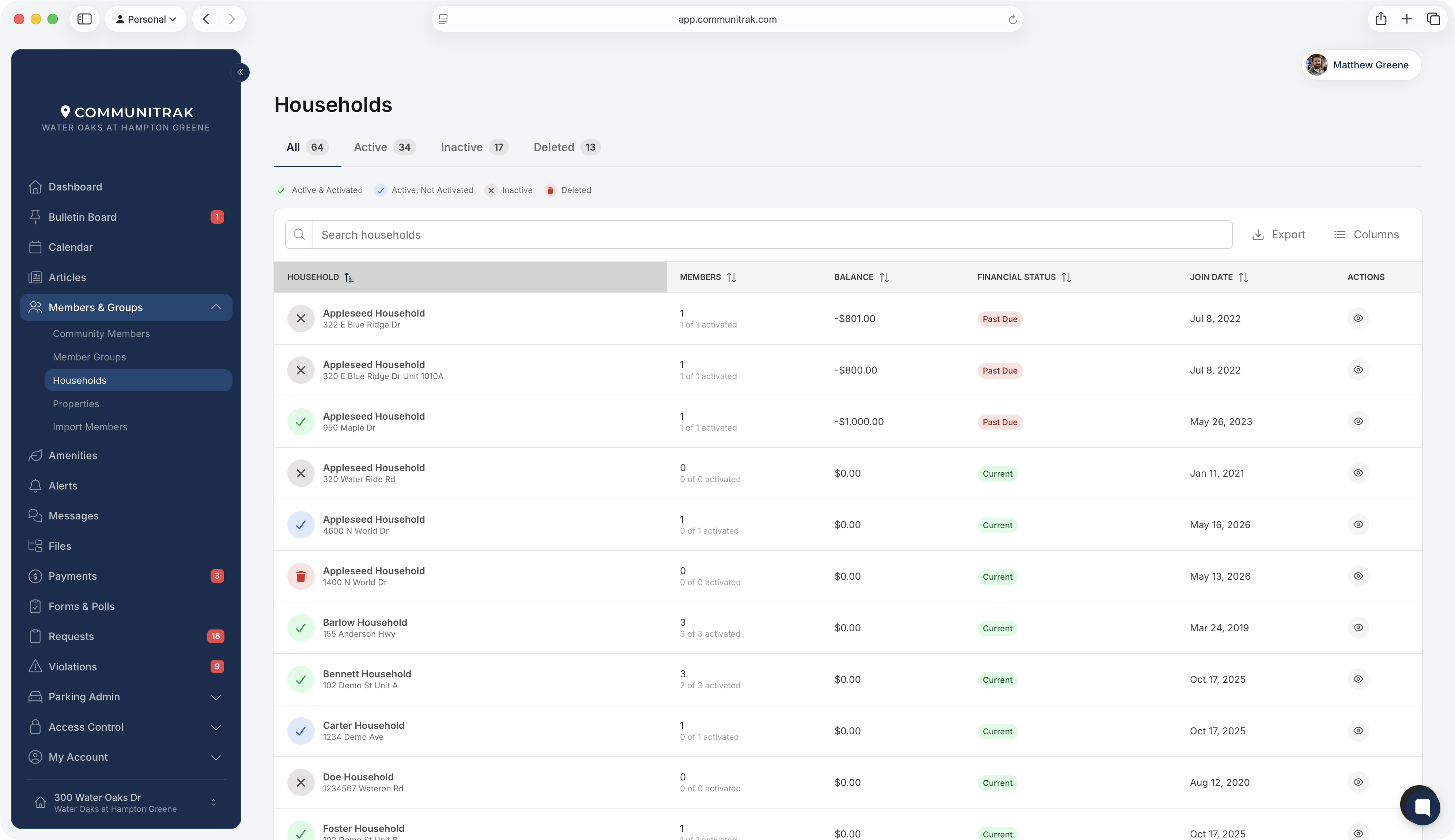
The icon next to each household name shows its state. Hover over the legend above the table for a description of each.
Green checkmark (Active & Activated): the household is active and at least one member has activated their Communitrak account.
Blue checkmark (Active, Not Activated): the household is active, but no one has activated their account yet.
Gray X (Inactive): the household has been set inactive, usually because it moved out.
Red trash can (Deleted): the household has been deleted.
The All, Active, Inactive, and Deleted tabs filter the list. Inactive and Deleted appear only if you have the Admin View for Members permission.
The search box matches household names and addresses.
Export downloads a CSV of the households currently showing, so pick a tab and search first if you want a subset. It requires the Export Households permission. Addresses show as "Hidden" unless you also have Admin View for Members or View Member Property Address.
Columns opens Customize Columns, where you can turn Members, Join Date, Balance, and Financial Status on or off. Balance and Financial Status appear only when the Financial module is on and you have Manage Charges or View Community Financials. The Members column also shows how many members have activated their account.
Most households are created for you when you invite a new resident (see "Inviting and Onboarding New Members"). Create one here when you need an empty household first. This requires the Create Household permission.
On the Households page, click New Household.
Under Property, choose the property the household lives at.
Enter a Household Name, such as "The Smith Household."
If the property already has an active household, a warning appears. If the previous residents have moved out, check Set the existing active household at this property to inactive. This checkbox appears only if you have the Update Household Status permission, and it never sets your own household inactive.
Click Create.
Communitrak opens the new household's page so you can invite its members. You can also create a household from a property's page with New Household.
Click a household's name, or the eye icon in the Actions column, to open its page.
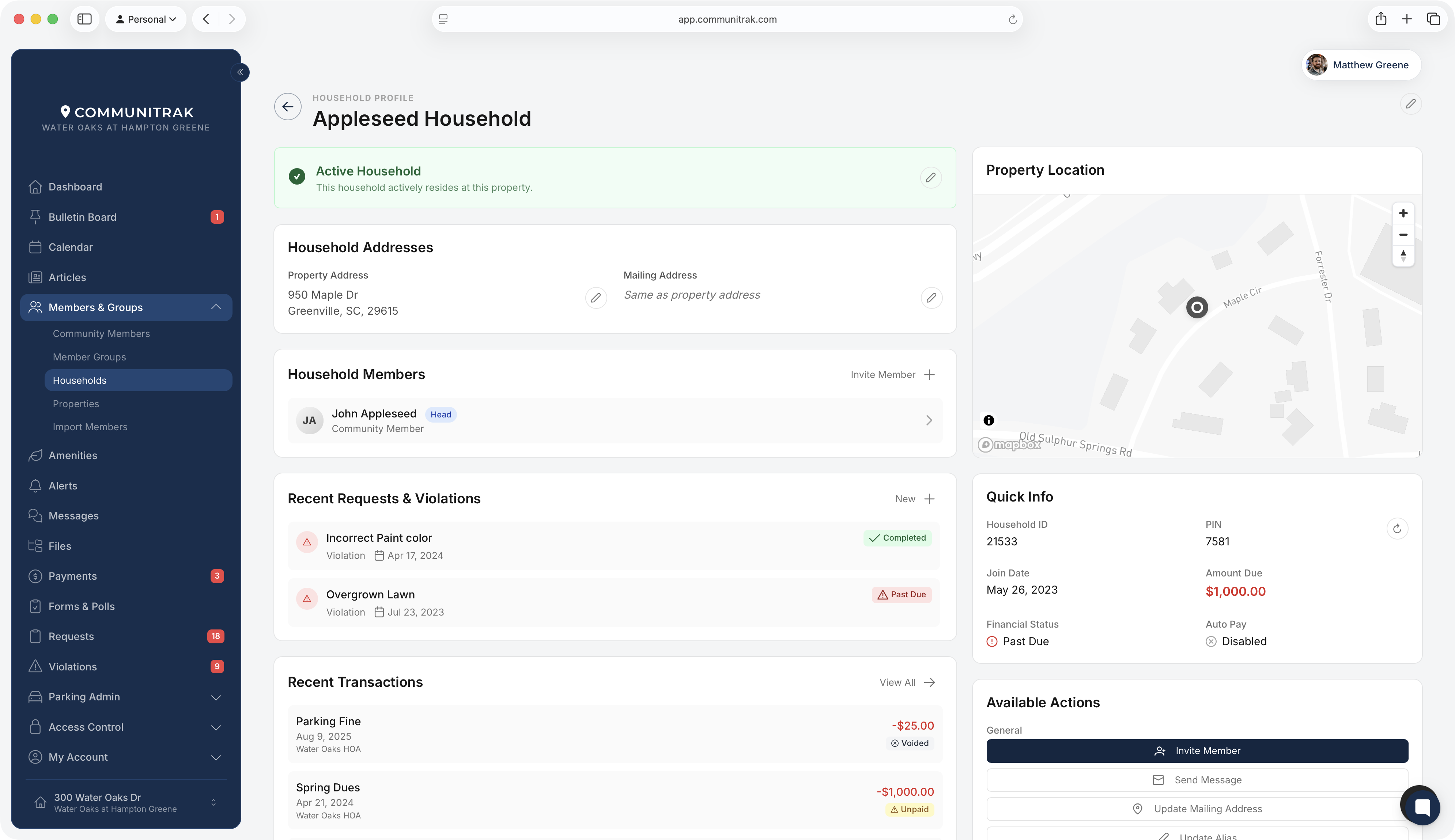
The banner at the top reads Active Household or Inactive Household. The pencil icon on the banner changes the status (see "When a household moves out" below).
The pencil icon next to the household name edits its Household Alias, a display name that replaces the automatically generated one. Leave it blank to go back to the generated name. This requires the View & Update Household Information permission.
Property Address links to the property's page. Its pencil icon takes you there to edit the address, which requires the View & Update Property Information permission. Changing a property's address changes it for every household at that property.
Mailing Address is where mail for this household goes when it differs from the property, for example an owner who rents the home out. It shows "Same as property address" until you set one. Editing it requires View & Update Household Information.
Which cards you see depends on your community's modules and your permissions:
Household Members: everyone in the household, with Head and Pending Activation badges. Click a member to open their profile, which is where you change their status or role.
Household Vehicles: when Parking is on and you have View Vehicle Directory.
Household Pets: when Pets is on.
Recent Requests & Violations: when Requests is on and you have View Community Requests or View Community Violations.
Amenity Reservations: when Amenities is on and you have Manage Reservations.
Architectural History: architectural requests for the property, when Requests and Architectural Review are on. This history belongs to the property, so it stays with the address after the household moves out.
Recent Transactions: when the Financial module is on and you have View Community Financials.
Property Location: a map of the property address.
Household ID
PIN: the household's access code, which residents see on amenities set to Household PIN access. The refresh icon generates a new PIN and stops the old one from working right away. Viewing and refreshing the PIN require View & Update Household Information.
Join Date: when the household was created.
Amount Due, Financial Status, and Auto Pay: when the Financial module is on. Amount Due and Financial Status also need Manage Charges or View Community Financials.
Each action appears only if you have its permission.
Invite Member: invites someone straight into this household by email, as a Member or Head of Household. Requires Invite Members and Invite Members via Email, plus Invite Members via Text Message if you enter a phone number.
Send Message: opens a new message addressed to every member of the household. Requires Send New Message.
Update Mailing Address and Update Alias: the same as the pencil icons above.
New Charge: charges one member of the household. Requires Create a Charge. See "Posting a Charge to a Member or Household."
View Transactions: the household's full transaction history. Requires View Community Financials.
Move Household: requires View & Update Household Information or View & Update Property Information.
Delete Household: requires the Delete Household permission.
When residents sell or leave, set their household inactive rather than deleting it. The household, its members, and its history stay on record as previous residents of the property.
Open the household's page.
Click the pencil icon on the status banner.
In Update Household Status, choose Inactive Household.
Click Update Status.
This requires the Update Household Status permission. Every member of the household then has limited access through it: they can still sign in to see their payment history and messages, but not the rest of the community. If your community uses Access Control, their door access is removed. To bring the household back, follow the same steps and choose Active Household.
If only one person is leaving and others still live there, set that member inactive from their profile instead.
When the new owners arrive, invite them into a new household at the same property. The property then lists the old household under Previous Households and the new one under Current Households.
Use this when a household is attached to the wrong property, or when the same family moves to a different home in the community. Its members, charges, and history move with it. Requests, violations, and architectural history stay with the old property, because they belong to the address.
On the household's page, click Move Household.
Choose the Target Property.
If that property already has an active household, a warning appears. Check Set the existing active household at this property to inactive if those residents have moved out. This checkbox appears only if you have the Update Household Status permission, and your own household is never set inactive this way.
Click Move Household.
Deleting is for a household created by mistake. Communitrak only lets you delete a household that:
is already set to Inactive,
has no active, inactive, or pending members, and
has no transactions.
If any of these isn't true, you'll see a message saying why. A household that had real residents almost always has members or transactions, so leave it inactive instead. Deleted households move to the Deleted tab and can't be restored from the app.
A property can have more than one active household, for example a duplex or a family living in an accessory unit. Communitrak warns you when you create or move a household onto an occupied property, but doesn't stop you.
An owner with several properties has a separate household at each one under a single login. See "Inviting and Onboarding New Members."
Most actions on this page are unavailable while your community's Communitrak subscription is in read-only mode.
If you have questions or need help, chat with Communitrak Support from any page using the messenger icon in the bottom-right corner.
