Properties are the addresses or lots that make up your community. Each property can have one or more households, and keeps a record of the households that lived there before. The Properties page lists every property, and each property's page shows its current and previous households, its request history, and a map.
The Properties page and each property's page require the View & Update Property Information permission. Creating a property requires Create Property, and deleting or restoring one requires Delete a Property. Some options may be unavailable or appear differently depending on your level of account access.
Log in to Communitrak at https://app.communitrak.com.
In the main navigation menu, expand Members & Groups and click Properties.
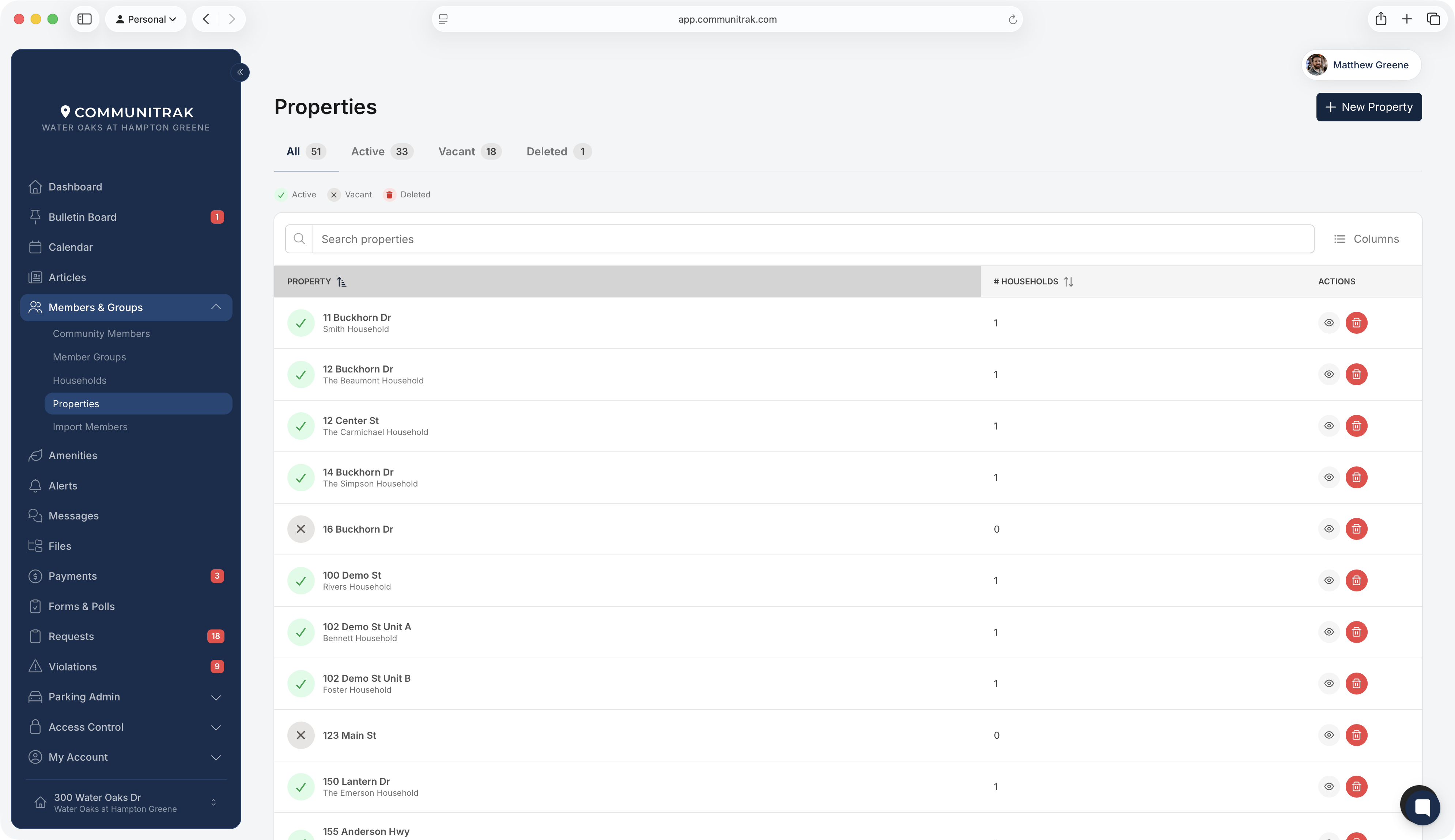
Green checkmark (Active): the property has at least one active household. The Active tab lists these.
Gray X (Vacant): the property has no active household and is considered unoccupied. It may still have previous households. The Vacant tab lists these.
Red trash can (Deleted): the property has been deleted. The Deleted tab lists these, but only if you also have the Admin View for Members permission.
The All tab shows every property that hasn't been deleted.
The search box matches property addresses and the names of each property's active households, which are listed under the address. Click Columns to turn the # Households and Actions columns on or off. The Actions column holds the view icon, plus the delete and restore icons if you have Delete a Property.
Click New Property in the top-right corner of the page.
Under Address Type, choose Street Address or Lot Number.
Enter the Street Address and optional Apartment/Unit, or the Lot Number. Then enter the City, State, and ZIP Code.
Click Validate. Communitrak formats the address and shows it back to you.
Check the formatted address. Click Back to fix it, or Create Property to save it.
If the address already exists in your community, Communitrak tells you instead of creating a duplicate.
A new property starts empty and shows as Vacant. To add residents, invite them and choose this property (see "Inviting and Onboarding New Members"), or create a household from the property's page.
Click a property's address, or the eye icon, to open its page.
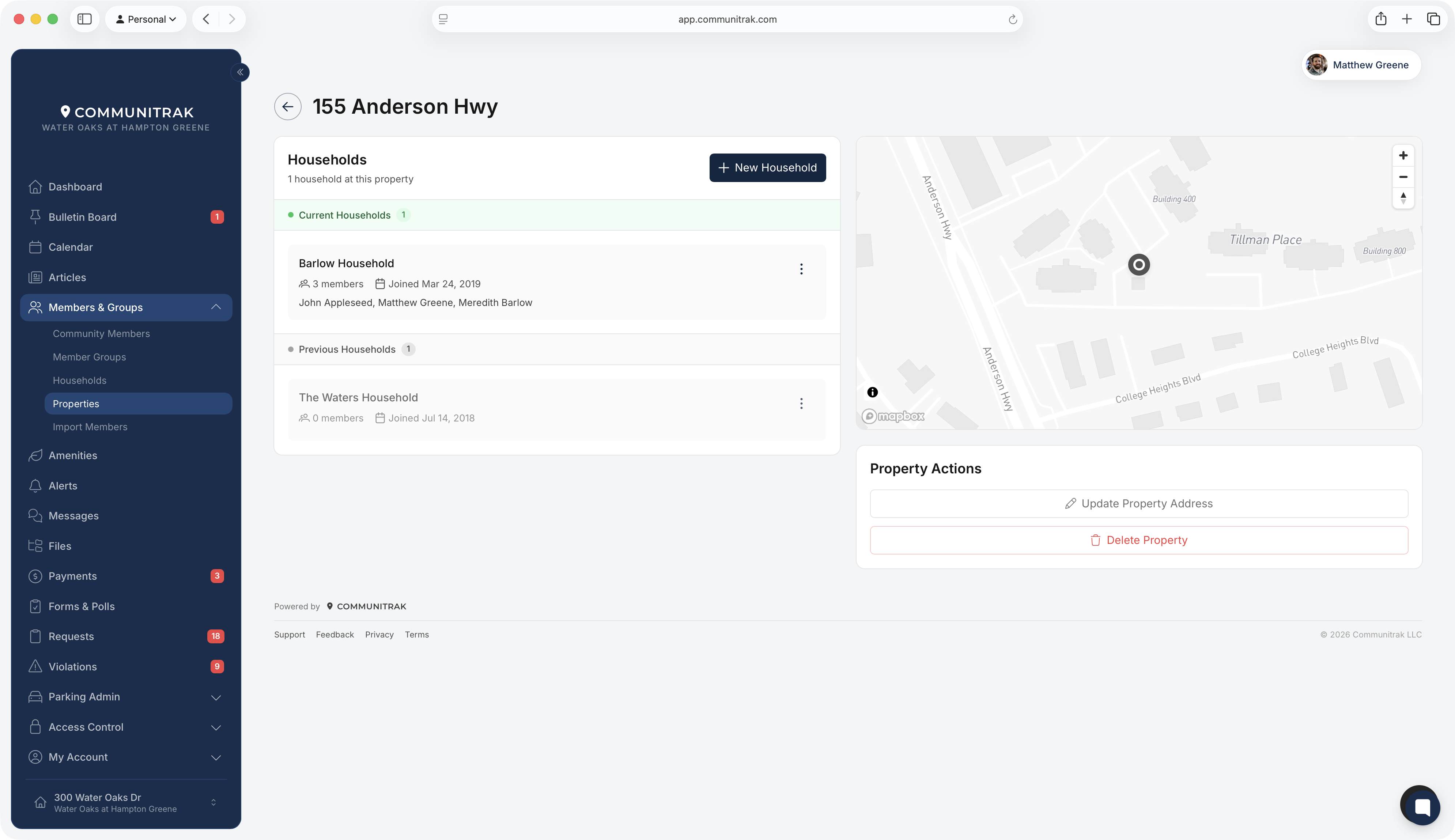
The Households card lists:
Current Households: active households, with their member count, join date, and members.
Previous Households: inactive households, the people who lived here before. They appear dimmed.
Click a household to open its page. The menu icon on each household offers Set Inactive or Set Active, Update Alias, Invite Member (active households only), Move Household, and Delete Household, depending on your permissions. These work the same way as on the household's page; see "Managing Households."
Click New Household to create a household at this property. This requires the Create Household permission.
When Requests is on and you have View Community Requests, the page lists requests filed for this property, including architectural requests. Violations are included if you also have View Community Violations. This history belongs to the address, so it stays here when households come and go.
The map shows the property's location. If the address can't be mapped, you'll see "Address not available for mapping."
The Property Actions card holds Update Property Address and Delete Property.
On the property's page, click Update Property Address.
Change the address type or fields, and click Validate.
Check the formatted address and click Update Property.
The new address applies to every household at the property, current and previous.
If you change a property to an address that's already in your community, the two are duplicates. If you have Delete a Property, Communitrak offers to merge them in a dialog titled This address already exists:
Its households, requests, vehicles, and pending invitations move to the existing property, and the duplicate is deleted.
Check Set the moved households to inactive if they're past residents. Leave it unchecked if they still live there.
Click Move and Remove Duplicate, or Remove Duplicate if the duplicate has no households.
You can delete a property only after every household on it, current and previous, has been moved to another property or deleted. Until then, the trash icon in the list is grayed out; hover over it to see why. To delete, click Delete Property on its page or the trash icon in the list.
Deleting a property hides it rather than erasing it. To bring one back, open the Deleted tab and click the restore icon.
A property can have more than one active household, for example a duplex. When a home is sold, set the old household inactive and invite the new owners into a new household at the same property, so the property keeps a record of both.
There is no export on the Properties page. The Households and Community Members exports include each household's address.
Most actions on this page are unavailable while your community's Communitrak subscription is in read-only mode.
If you have questions or need help, chat with Communitrak Support from any page using the messenger icon in the bottom-right corner.
