Groups in Communitrak let community members organize around shared interests, committees, or responsibilities. From the Groups page, you can see the groups you belong to, browse other available groups, and join or request access. Community Leaders with the right permissions can also create new groups and manage membership requests.
Both Community Leaders and residents can view and interact with groups if they have the View Member Groups permission. Some actions, like creating groups or approving requests, require additional permissions.
Log in to Communitrak at https://app.communitrak.com.
In the main navigation menu, expand Members & Groups and click Groups.
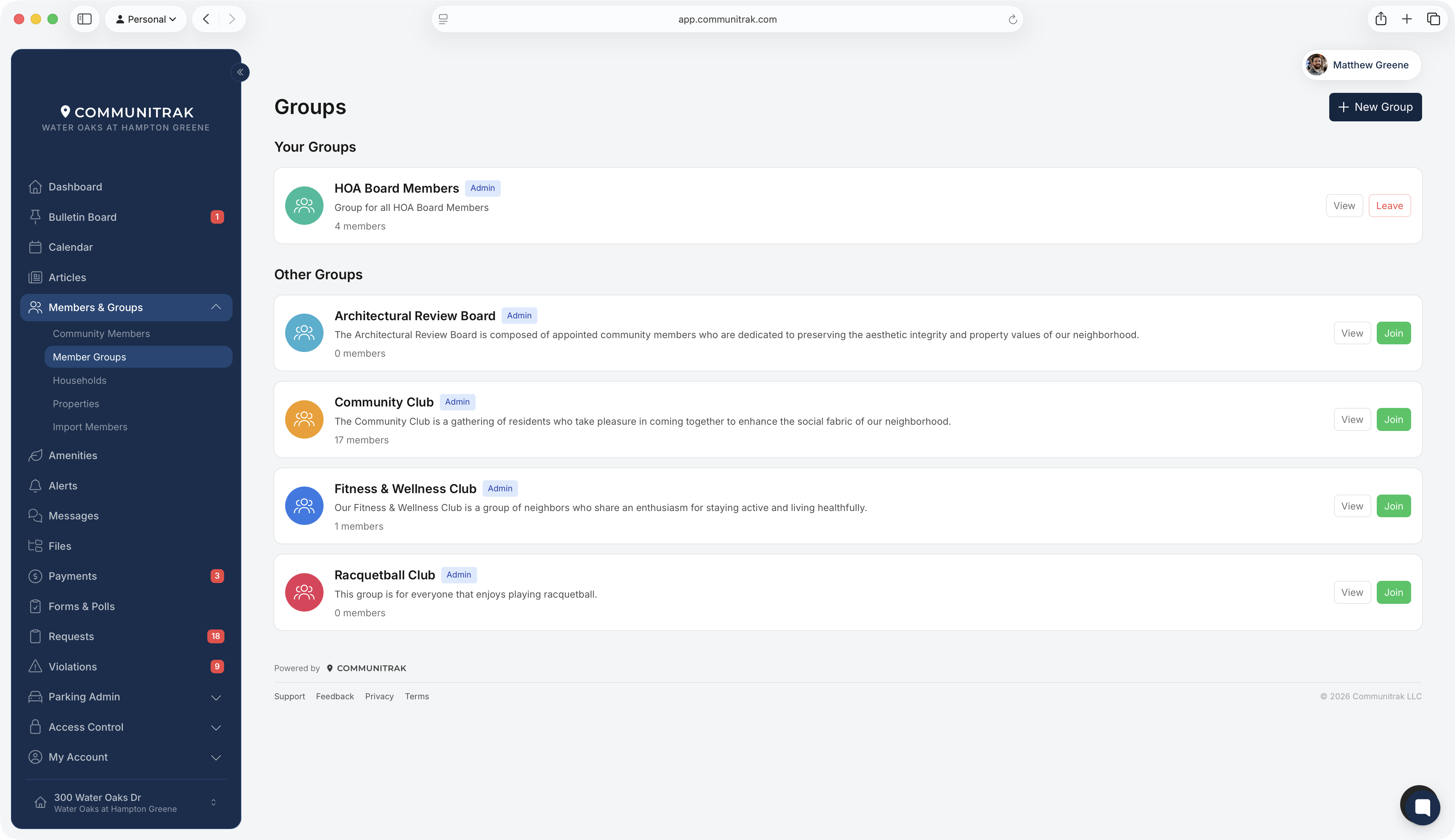
The Your Groups section lists every group you're currently a member of. Each card shows:
The group's color icon and name.
An Admin badge if you're a group admin or have the Manage Member Groups permission.
A pending requests count (e.g., "3 pending") if you can manage requests and there are members waiting for approval.
The total member count.
A short description, if one was provided when the group was created.
Each card has two buttons:
View opens the group's detail page.
Leave removes you from the group. This option is hidden if you're the only admin of the group or if leaving is otherwise restricted.
The Other Groups section shows groups you haven't joined yet. Each card has the same layout as Your Groups, plus one of these actions:
Join appears for open groups. Clicking it adds you immediately.
Request to Join appears for closed groups. Your request will be reviewed by a group admin.
Cancel Request appears if you've already submitted a request to a closed group and are waiting for approval. A Requested badge also appears on the card.
Note: For closed groups, you can only view the group's detail page if the group is open or you have the Manage Member Groups permission. Otherwise, you'll see the group name and description on this page but won't be able to click through until you're approved.
This requires the Create Member Group permission.
Click New Group in the top-right corner of the page.
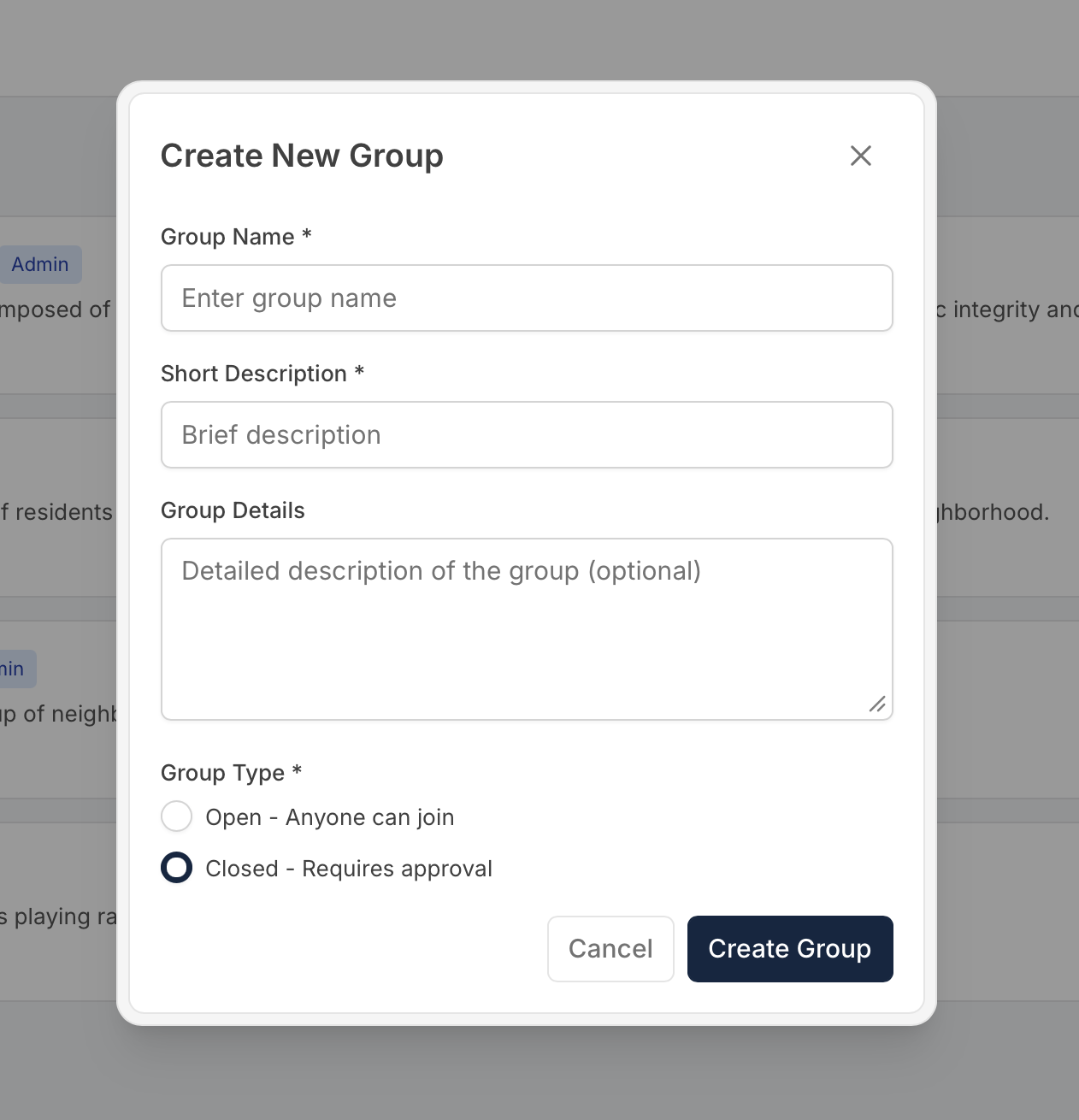
In the Create New Group dialog, fill in the following:
Group Name (required)
Short Description (required): a brief summary that appears on the group card.
Group Details (optional): a longer description visible on the group's detail page.
Group Type (required): choose Open - Anyone can join or Closed - Requires approval.
Click Create Group.
If you're an admin of a closed group and someone requests to join, the pending count badge on your group card will update. Click the badge to open the pending requests list, where you can approve or deny each request.
Open groups let anyone join without approval. Closed groups require a group admin to approve each request.
You can't leave a group if you're the only admin. Transfer admin duties to another member first, or ask a Community Leader with the Manage Member Groups permission to help.
Group admins and users with the Manage Member Groups permission see the Admin badge on all groups and can manage pending requests for any group.
Clicking View on a group card navigates to the group's detail page, where you can see the full member list and group details.
If you have questions or need help, chat with Communitrak Support from any page using the messenger icon in the bottom-right corner.
