The Amenities page lists your community's shared spaces, such as the pool, clubhouse, and courts. Each one shows whether it's open right now, its hours today, and how to get in. If an amenity takes reservations, you can pick a date and time and book it. To see or cancel a reservation you've already made, see the article on managing your reservations.
Everyone in your community can see the Amenities page. Booking requires the Create a Reservation permission, which most communities give to residents. Some options may be unavailable or appear differently depending on your level of account access.
Log in to Communitrak at https://app.communitrak.com.
Click Amenities in the main navigation menu.
Amenities are listed alphabetically. On a computer, your My Reservations card sits to the right of the list. On a phone or tablet, it's below the list.
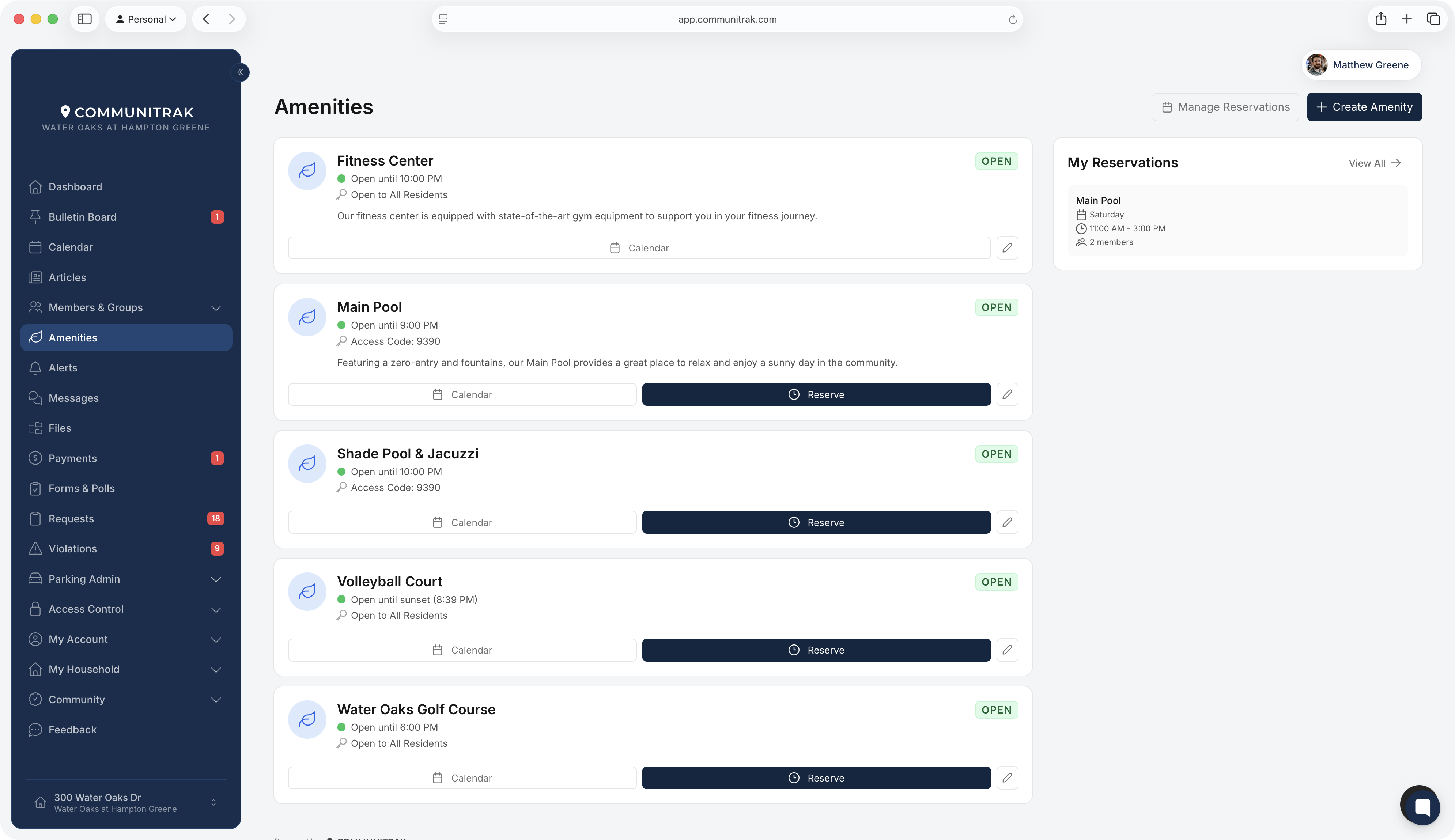
Status: OPEN, CLOSED, or 24/7.
Today's hours, with a green dot when it's open and a red dot when it's closed. This reads as a phrase, such as "Open until 9:00 PM", "Opens 6:00 AM tomorrow", "Closed today", or "Open until sunset (7:42 PM)". During a temporary closure it shows the reason, for example "Closed - Maintenance".
How to get in:
Open to All Residents: no code or key needed.
Access Code: followed by the code. This is either a code shared with the whole community or your own household's PIN.
Resident Key Card Required: use your community-issued key card.
Communitrak Access: the doors are controlled by your community's access system. Use your access card, PIN, or Touch Pass.
A description, if your community added one.
Each card has a Calendar button. Amenities that take reservations also have a Reserve button.

This card lists your household's next five upcoming reservations, including ones booked by other members of your household. Each entry shows the amenity, date, time, party size, any notes, and any fee or deposit. Click View All to open the full My Reservations page, where you can see past reservations and cancel upcoming ones.
Click Calendar on an amenity's card to open its Amenity Calendar. It shows events your community has scheduled at that amenity, such as a swim meet or a private party, in month or week view. Click an event to see its details, and RSVP if the event asks for one.
The sidebar shows the amenity's hours today, a list of Upcoming Events, and a Make a Reservation button if you can book it.
Click Reserve on the amenity's card, or Make a Reservation on its calendar.
Under Select Date, pick a day. The first day you can book is already selected. Days outside your community's booking window, and days the amenity doesn't take reservations, are grayed out.
Under Select Time, click a time slot. Your choices appear under Reservation Details. On a phone, scroll down to see them.
Set Party Size to the number of people coming. If there's a limit, it's shown below the field.
Optionally add Notes (Optional), such as a special request for your community's leaders.
If the amenity has terms, read the Reservation Terms and Conditions and check I agree to the reservation terms and conditions.
If there's a fee or deposit to pay now, choose a Payment Method and check the authorization box (see below).
Click Reserve.
A Reservation Confirmed dialog appears. Click Create Another to book another time (the same date stays selected), or View My Reservations to see your bookings. You'll also get a confirmation email with your reservation details, confirmation number, and cancellation policy.
Each booking is one time slot. Slot lengths are set by your community and can differ on weekends. Some amenities, such as a clubhouse, are booked for the whole day as a single slot. Some evening slots run past midnight.
To book more than one slot, use Create Another after each booking.
Times that have already started today aren't listed.
Grayed-out slots can't be booked. The slot is taken, an event has blocked it, or your household has reached its limit.
If an amenity can be shared, each slot shows how many spots are left, such as "3/10 available". Spots are counted in people, so a party of four uses four.
If every slot on a day is taken, a Fully Booked notice asks you to pick another date.
All times are in your community's time zone.
The most people you can book for is the smaller of two numbers: the amenity's limit per reservation, and the spots still open in that time slot. The limit is shown below the field, for example "Maximum 6 people".
If the amenity has a fee or deposit, it's listed under Reservation Details once you pick a time:
Reservation Fee: charged when you book.
Refundable Deposit: handled one of three ways, depending on how your community set up the amenity:
Charged when you book and refunded after your reservation.
(held, not charged now): held on your account and only charged if it's forfeited, for example because of damage.
(paid directly): you pay the association directly, such as by check. Communitrak doesn't charge it.
The Total charged now line shows what you'll pay today. To pay it:
Under Payment Method, choose a saved card or bank account. Your default is selected for you.
Check I authorize $X.XX to be charged to the selected payment method.
The payment is taken as soon as you click Reserve. Card payments go through right away. Bank account payments take 3 to 5 business days to finish processing. You aren't charged a processing fee on reservations.
If you book a slot right before or after one of your own reservations for the same amenity on the same day, you don't pay a second deposit. A Deposit Waived - Consecutive Reservation notice appears when this applies.
If the amenity has a cancellation deadline, a Cancellation Policy notice shows how many hours ahead you need to cancel. Cancel before then and your fee and deposit are returned. After the deadline you can't cancel the reservation yourself, so contact your community's leaders.
You may see one of these messages on the Reserve page:
Reservations Available (blue): the amenity is closed for walk-in use on the date you picked but still taking reservations. You can book as usual.
Amenity Closed - Reservations Unavailable (red): the amenity is closed on the date you picked and isn't taking reservations. The reason and expected reopening date appear when your community provided them. Pick a date after the closure to book.
Reservations Unavailable: your household has a past-due balance, and this amenity doesn't take reservations until it's paid. The Reserve button on the Amenities page is also grayed out.
Reservation Limit Reached: your household already holds the most reservations allowed for this amenity, either in total or on that day.
If something goes wrong when you click Reserve, a Reservation Not Completed dialog explains why. For example, your card was declined, someone booked the slot first, or there aren't enough spots left for your party.
Limits are per household, not per person. Reservations made by anyone in your household count toward them.
If your community's Communitrak account is inactive, reservations can't be made. A notice on the Reserve page says so.
Pull down on the Amenities page or an amenity's calendar on a phone to refresh it.
The Amenities page appears in the main navigation menu only if your community uses Amenities.
If you have questions or need help, chat with Communitrak Support from any page using the messenger icon in the bottom-right corner.
