The My Reservations page lists your household's amenity reservations. Use it to check an upcoming booking, cancel one you no longer need, or see whether a fee or deposit was refunded. To make a new reservation, see the article on browsing and reserving amenities.
Anyone in a household can see and cancel that household's reservations, including ones booked by another member of the household or by a Community Leader for you. Some options may be unavailable or appear differently depending on your level of account access.
Log in to Communitrak at https://app.communitrak.com.
Click Amenities in the main navigation menu.
On the My Reservations card, click View All. On a phone, the card is below the list of amenities.
You can also get here from the View My Reservations link in your confirmation and cancellation emails.
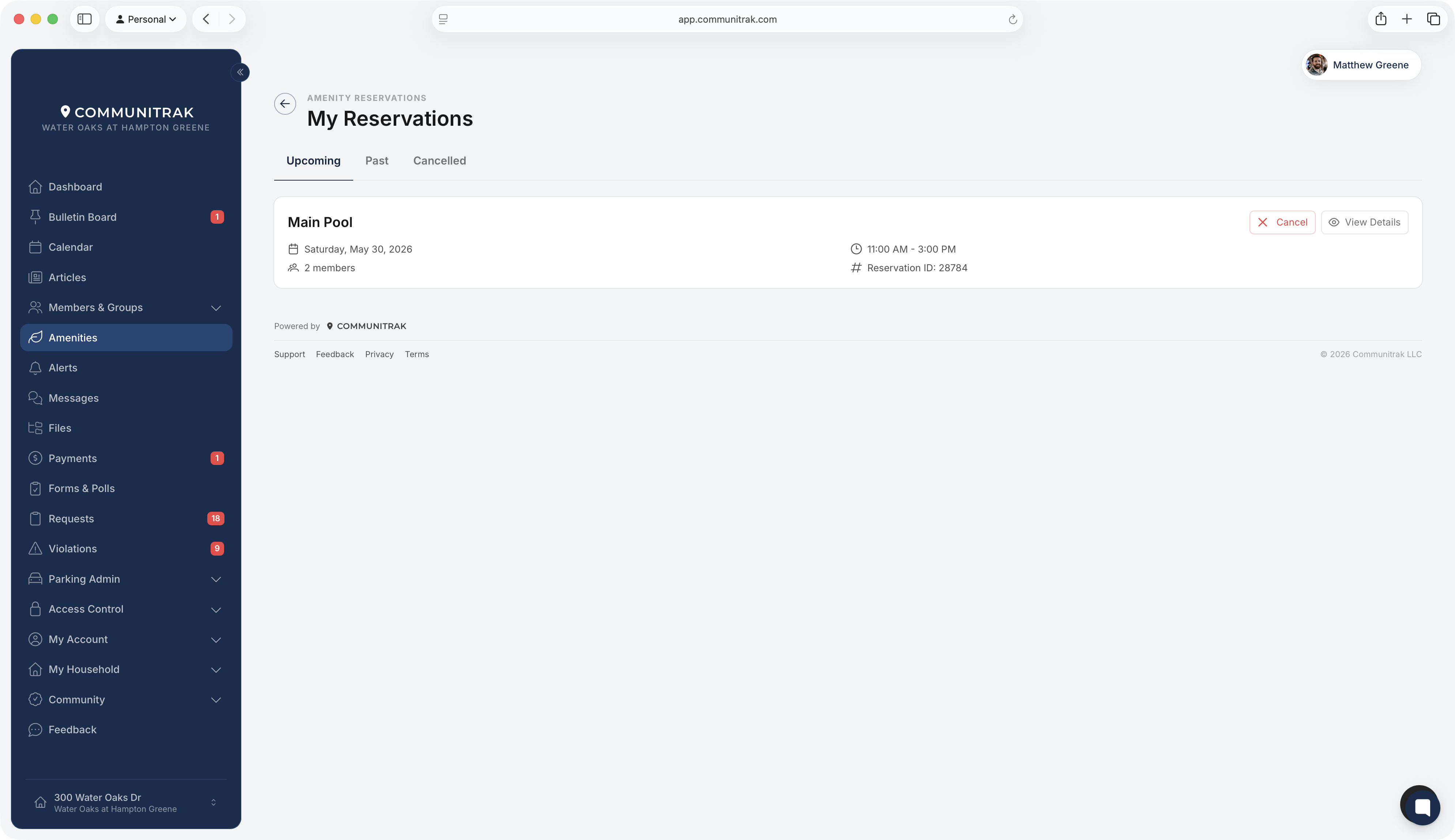
Upcoming: reservations that haven't ended yet. This tab opens first. A reservation that's happening right now is marked In progress.
Past: reservations that have ended.
Canceled: every canceled reservation for your household, whether someone in your household canceled it or a Community Leader did.
Each card shows the amenity, date, time, party size, reservation ID, and any fee or deposit. Upcoming cards also show your notes.
On the Upcoming tab, click Cancel on the reservation. You can also open View Details and click Cancel Reservation there.
Check the details in the dialog. If the reservation has a fee or deposit, the dialog shows what will be refunded or voided.
Optionally enter a Reason for cancellation (optional). Your community's leaders see it.
Click Cancel Reservation.
A Reservation Canceled dialog confirms it and summarizes what happened to any money, and you get a cancellation email. The reservation moves to the Canceled tab, and the time slot opens up for other residents.
Some amenities have a cancellation deadline, such as 48 hours before the start time. Before the deadline, you can cancel, and your fee and deposit are returned in full. Once the deadline passes, the card shows Cancellation deadline has passed and the Cancel button goes away. If you still need to cancel, contact your community's leaders.
If an amenity has no deadline, you can cancel any time before the reservation starts. Once it starts, it can't be canceled.
If you booked two slots in a row at the same amenity on the same day, you only paid one deposit. Canceling the reservation that carries the deposit moves the deposit to your other reservation instead of refunding it. When this applies, the dialog shows Deposit Transfer, and the button reads Transfer Deposit & Cancel. This only applies to reservations the same person booked, and never to a deposit paid directly to the association.
When you cancel before the deadline:
Paid by card or bank account: refunded to the same card or account. Refunds usually show up within 5 to 10 business days.
Added to your account and not paid yet: voided, so you don't owe it. This is usually the case when a Community Leader booked for you.
A deposit held on your account: released. It was never charged.
A bank payment that hasn't finished processing: either canceled before it goes through or refunded once it clears. The cancel dialog warns you, and the confirmation tells you which happened.
A deposit you paid the association directly, such as by check: returned by your community outside Communitrak.
Deposits aren't returned automatically once your reservation is over. A Community Leader reviews them and either returns or keeps each one. Until then, the deposit shows its current state:
Held: you paid it when you booked.
Held (not charged): it's held on your account but was never charged. Unless your community charges it, you never pay it, and it can keep this label after your reservation.
Unpaid or Awaiting payment: it hasn't been paid yet.
Paid offline: you paid the association directly, and they've recorded it.
Returned: your community gave it back.
Kept: your community kept it, for example because of damage. If the deposit was only held, keeping it adds a charge to your household's account, which you pay from the Payments page.
If a deposit you paid still shows Held well after your reservation, contact your community's leaders.
Click View Details on any reservation to see everything about it:
Amenity name and type, and the status: ACTIVE, IN PROGRESS, COMPLETED, or CANCELED
Date, time, party size, reservation ID, and Booked On date
Notes, including your own and any cancellation reason
Cancellation Policy, if the amenity has a deadline: the date and time you must cancel by, or that the deadline has passed
Payment: the fee and deposit with their status, plus Total, Total Refunded, and Total Voided where they apply. A bank payment that's still clearing shows Processing.
On the Past tab, the fee shows Refunded or Voided if it was returned. On the Canceled tab, it shows Refunded, Voided, or Not Refunded. The deposit shows the states listed above on every tab.
The cancellation email goes to the person who canceled. If someone else in your household cancels a reservation you booked, you get one too.
If a bank payment for an upcoming reservation fails, the reservation is canceled automatically and you're notified.
Canceling a reservation frees up room under your household's reservation limit for that amenity.
You can't change a reservation's date, time, or party size. Cancel it and book again.
If your community's Communitrak account is inactive, the Cancel buttons are turned off. Contact your community's leaders.
On a phone, pull down on the page to refresh the tab you're on.
If you have questions or need help, chat with Communitrak Support from any page using the messenger icon in the bottom-right corner.
