You can make Communitrak look like your community. Choose a brand color for the sidebar, buttons, and highlights, and show your own logo or your community's name in the top-left corner. Both are set on the Appearance & Branding card of the Preferences page.
Changing branding requires the Update Community Preferences permission, and opening the Preferences page requires View Community Preferences. Some options may be unavailable or appear differently depending on your level of account access.
Log in to Communitrak at https://app.communitrak.com, and expand Community in the main navigation menu.
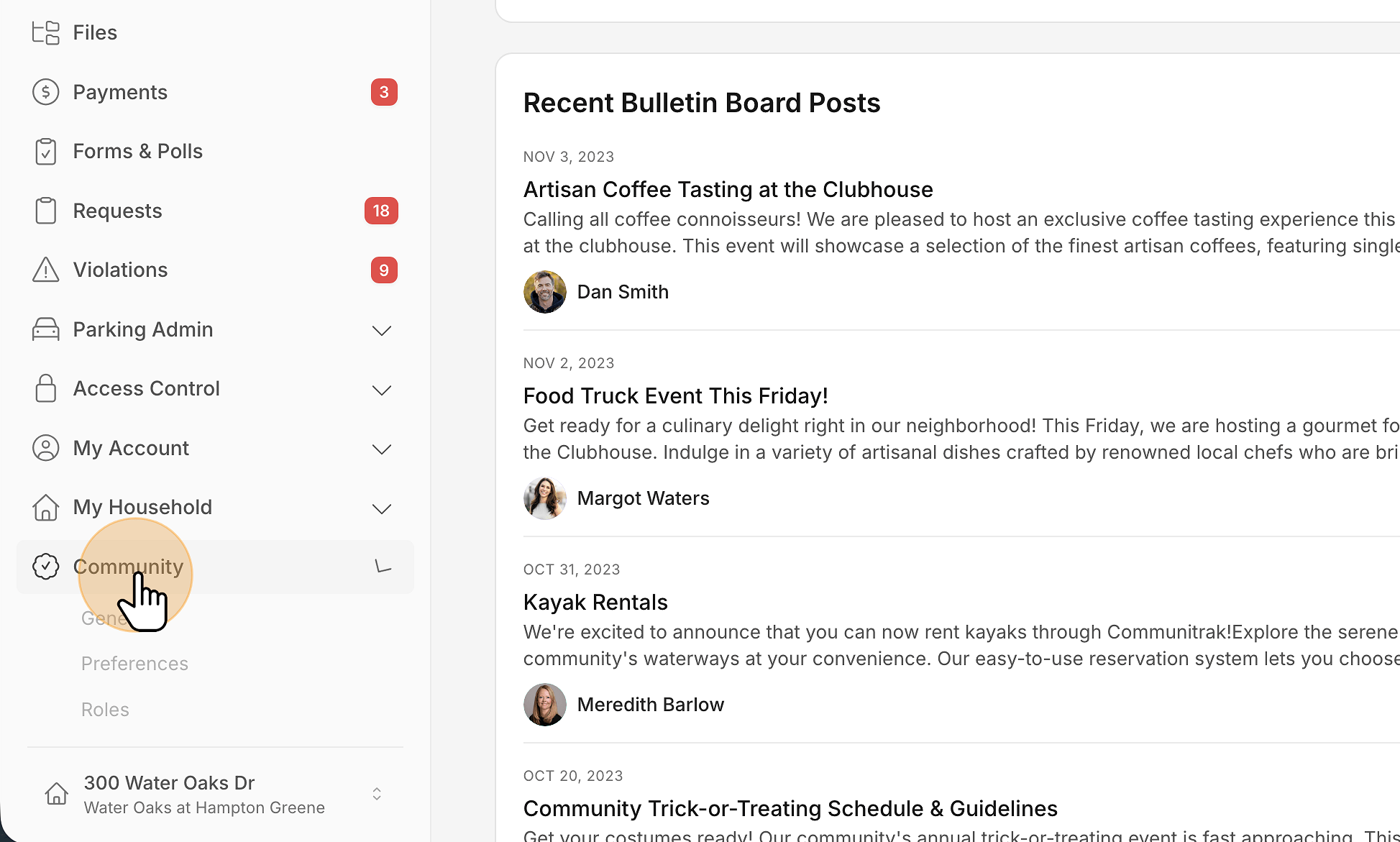
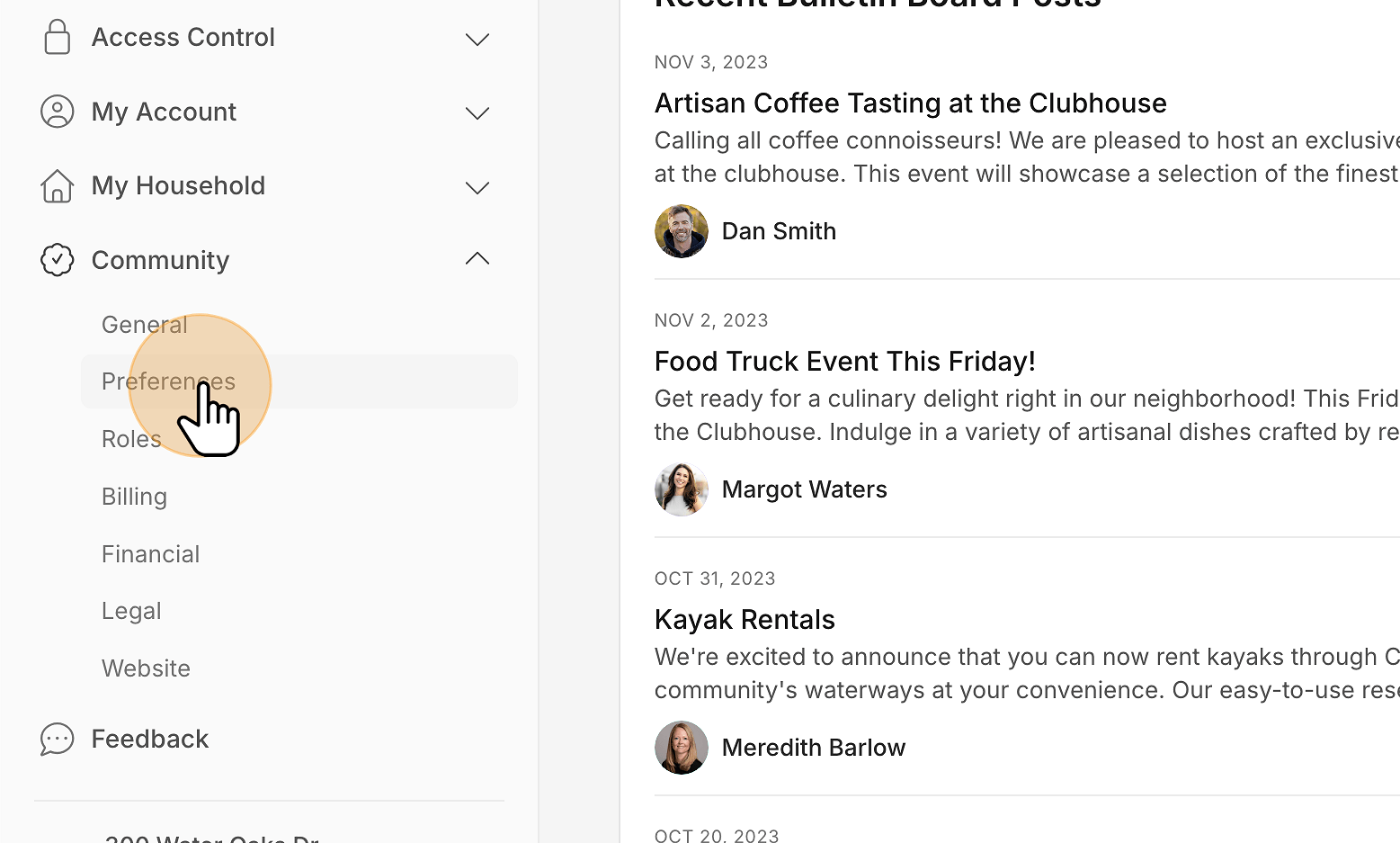
Click Preferences.
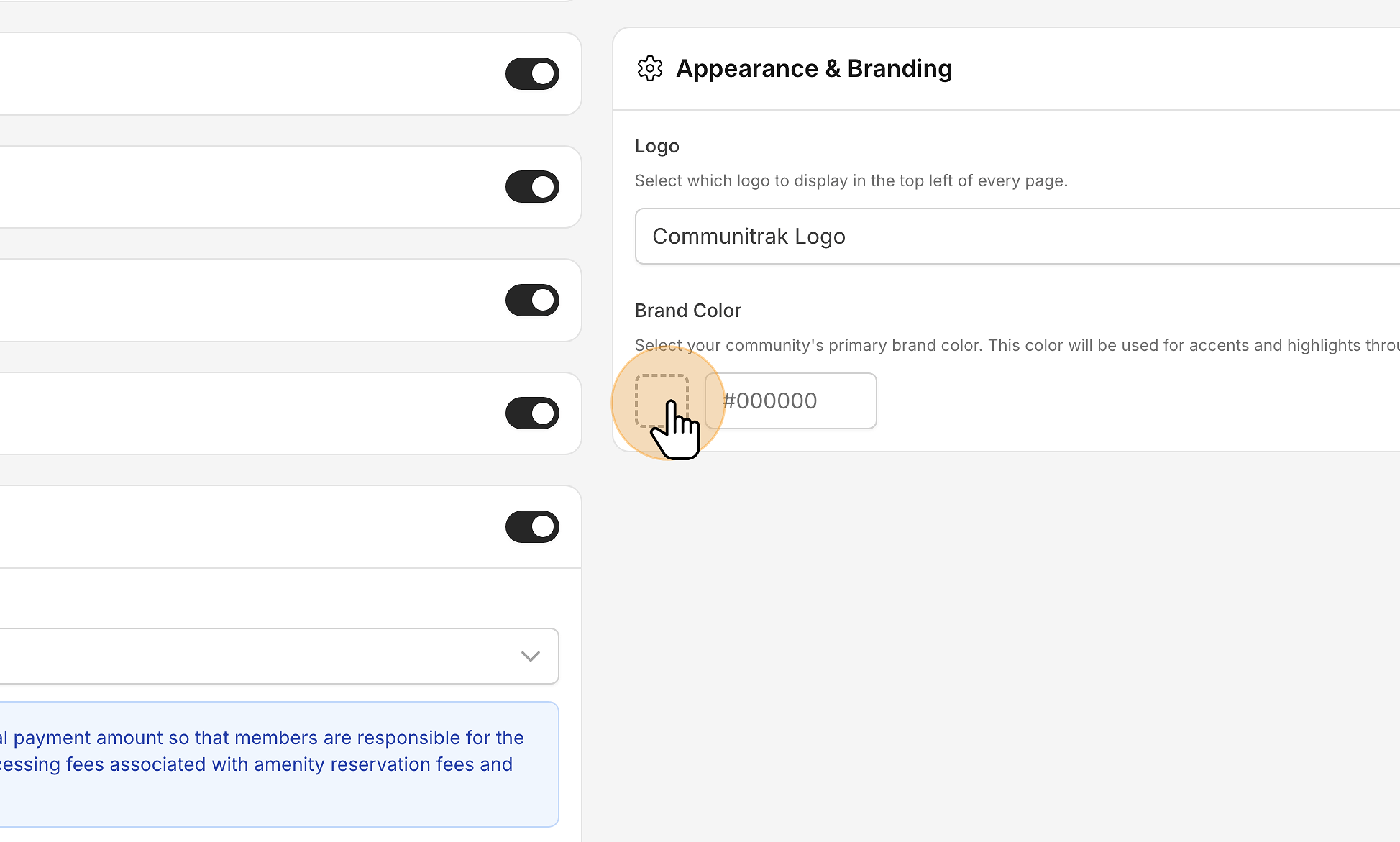
Find the Appearance & Branding card and go to Brand Color. Click the color swatch to open the color picker, then drag in the color area and along the hue slider, or type a code into the picker's hex field. If no color is set yet, the swatch is an empty dashed box. Clicking it starts you at a navy blue.
Communitrak recolors as you pick, and saves your color about a second after you stop. There's no Save button.
You can also type a hex code, such as #152E4D, into the text box beside the swatch. It saves when you click out of the box and a confirmation message appears. The code needs the # and all six digits; anything else isn't saved. A typed color is applied right away, the same as one picked with the swatch.
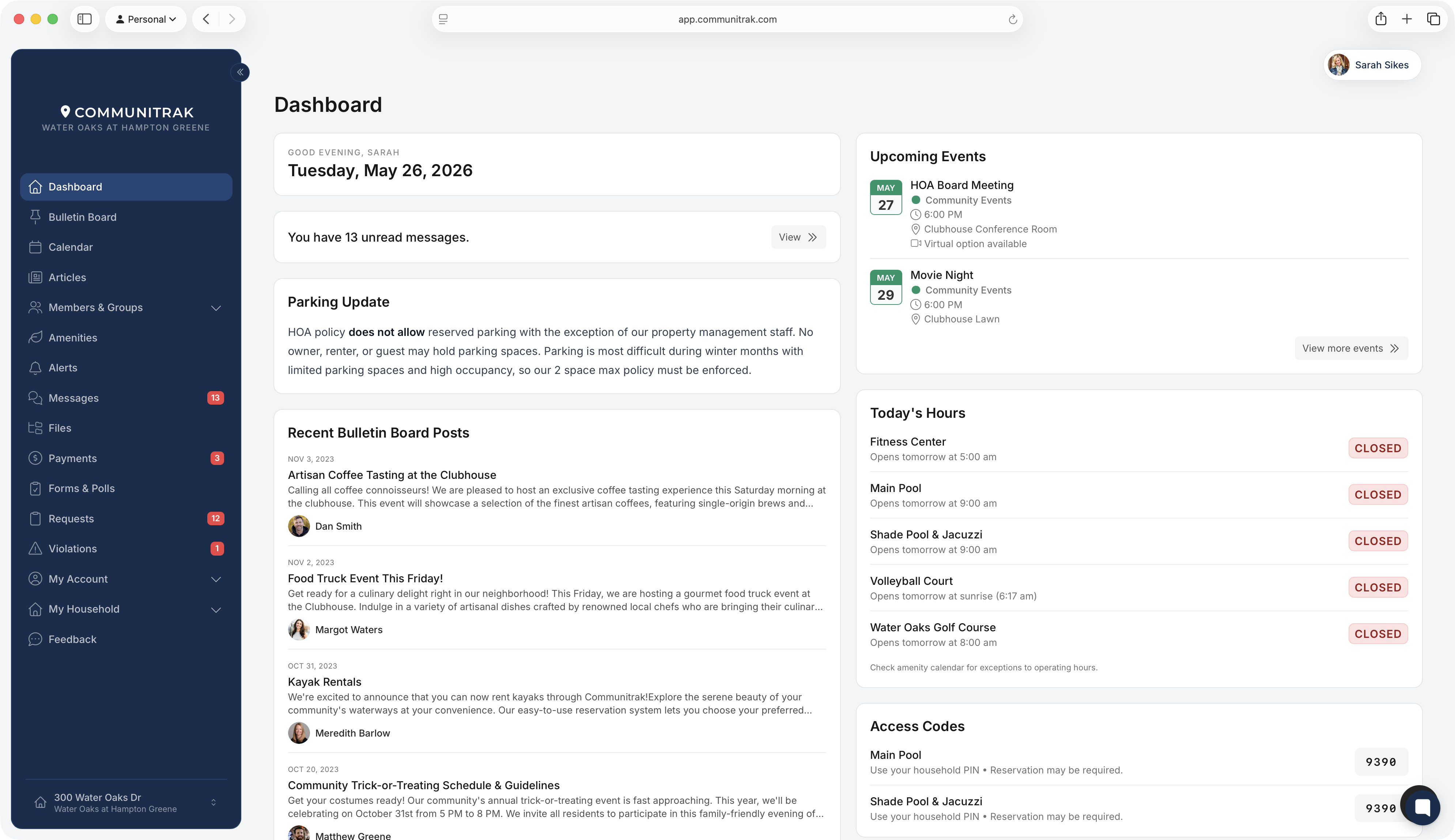
The sidebar takes on your brand color. Communitrak picks white or dark text for the sidebar automatically, so it stays readable whether your color is dark or light.
Buttons, links, switches, checkboxes, and the outline around the field you're typing in use shades of it.
Page backgrounds and loading placeholders get a faint tint of it.
In dark mode, Communitrak uses a lighter version of your color and tints the dark backgrounds to match.
Your public community website uses it for its accents.
Borders, shadows, and the gray icon tiles stay neutral, so even a bright color doesn't overwhelm the page.
Click Clear next to the hex box, or empty the box and click out of it. Communitrak goes back to its default neutral theme.
The Logo dropdown on the same card controls what appears at the top of the sidebar. It has three options:
Communitrak Logo: the Communitrak logo, with your community name below it. This is the default.
Community Name: your community's name in text. A Brand Font dropdown appears so you can choose the font.
Custom Logo: an image you upload.
Your choice saves as soon as you pick it.
Set Logo to Custom Logo. Until you upload an image, the sidebar shows your community name and the card reads "Please upload a logo."
Click Upload Custom Logo.
In the Upload Logo dialog, click Choose File and select a JPEG, PNG, or GIF up to 10 MB.
Click Upload Logo.
The new logo replaces any earlier one, and the card shows a preview. Besides the sidebar, it appears at the top of the page people see when you share a file by link.

With Community Name selected, open Brand Font and pick from 38 fonts, including serif, sans-serif, and script styles. Each option is shown in its own font, and you can type to search the list. Default (Inter) uses Communitrak's standard font.
Branding is community-wide. Everyone in your community sees the same color and logo.
Your changes show for you right away. Other members see them the next time they open or reload Communitrak.
Your public community website shows your community name at the top, not your custom logo. See "Building Your Community Website" for its other settings.
If your Communitrak subscription is in read-only status, branding controls are grayed out until billing is resolved.
For the rest of the Preferences page, see "Managing Community Preferences."
If you have questions or need help, chat with Communitrak Support from any page using the messenger icon in the bottom-right corner.
