Messages is your community's private inbox. Use it to write to your community leaders, your neighbors, or the HOA itself, and to read and answer what they send you. This article covers your inbox, writing and replying, attachments, read receipts, and archiving. If you're a leader or a group admin, see Messaging Your Community for sending to everyone, to groups, or as the HOA or a group.
Everyone in your community can open Messages and read the conversations they're part of. By default, residents can also start new messages, reply, and archive conversations. Your community controls each of these by role, through the Send New Message, Reply to Messages, and Delete Message permissions. Some options may be unavailable or appear differently depending on your level of account access.
Log in to Communitrak at https://app.communitrak.com.
Click Messages in the main navigation menu. The number on the menu item is how many unread conversations you have.
On a wide screen, your folders are in a sidebar on the left. On a phone or smaller window, they're in a drop-down at the top of the page, next to New Message.
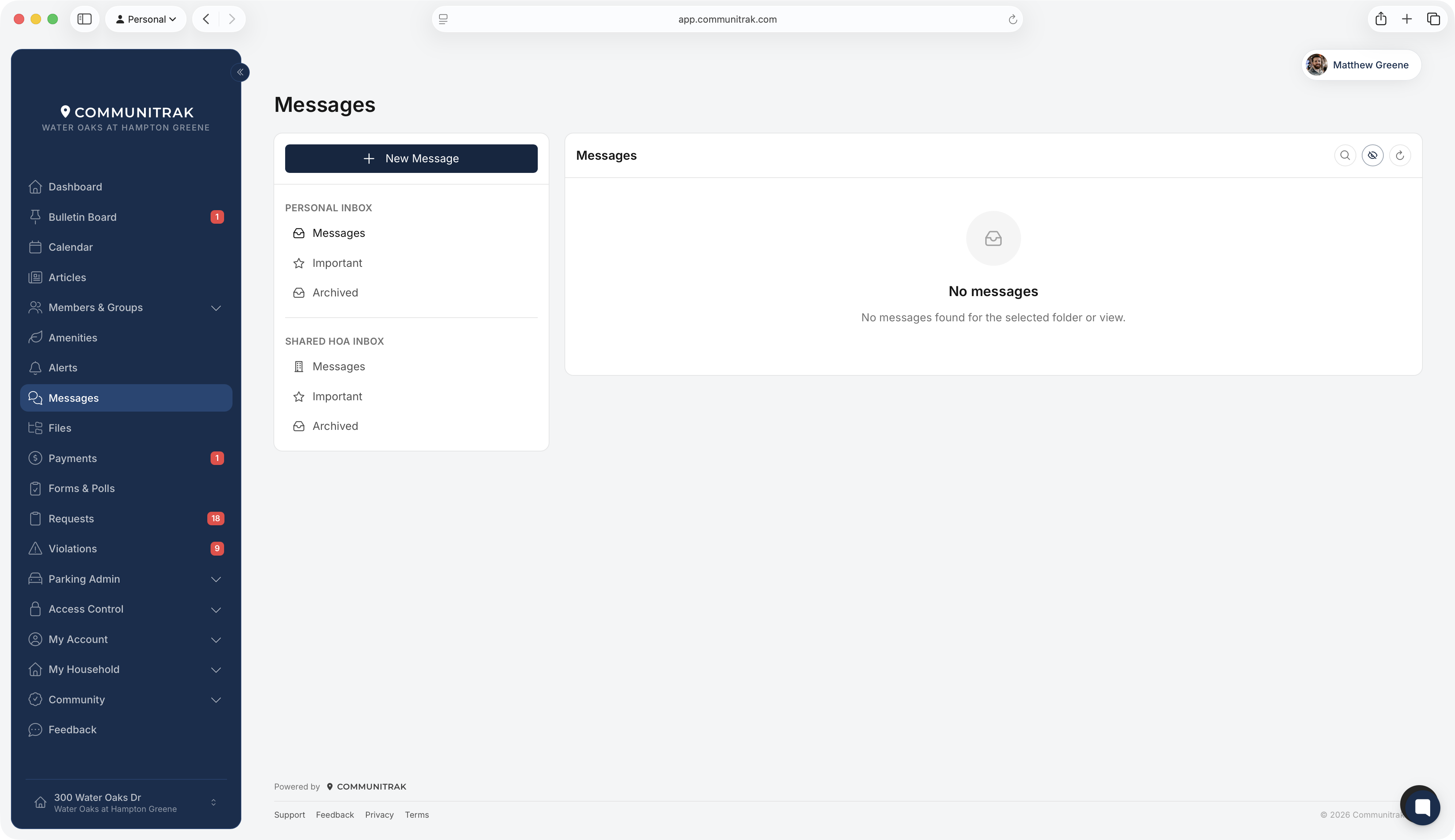
Your Personal Inbox has three folders:
Messages: every conversation you're part of that you haven't archived. The number beside it is your unread count.
Scheduled: messages you've written and set to send later. See Scheduling Messages.
Archived: conversations you've archived. They're hidden from your inbox, not deleted.
If you belong to a group that keeps a shared message history, such as your board or a committee, that group also appears under Group Inboxes. See Group Inboxes below.
Click the search icon above the message list, type, and press Enter. Search looks at conversation subjects, the latest message in each conversation, and the names of the people in it. Click the X to clear it.
Click the eye icon to show only unread conversations. Click it again to show everything.
Click the refresh icon to check for new messages.
Pages show 20 conversations at a time. Use the controls at the bottom of the list to change pages or show 10 or 50 instead.
Click any conversation to open it. Opening it marks it read. You'll see:
The subject, and everyone in the conversation, across the top.
Each message, oldest first, with the sender's name and the date and time. Messages from the HOA carry an HOA tag, and messages sent on a group's behalf carry a Group tag.
Any attached files below the message. Click one to download it, or, for a file from your community's Files, to open it there.
On messages you sent, whether they were delivered and read. See Read receipts below.
Click the back arrow to return to your folder.
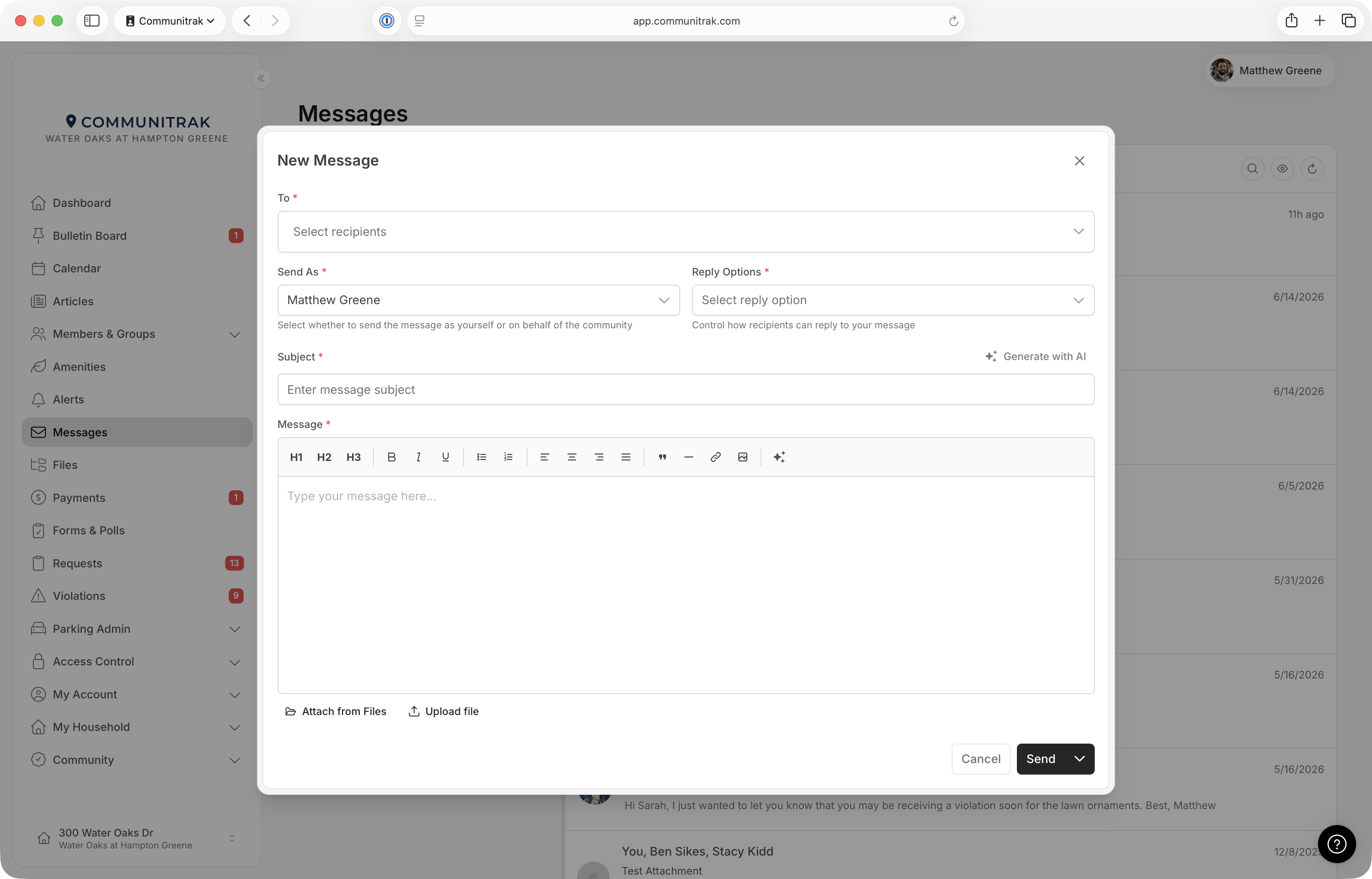
Click New Message.
Under To, choose who you're writing to. Type to search the list. Depending on your role, you'll see:
Your community's name, which writes to the HOA itself. See Message the HOA below.
All Leaders, which writes to every community leader at once.
Your community leaders, by name.
Other residents, by name, if your role allows it. A Pending tag means that person hasn't finished joining yet.
Groups, All Members, or Head of Households, only if your role allows it.
Under Reply Options, choose how people can answer:
In Thread: everyone's replies go to the whole conversation.
New Thread: each person's reply starts a private conversation with you. Useful when you're writing to several people and want their answers kept separate. It isn't available when you're writing to one person.
No replies: no one can reply.
Enter a Subject, up to 120 characters.
Write your message under Message.
To include files, use the buttons under the message:
Attach from Files: pick one or more files from your community's Files. Recipients open them in Files, so they need access to that file or folder.
Upload file: attach a file from your device, up to 25 MB. You can upload PDF, Word, Excel, PowerPoint, Pages, Numbers, Keynote, JPG, PNG, GIF, BMP, SVG, WebP, TXT, and CSV files.
Each file shows as a chip. Click its X to remove it.
Click Send. To send it later instead, click the arrow beside Send and choose Schedule send. See Scheduling Messages.
You can also start a message from a neighbor's profile or a household page in the member directory, with Send Message.

Closing the New Message or Reply window doesn't throw away what you wrote. It's kept on that device until you send it or discard it.
Click Resume Unsent Draft under New Message, or click New Message again, to pick up where you left off. A Restored your unsent message notice confirms it.
Click Start over in that notice, or Discard at the bottom of the window, to throw the draft away.
An unsent reply comes back the same way the next time you click Reply in that conversation.
Open the conversation.
Click Reply.
Write your reply under Your Reply. You can attach files the same way as a new message.
Click Send Reply.
Where your reply goes depends on how the sender set up the conversation. In a conversation with several people, the reply window tells you which applies:
Reply to All Participants: your reply goes to everyone in the conversation.
Private Reply: your reply starts a new conversation between you and the sender only, titled "Re:" plus the original subject, with their message at the top.
If a conversation shows Replies not allowed instead of a Reply button, the sender turned replies off.
When someone messages you, the email you receive includes the whole conversation and a View & Reply button. Most of these emails also say you can reply directly to the email. If yours does, your emailed reply is posted to the conversation as you, the same as replying in Communitrak. Files you attach to the email are added too.
Reply within 30 days of receiving the email. After that, open the conversation in Communitrak instead.
Emailed replies follow the same rules as replying in the app. You can't reply by email to a conversation with replies turned off, or one you no longer have access to.
If your role can't reply to messages, the email won't offer it. A reply you send anyway isn't posted, and you'll get an email saying replies from you aren't accepted.
If a file you emailed couldn't be saved, you'll get an email telling you which one and why.
Messages you send show whether they arrived and were read. Receipts appear only on your own messages.
Sent: the message went out.
Delivered: it reached the recipient.
Read: the recipient opened it. Hover over the word to see when, and whether they read it by email or in Communitrak.
Not delivered: the recipient's email address is blocked from receiving email, usually because an earlier email bounced or was marked as spam. They can still read it in Communitrak.
When a message went to more than one person, you see totals instead, such as "Delivered to 8 of 10 · Read by 5 of 10."
Archiving moves a conversation out of your inbox and into Archived. It only affects your own copy. Everyone else in the conversation still has theirs.
Open the conversation.
Click Archive, then Archive again to confirm.
To bring it back, open the Archived folder, open the conversation, and click Restore. You can't reply to a conversation while it's archived, so restore it first. Archiving requires the Delete Message permission. Nothing in Messages is permanently deleted.
To reach the HOA rather than a particular person, choose your community's name at the top of the To list. Your message goes to the Shared HOA Inbox, where your community's leaders read and answer it together, and you keep the conversation in your own inbox.
A message to the HOA can't include anyone else. Choosing the HOA clears the other people you picked, and picking someone else afterward removes the HOA.
The people who staff the Shared HOA Inbox are notified right away. When they answer, the reply comes from the HOA, under your community's name.
A group can keep its messages as a shared record, so a board's or committee's conversations stay with the group as people come and go. Each group you belong to that does this appears under Group Inboxes in the sidebar.
A group's inbox lists every conversation sent to that group alone, including ones from before you joined. A message sent to the group plus other people, or to several groups, stays a regular conversation.
If you weren't on the original message, you can read the conversation but not reply. It shows Group record · read-only.
When the group writes to someone as itself, any current member can answer the replies. See Messaging Your Community.
If you leave the group, you lose access to its conversations, including ones you wrote. The record stays with the group.
If you aren't in the group and wrote to it, you keep your own conversation either way.
When a new message or reply arrives, you're notified in Communitrak and, depending on your settings, by email and push notification. Your notification settings have two rows for this:
New messages from Leaders: messages from community leaders, the HOA, and groups writing as themselves.
New messages from Members: messages from everyone else.
Emails only go to a confirmed email address. See Email Notifications for where to change these settings.
If your household is inactive, you can still read and reply to your messages. You can only start new messages to your community leaders or the HOA.
If your community's Communitrak subscription is canceled, Messages becomes read-only. New Message and Reply are unavailable until it's restored.
If your community uses Communitrak's AI features, the sparkle buttons in Messages can suggest a subject from your message, draft a reply from the conversation, and summarize a long conversation. Conversations with five or more messages are summarized when you open them. See Using AI Features in Communitrak.
Files you upload to a message are kept for seven years after the last message in the conversation, then deleted automatically. Files attached from your community's Files stay in Files.
A conversation with more than two people shows how many members are in it, such as "12 members," in the message list.
If you have questions or need help, chat with Communitrak Support from any page using the messenger icon in the bottom-right corner.
