The Shared HOA Inbox is the HOA's own mailbox. It holds every conversation sent under your community's name and every message a resident sends to the HOA. Everyone who staffs it sees the same conversations, so any of them can pick one up, and the answer comes from the HOA rather than from one person.
Reading and answering the inbox requires the View HOA Shared Inbox permission. If your community has chosen a group to staff the inbox, its current members can read and answer it too.
Starting a new message under your community's name requires the Send New Message as HOA permission. Staffing the inbox through a group doesn't grant this.
The Community Admin and Community Leader roles start with both permissions. The Resident role has neither.
Some options may be unavailable or appear differently depending on your level of account access.
Log in to Communitrak at https://app.communitrak.com.
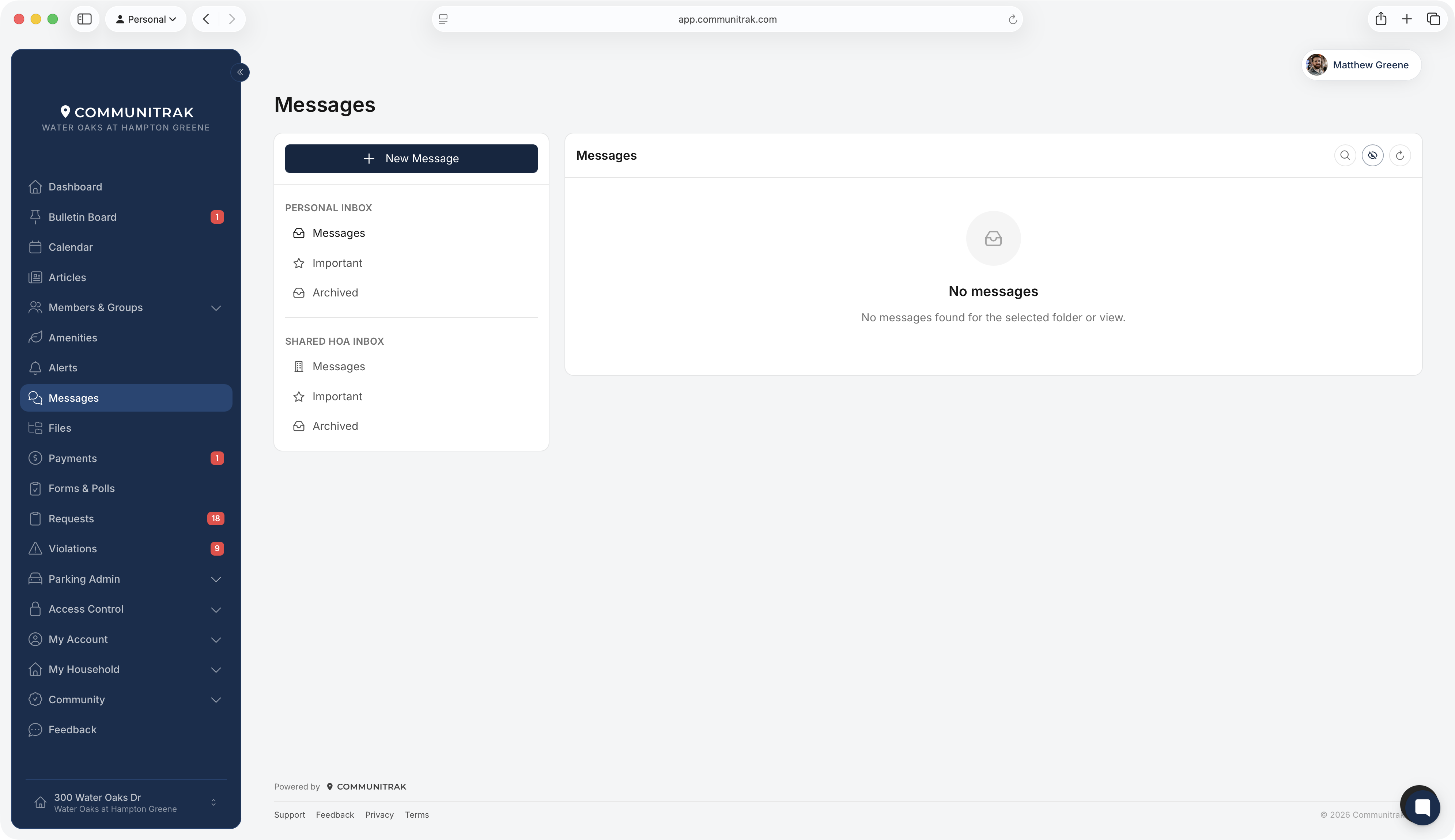
Click Messages in the main navigation menu.
Under Shared HOA Inbox, below your Personal Inbox, click a folder. On a phone or smaller window, choose it from the folder drop-down instead, where these folders start with "HOA:".
The Shared HOA Inbox has the same three folders as your Personal Inbox:
Messages: every HOA conversation that hasn't been archived. The number beside it is how many are unread.
Scheduled: messages anyone has scheduled to send under your community's name. See Scheduling Messages.
Archived: HOA conversations that have been archived.
Messages sent under your community's name. Recipients see the community as the sender, in Communitrak and in their email. They don't see which leader wrote it. Messages from the HOA carry an HOA tag in the conversation.
Messages residents send to the HOA. A resident writes to the HOA by choosing your community's name in the To list. The conversation arrives here under the resident's name, and they keep a copy in their own inbox.
Replies to either. When someone replies to an HOA conversation, it comes back here.
HOA conversations live here, not in your Personal Inbox, so a message you send as the community won't appear in your personal folders.
When a resident writes to the HOA, or anyone other than the HOA replies in an HOA conversation, everyone who staffs the inbox is notified by email, push, and the notification bell. The email's Open in HOA Inbox button takes you to the conversation. You can't answer by replying to that email, so your answer always comes from the HOA. Opening the conversation in the Shared HOA Inbox clears the notification.
In the Shared HOA Inbox, click New Message. Starting from here sets Send As to your community's name. From your Personal Inbox, it starts on your own name, so change it.
Choose recipients, a reply option, a subject, and your message, the same as any message. The recipients you can choose still depend on your own role.
Check that the button reads Send as HOA, then click it.
The conversation appears in the Shared HOA Inbox for everyone who staffs it. For more on recipients and reply options, see Messaging Your Community.
Open the conversation from the Shared HOA Inbox.
Click Reply. The Reply As field starts on your community's name.
Write your reply. To answer as yourself instead, choose your own name under Reply As.
Click Send as followed by your community's name.
Anyone who staffs the inbox can reply as the community, including members of a staffing group without the Send New Message as HOA permission. If you open the same conversation from your Personal Inbox, Reply As starts on your own name, so check it before sending.
On messages sent as the HOA, everyone who staffs the inbox sees the delivery and read totals, wherever they open the conversation. Click the totals to open Message Receipts, which lists each recipient with when it was delivered and read.
Archiving a conversation from the Shared HOA Inbox archives it for everyone who staffs the inbox. It moves to the inbox's Archived folder, where anyone on the inbox can open it and click Restore. Archiving requires the Delete Message permission.
By default, the people whose role has the View HOA Shared Inbox permission staff the inbox, and you don't need to set anything up. If you'd rather the inbox follow your board as people join and leave it, you can also choose a member group to staff it. This requires the Update Community Preferences permission.
Go to Community > Preferences.
In the Messages section, open Shared HOA Inbox staff and choose the group, listed as the group's name followed by "plus roles with HOA inbox access."
Click Use this group to confirm.
The group's current members can read and answer the inbox, see its past conversations, send or cancel its scheduled messages, and get notified when residents write in. Starting a new message as the community, or editing one scheduled to send as the community, still requires the Send New Message as HOA permission.
Anyone who leaves the group loses that access, unless their role has the View HOA Shared Inbox permission.
Roles with the permission keep their access either way. To limit the inbox to the board, remove the permission from those roles.
To go back, choose Roles with HOA inbox access only (default) and click Use roles only.
Everyone who staffs the inbox sees every HOA conversation, including ones other leaders started.
The Shared HOA Inbox isn't shown to members whose household or membership is inactive, even if their role has the permission.
A resident's message to the HOA can't include anyone else, so it always starts as a conversation between that resident and the HOA.
If you have questions or need help, chat with Communitrak Support from any page using the messenger icon in the bottom-right corner.
