The Payments page shows every charge posted to your household, what's still unpaid, and your payment history. When you owe something, you can pay it online in a few steps. To save a card or bank account, or to set up automatic payments, see Payment Methods and Auto Pay.
Everyone in your household can see the Payments page when your community uses Communitrak for payments. Paying requires the Make a Payment permission. Some options may be unavailable or appear differently depending on your level of account access.
Log in to Communitrak at https://app.communitrak.com.
Click Payments in the main navigation menu.
If you have unpaid charges, the Payments link shows a badge with how many.
On the left is your household's transactions table. On the right are three cards: Account Balance, Payment Methods, and Auto Pay.
The Account Balance card shows the total of your household's unpaid charges. When you owe money it shows as a negative amount in red, such as -$250.00. When everything is paid, it shows $0.00.
The balance includes every unpaid charge, including ones that aren't due yet. If your community posts several months of dues at once, they all count toward your balance right away.
The table lists every charge posted to your household, with its Date, Description (with the merchant underneath), Amount, and Status. Charges show as positive amounts in red, and refunds and credits as negative amounts in green.
Above the table you can search, filter by time period, filter by status, and sort. The statuses are:
Unpaid: not paid yet.
Past Due: still unpaid after your community's grace period. A charge becomes past due only once that grace period (often 30 days) has passed since its due date.
Pending: a bank (ACH) payment that's still clearing.
Paid, Refunded, or Voided: settled, refunded by your community, or cancelled by your community.
Click any row to open the Transaction Details dialog. It shows the charge's ID, created date, and due date. For paid charges it also shows the Payment Status, Date Paid, Confirmation #, Charge ID, Payment Method, Payment Amount, and Processed By: Self, Auto Pay, or the name of the leader who recorded it.
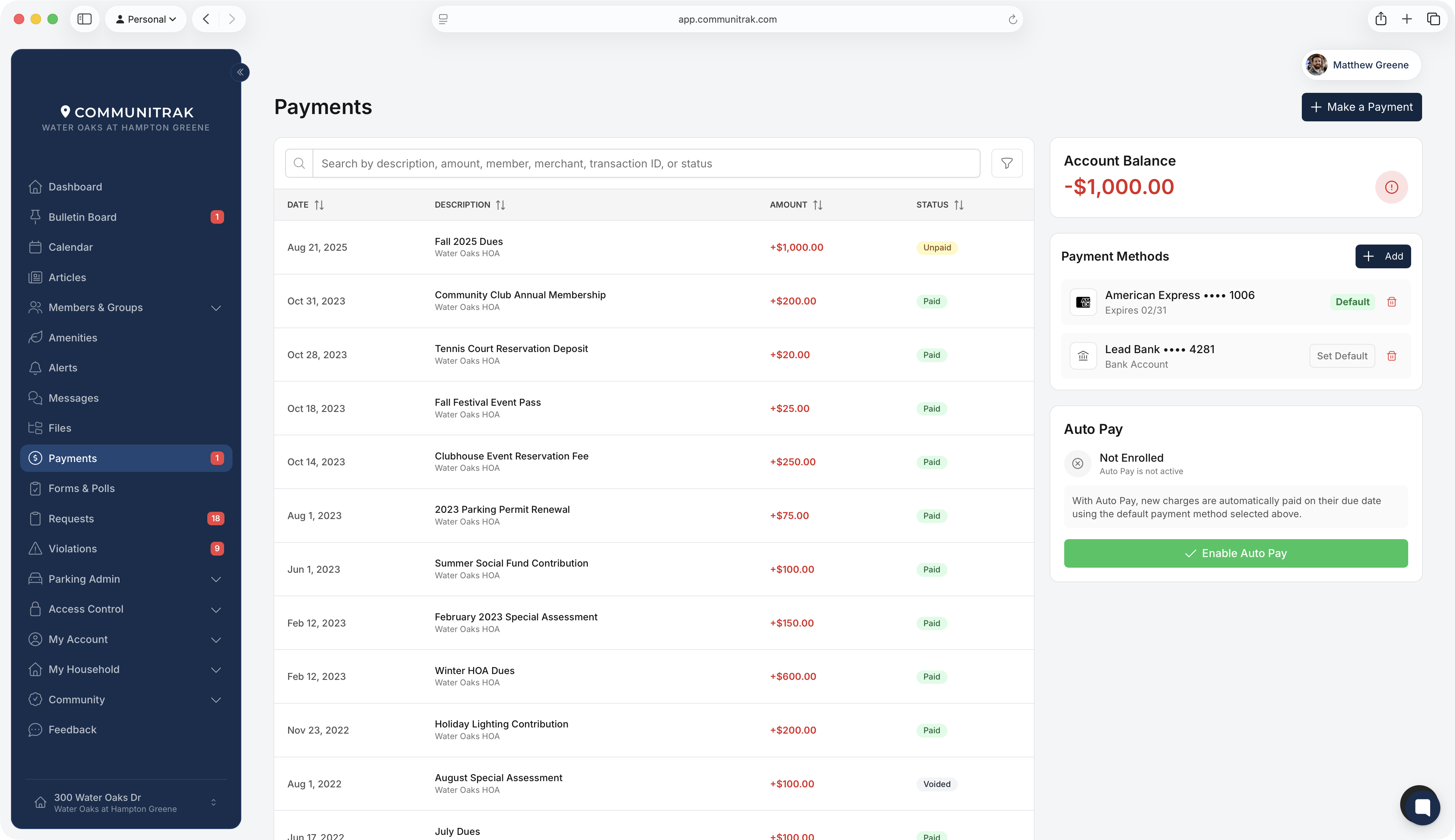
The Make a Payment button appears at the top right of the Payments page when you owe money. You need at least one saved payment method; if you don't have one, Communitrak asks you to add it first.
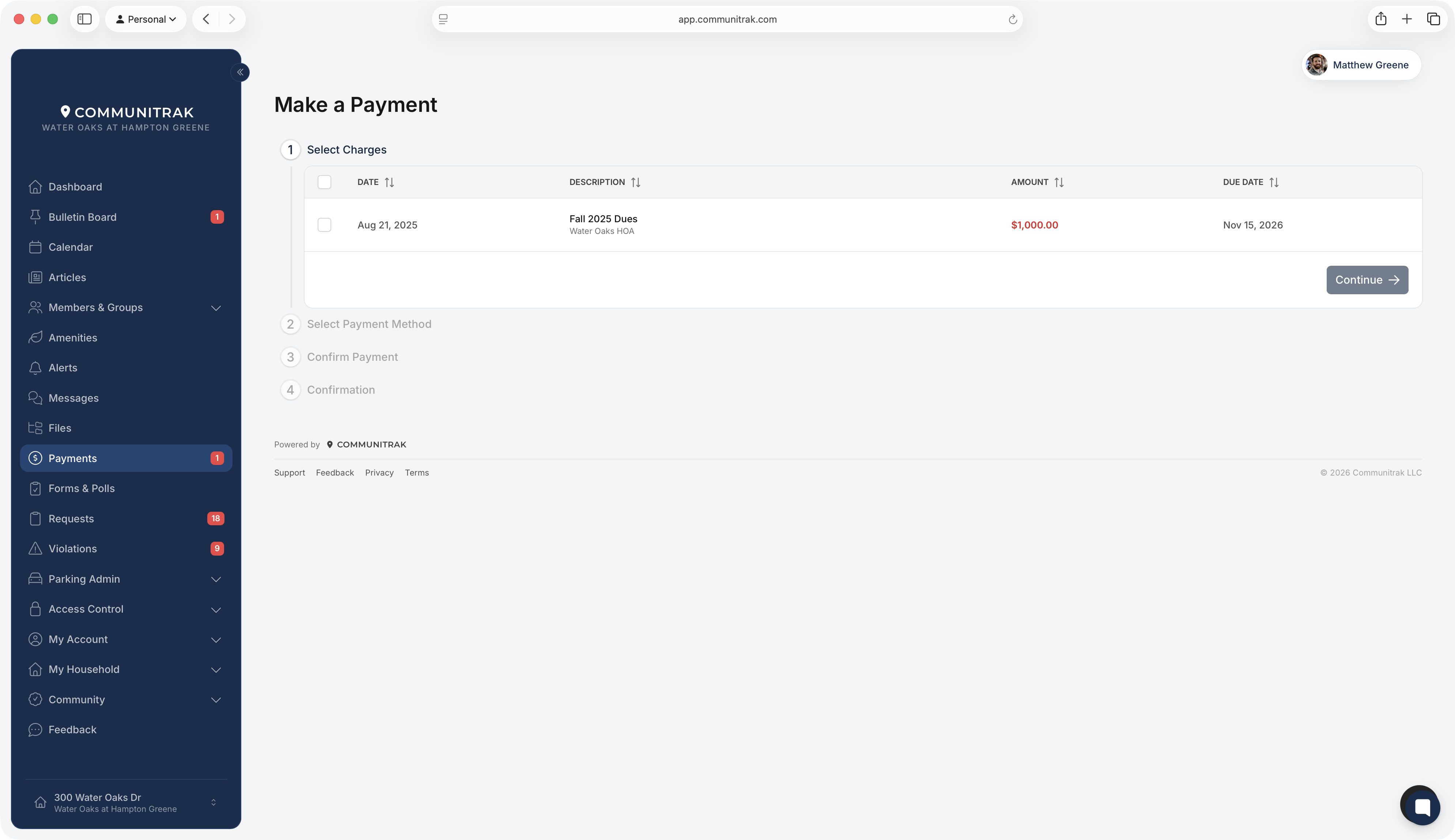
Review your unpaid charges. Each row shows the date, description, amount, and due date, and past-due charges have a Past Due badge.
Check the charges you want to pay. You can pay some now and the rest later, but each charge is paid in full.
Click Continue.
Choose a saved card or bank account. A bank account marked Pending still needs to be verified. Verify it before using it, as described in Payment Methods and Auto Pay.
Click Continue.
Review the summary: Total Charges, Processing Fee, and Total Payment. Then click the green Pay button, which shows the total, for example Pay $250.00.

Card payments show Payment Successful. Bank account payments show Payment Submitted, because they take a few days to clear. The screen shows the amount paid, how many charges were paid, the date, and a Confirmation #. Click Return to Payments to go back.
You get a Payment Confirmation email right away.
Bank account (ACH) payments usually take 3 to 5 business days to clear. The charges show as Pending until then, and you get a second email when the payment clears.
If a bank payment fails, for example because of insufficient funds, the charges go back to Unpaid and you're notified by email and in Communitrak. Pay them again with Make a Payment.
Choose which emails and texts you get about charges and payments under Account > Notifications > Financial: New Charges and Payment Confirmations.
If you paid by check or cash, a Community Leader records the payment. The charge then shows as Paid, with the leader's name under Processed By.
Amenity reservation fees and deposits are paid when you book, not from the Payments page.
If you belong to more than one household, the Payments page shows the household you're currently viewing. Switch households to see the other one.
If you see "Payments are unavailable," your community is still finishing its payment setup. Your charges stay on the page and can be paid once setup is complete.
Questions about a specific charge, such as the amount or a refund, go to your Community Leaders. Communitrak Support can't change or refund your community's charges.
If you have questions or need help, chat with Communitrak Support from any page using the messenger icon in the bottom-right corner.
