Bulk charges let you post the same charge to many households or members at once, such as quarterly dues or a special assessment. To charge one member or household, see Posting a Charge to a Member or Household.
Viewing the Bulk Charges page requires the View Community Financials permission. Posting a new bulk charge requires the Create Bulk Charge permission. Some options may be unavailable or appear differently depending on your level of account access.
The Financial module must be turned on and payments must be enabled. See Enabling Payments.
To charge a specific set of members, create a member group for them first.
Log in to Communitrak at https://app.communitrak.com.
Click Community in the main navigation menu.
Click the Financial tab.
In the Reporting card, click Bulk Charges.
The page lists your community's 50 most recent bulk charges. A note at the top reads: "This list shows batch assessments only. To review or act on a single charge, use Charge management."
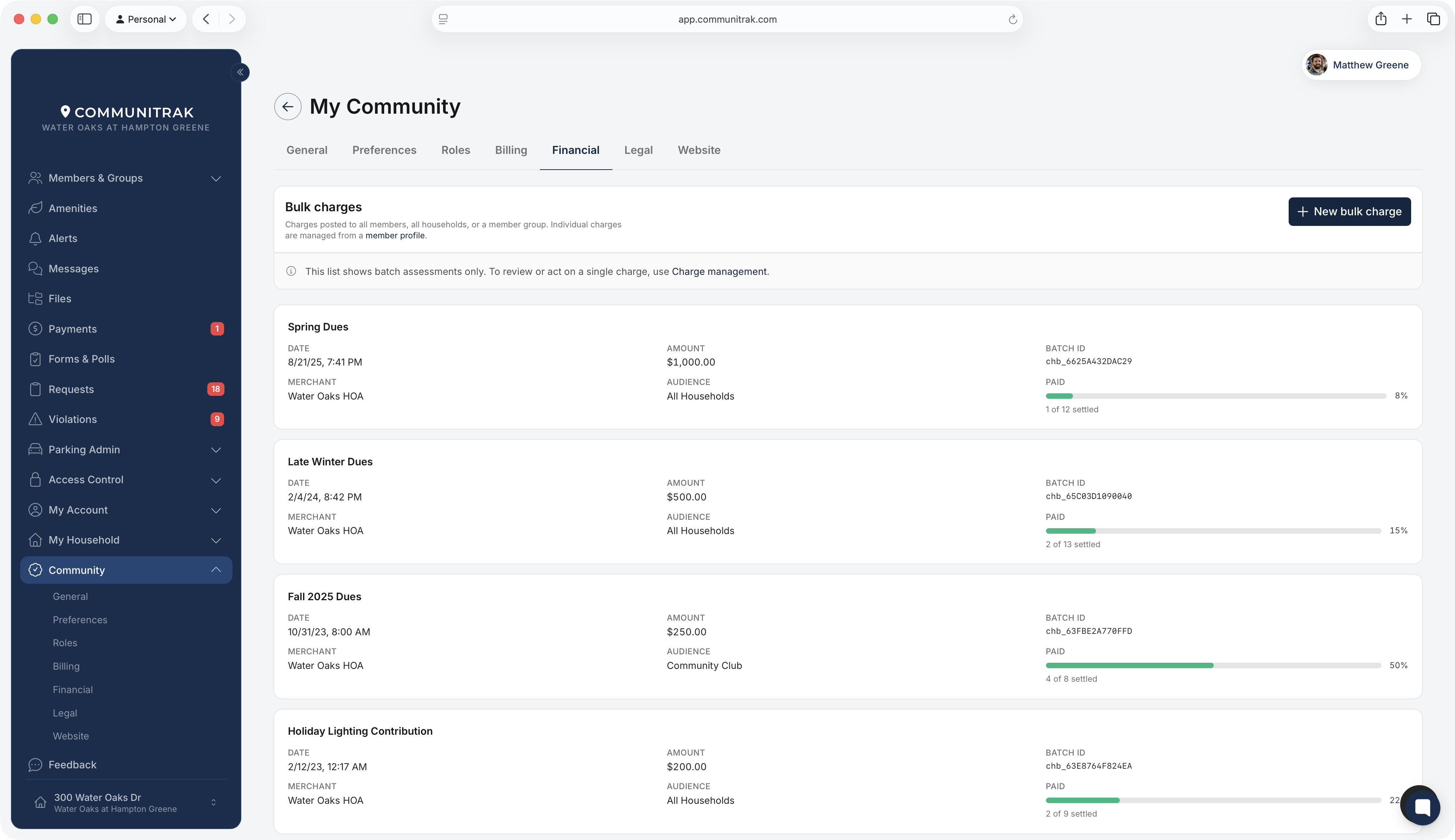
Each bulk charge appears as a card showing:
Description: the charge description, for example "Q3 2026 Dues."
Date: when the batch was posted.
Amount: the amount charged to each recipient.
Batch ID: a unique number for the batch.
Merchant: your community's payment account.
Audience: who was charged. "All Households," "All Users" (every individual member), or a member group's name. A member group charged once per household shows "(Households)" after its name.
Paid: a progress bar and count of how many charges in the batch have been paid, for example "5 of 10 settled."
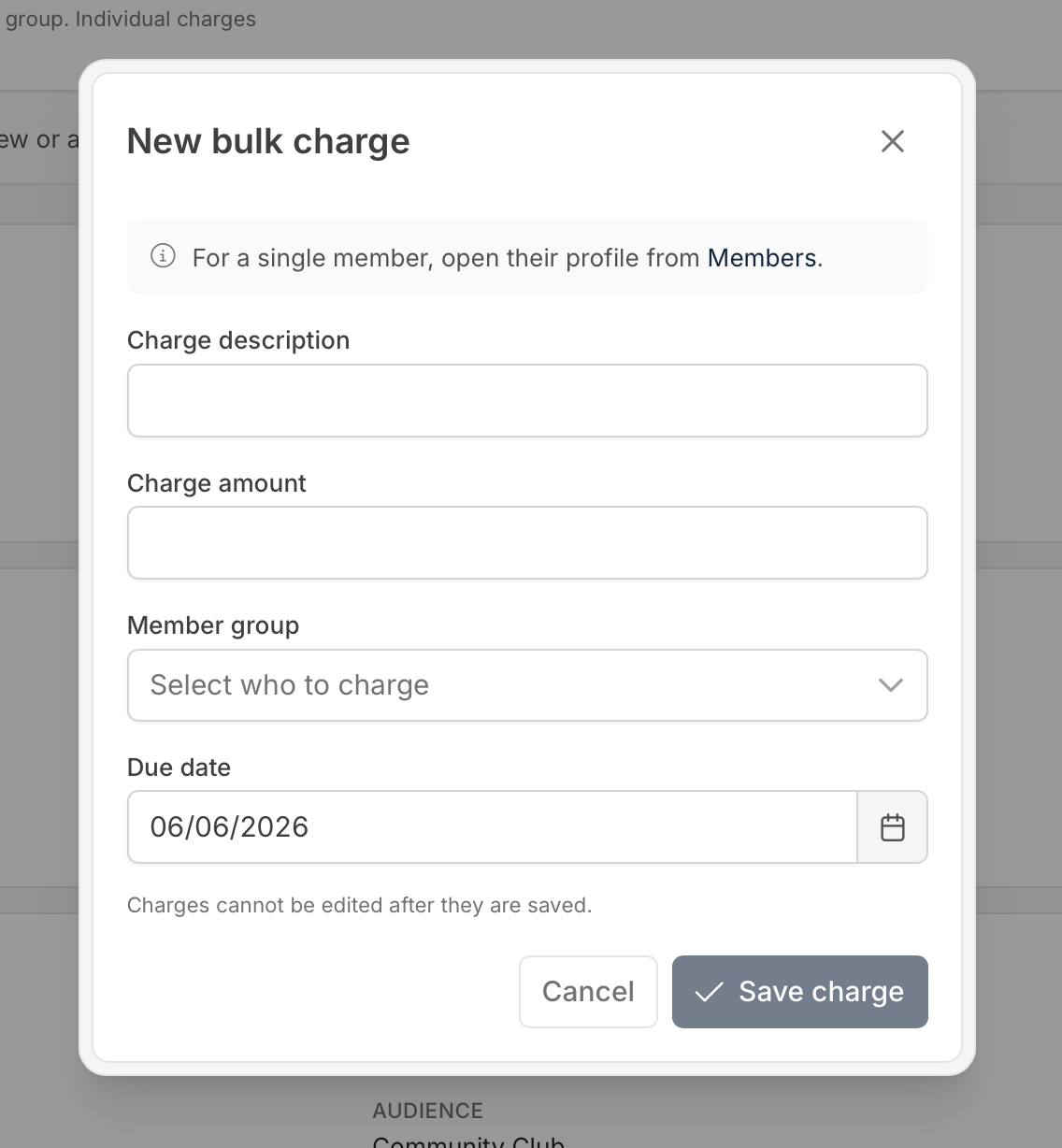
Click New bulk charge at the top of the page.
Enter a Charge description. Residents see this on their Payments page and in their notification.
Enter the Charge amount for each recipient. The minimum is $0.01.
Choose who to charge from Member group:
Default groups: "All Households (one charge per household)" or "All HOA Members (every individual member)."
Member groups (every individual member): one charge for each person in the group.
Member groups (one charge per household): one charge for each household that has a member in the group.
Choose the Due date. It starts at today plus your community's default number of days.
Leave Notify members checked to notify each recipient by email, text, or push, based on their own notification settings. Uncheck it to post the charges without sending anything.
Click Save charge.

Each recipient's charge appears on their Payments page right away, and in Charge Management.
If Notify members was checked, recipients are notified within a few minutes of posting, not closer to the due date. Communitrak doesn't send a separate reminder as the due date approaches.
Households enrolled in Auto Pay are charged automatically on the due date.
The batch card's progress bar updates as residents pay.
There's no way to edit or delete a whole batch. To correct one, void each charge in Charge Management (this requires the Manage Charges permission), then post a new bulk charge with the right details. Search Charge Management for the charge description to find all of the batch's charges quickly.
"All Households" posts one charge per household. "All HOA Members" posts a charge for every individual member, so a household with three members gets three charges.
Both default groups include pending households and members (people who have been invited but haven't joined yet) as well as active ones.
Voided and refunded charges never count as settled, so a batch with a voided charge won't reach 100%.
Change the default due date under Community > Preferences > Financial, in How many days before a new charge is due?
To bill on a monthly, quarterly, or annual schedule, see Billing Dues Monthly, Quarterly, or Annually.
If you have questions or need help, chat with Communitrak Support from any page using the messenger icon in the bottom-right corner.
