Your community uses forms and polls to collect information, votes, signatures, documents, and sometimes payments. This article walks through finding a form, filling it out, what each kind of question looks like, and how to see what you've already submitted.
Any active member can fill out a form or poll that is open and meant for them. Your community decides who each form is for: everyone, certain roles, or certain groups. If a form isn't in your list, it isn't open to you. Some options may be unavailable or appear differently depending on your level of account access.
Log in to Communitrak at https://app.communitrak.com.
Click Forms & Polls in the main navigation menu.
You'll see every form currently open to you. Pinned forms are at the top, and the rest are grouped by category. Each card shows the form's title and who it's for.
If someone sent you a link to a form, opening it takes you straight there (after you log in).
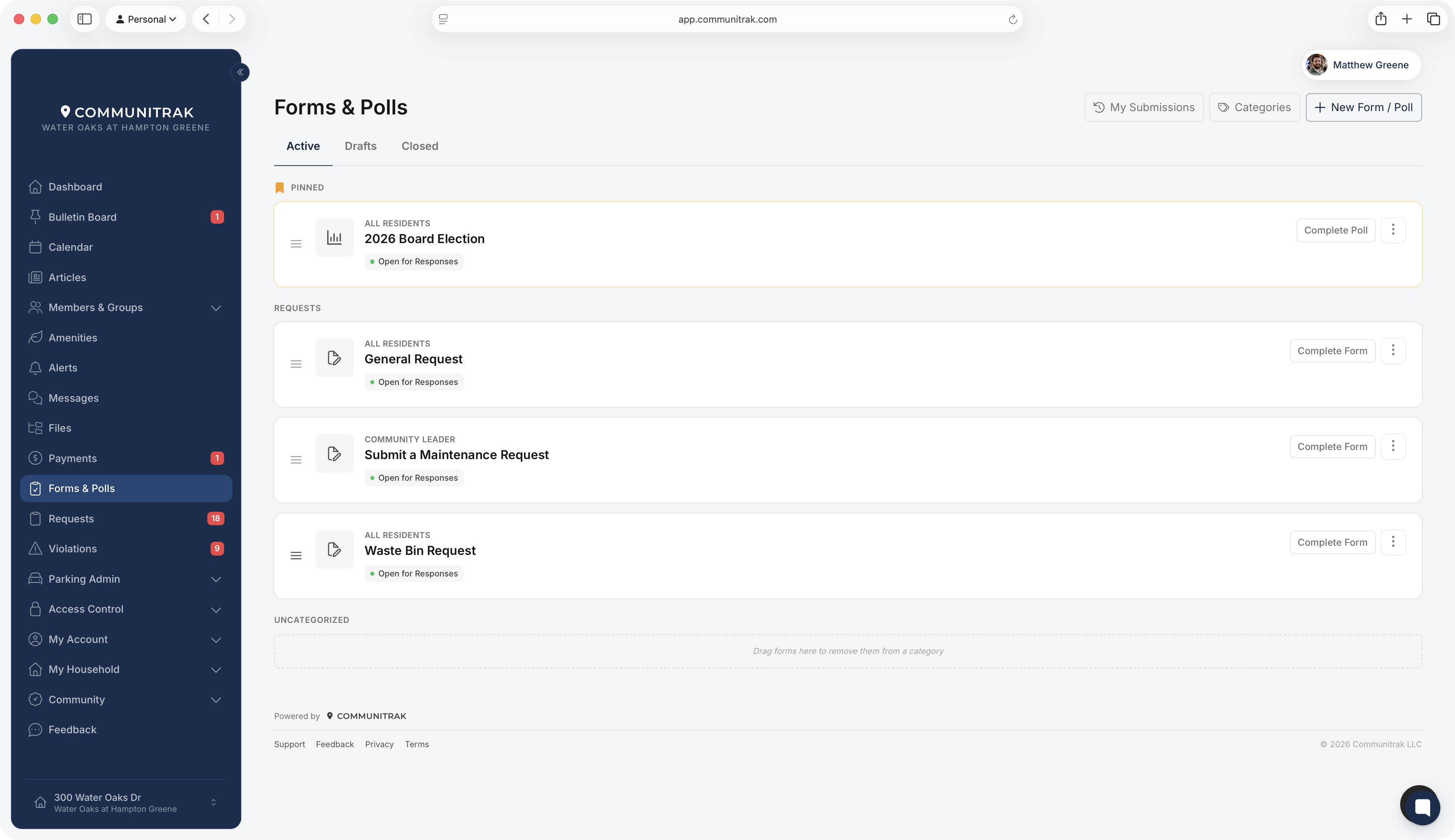
Click the form's title, or click Complete Form (or Complete Poll) on its card.
Answer each question. Required questions are marked with a red asterisk (*). The question types are described below.
Click Submit at the bottom of the page.
A Submission Received message confirms it went through. Click View My Submissions to see your answers, or Done to go back to the forms list.
If you missed something, a message at the top of the screen tells you which question needs attention, for example "Please answer question 3." Fix it and click Submit again.

If you've already submitted a form that allows more than one response, a banner at the top reads "You've submitted this form before" with the date. Click View Response to see your past submissions.
Some forms create a request for your community leaders when you submit them, for example an architectural review application. These forms usually start with one or two extra questions:
Please select the impacted area: choose Household, Amenity, or Other.
Household: pick the home the request is about. Usually that's your own, and if you have only one it's already selected. Some forms let you choose another household, for example to report a problem at a neighbor's home.
Amenity: pick the pool, clubhouse, or other amenity.
Other: type a short name for the place, such as "Main entrance."
What kind of work is this?: on some architectural forms, choose the type of project.
After you submit, the confirmation says "Your request has been filed," and the View my request button takes you to it. From there you can follow its progress, comment, and add files like any other request. See Submitting and Tracking Requests.
Some communities send everyone through a form for certain kinds of requests. If clicking New Request takes you to a form, that's why.
Short Answer: a single line of text.
Paragraph: a larger box for longer answers.
Number: a number. If there's an allowed range, a hint below the box tells you, for example "Enter a number between 1 and 10."
Date: type a date or pick one from the calendar.
Multiple Choice: pick one option.
Dropdown: pick one option from a list.
Checkbox: a single box to tick, usually next to a statement such as "I agree to the pool rules." If it's required, you must tick it to submit.
Multi-Select: tick as many options as allowed. A hint tells you how many to choose, for example "Select up to 3 options." Once you reach the limit, the remaining boxes are disabled.
Property: search for and pick a property address in your community.
Signature: sign in the box with your mouse or finger. Click Clear to start over.
File Upload: click Upload File and choose one file, up to 10 MB. PDFs, Word, Excel, and PowerPoint files, images (JPG, PNG, GIF, BMP), and text files are accepted. If a file is too large or isn't an accepted type, a message under the button tells you why. Click the × to remove a file and choose another.
Payment: see the next section.
Text blocks: instructions or information from your community. They aren't numbered and don't need an answer.
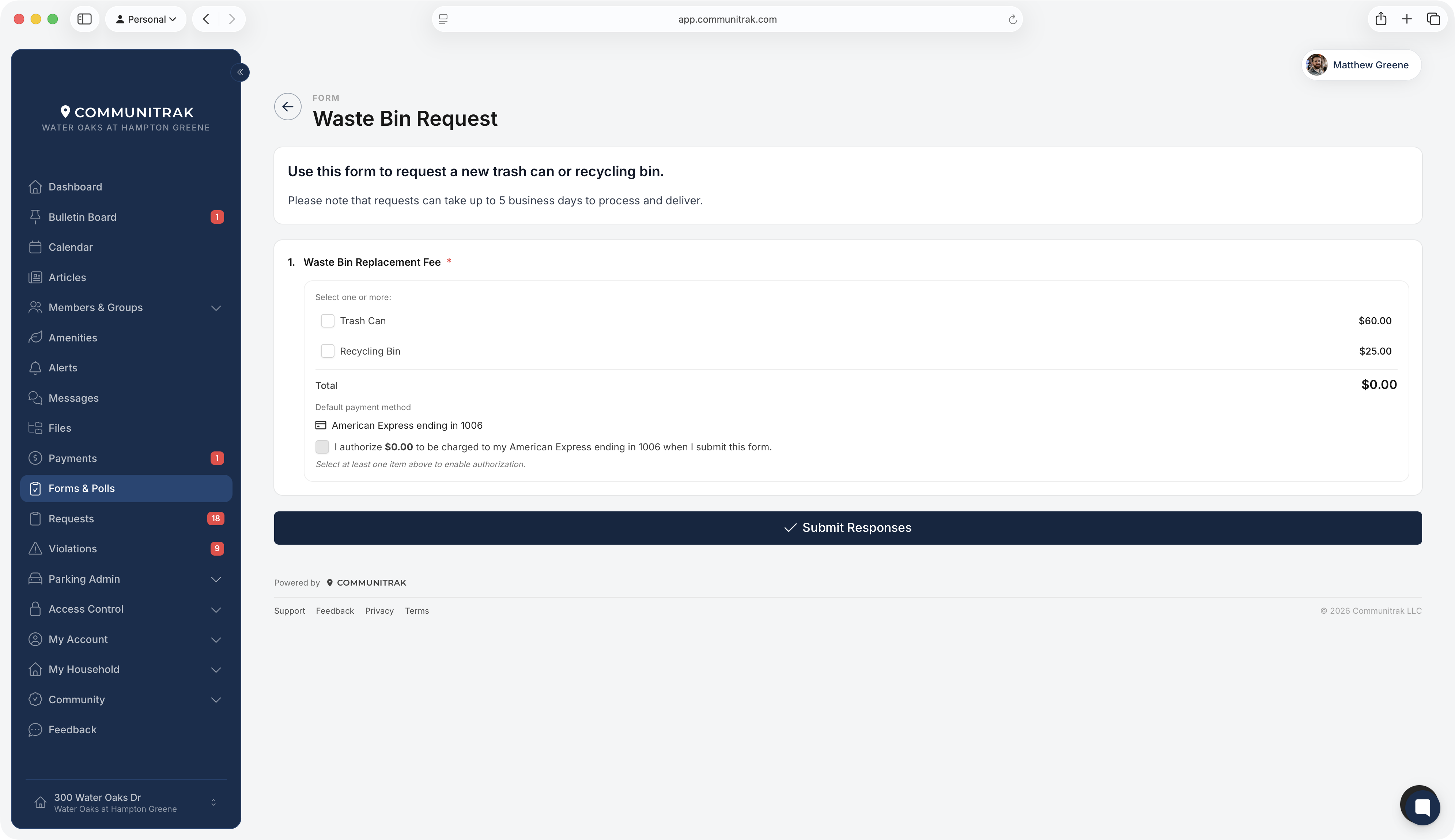
Some forms charge a fee, for example for a pool key or an application. The payment question lists the items and their prices.
Select the items you're paying for. If there's only one, it's already selected. The Total updates as you choose.
If your community passes card and bank processing fees on to residents, you'll see a Subtotal, a Processing fee, and a Total that includes the fee. The fee depends on whether you pay by card or bank account.
Below the total, Communitrak shows your Default payment method, for example "Visa ending in 4242."
Tick the box that reads "I authorize [total] to be charged to my [card or bank] ending in [last four digits] when I submit this form." When a fee applies, it reads "I authorize [total] (including a [fee] processing fee)…".
Click Submit. You're charged the total you authorized, at the moment you submit.
Things to know about paying through a form:
The form always uses your default payment method. To pay with a different card or bank account, go to the Payments page and click Set Default on the one you want before you fill out the form. See Payment Methods and Auto Pay.
If you don't have a payment method saved, the form asks you to add one first. Add it on the Payments page, then come back to the form.
If your card is declined, nothing is submitted. A message explains what happened, so you can fix it or set a different default and try again.
If the total changes before you submit (for example, your community updates its fees), nothing is charged. You'll be asked to review the new total and tick the authorization again.
The payment appears on your household's Payments page, described by the items you chose. Its Payment Amount includes any processing fee.
Bank account payments take a few days to clear and show as Pending until they do.
Refunds are made by your community leaders. A refunded payment shows Refunded in My Submissions.
Click Forms & Polls in the main navigation menu.
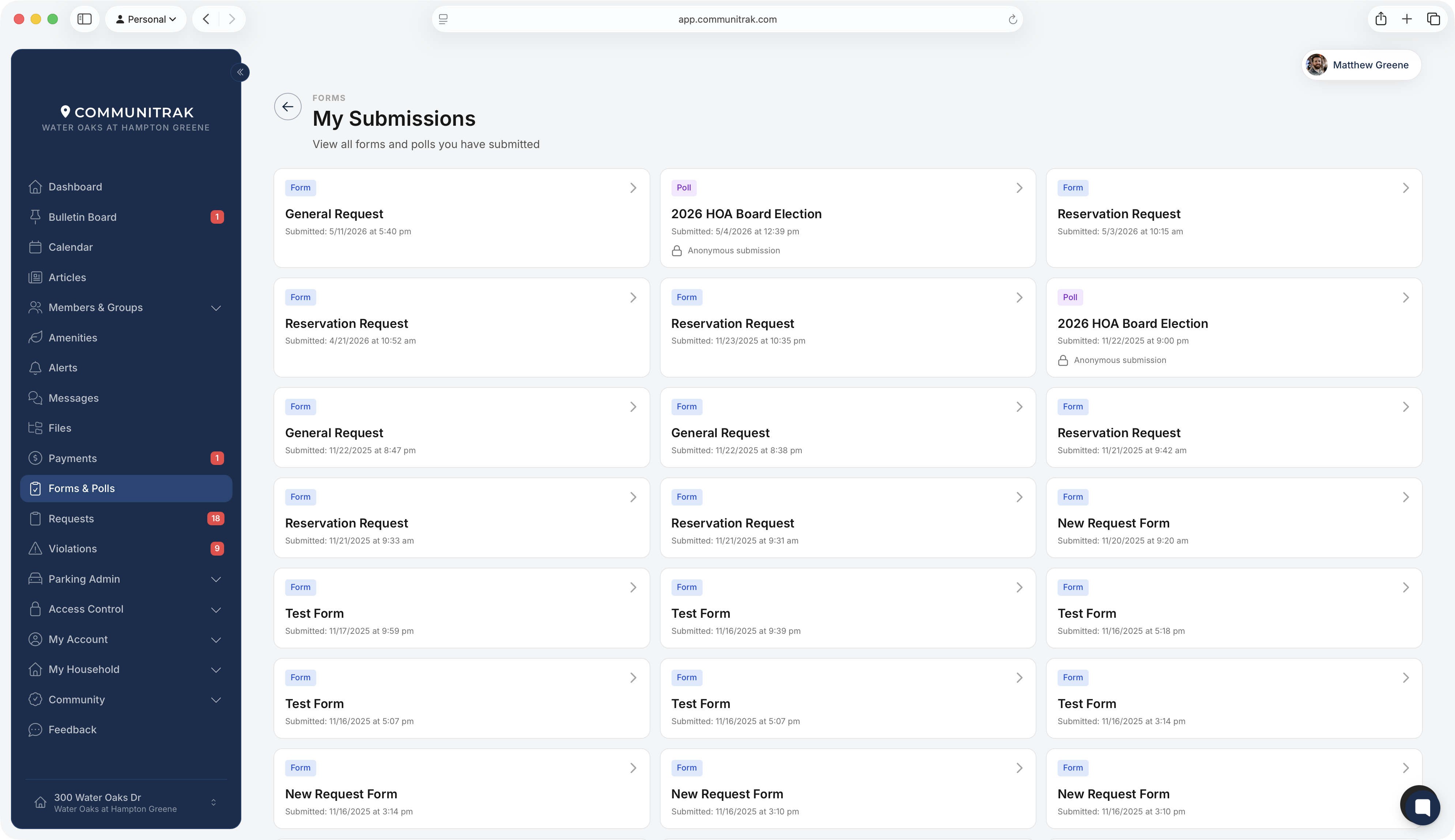
Click My Submissions in the top-right corner. On a phone, it's the clock icon.
Each card shows whether it was a form or a poll, its title, and when you submitted it. An Anonymous submission badge marks anonymous ones. Click a card to see your answers exactly as you sent them, including uploaded files, your signature, and any payment.
My Submissions keeps submissions to forms that have since closed, so you can always look back at what you sent.
Your community can make a form or poll anonymous. Leaders reviewing the results then see your answers but not your name or address.
Polls tell you at the top whether your response is anonymous.
Anonymous forms still count toward limits such as "one vote per household," so Communitrak knows which household has voted without showing it to leaders.
If you open a form you can't fill out, you'll see Form Not Available (or Poll Not Available) with the reason and a Return to Forms button. Common reasons:
You've already completed it. Some forms allow one response per member, per household, or per property. If someone else in your household or at your property already submitted it, you'll see that.
It's closed or not published yet. Closed and unpublished forms can't be submitted.
It isn't meant for you. Forms can be limited to certain roles or groups. You'll see "This form isn't available to you."
The Forms & Polls module only appears in the main navigation menu if your community has turned it on.
Poll results are seen by your community leaders, not by members. You can always see your own answers in My Submissions.
Your community may also have forms on its public website that anyone can fill out. Those aren't listed in the app.
If you have questions or need help, chat with Communitrak Support from any page using the messenger icon in the bottom-right corner.
