Once a form or poll starts receiving submissions, those with the right permissions can review them as they come in: poll charts, each individual response, and a CSV export of everything.
Viewing results requires the View Form Results permission. Exporting to CSV requires the Export Form Results permission. Some options may be unavailable or appear differently depending on your level of account access.
Members never see other people's submissions or poll totals. They can only see their own answers, under My Submissions.
Log in to Communitrak at https://app.communitrak.com.
Click Forms & Polls in the main navigation menu.
Find the form. Results are available whether the form is active, a draft, or closed, so you can watch responses come in while it's still open.
Click the three-dot menu on the card and choose View Results. On the Closed tab, the card's main button is also View Results.
If you can view results but can't edit forms (for example, a committee member who tallies votes), you still see the Drafts and Closed tabs. Cards there have a View Results button and no editing options.
The page is titled Form Results or Poll Results, followed by the form's name. Below it, a summary bar shows Total Submissions, a lock and "Responses are anonymous." if the form is anonymous, and the Export CSV button.
Polls get a Poll Results section with a chart for each Multiple Choice, Dropdown, Checkbox, and Multi-Select question. Other question types (text, numbers, dates, files) appear only in the individual submissions. A question deleted from the poll gets no chart, but the answers people gave to it still appear in their submissions.
Each chart shows:
The question and how many people answered it, for example "42 of 45 responded."
A donut chart for single-answer questions, or a bar chart for Multi-Select questions. A Checkbox question charts as Yes and No.
Each option's vote count and percentage.
If a Multi-Select question has a Number of winners set (for example, three open board seats), its chart reads "Winners: top 3." Options are sorted by votes, and the winning ones are highlighted with a Winner badge.
A tie at the cutoff makes every tied option a winner, so you may see more winners than seats. Decide how your community breaks ties before the vote.
An option with no votes is never marked a winner.
Percentages on Multi-Select questions are out of everyone who submitted, since each voter can pick several options.
Click Refresh beside the Poll Results heading to load votes that came in since you opened the page.
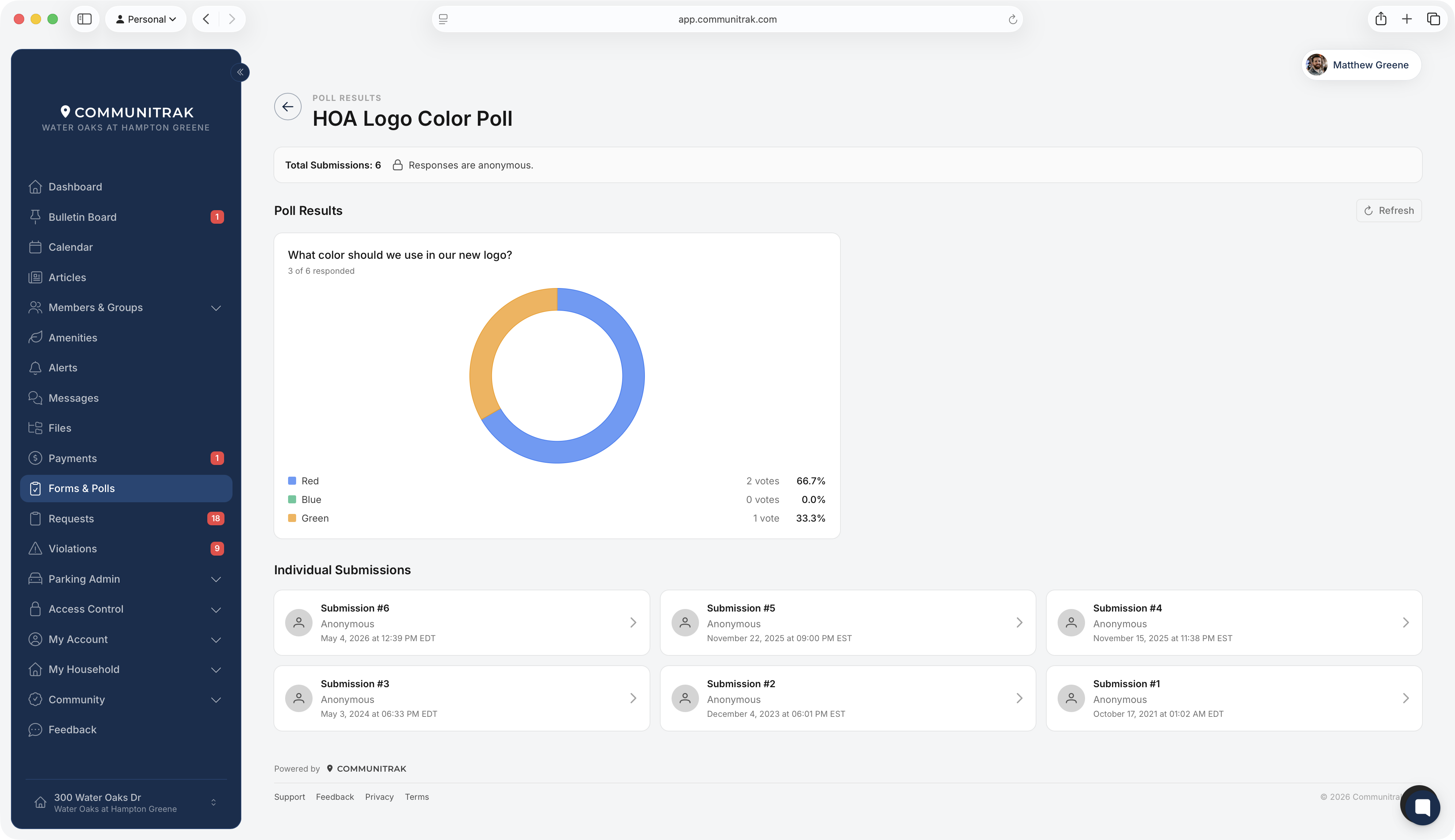
Every submission appears as a card, newest first. Each card shows its number (Submission #1 is the oldest), who submitted it, and when.
Anonymous forms show "Anonymous" instead of a name.
Public website forms show a Public badge with the visitor's name and email.
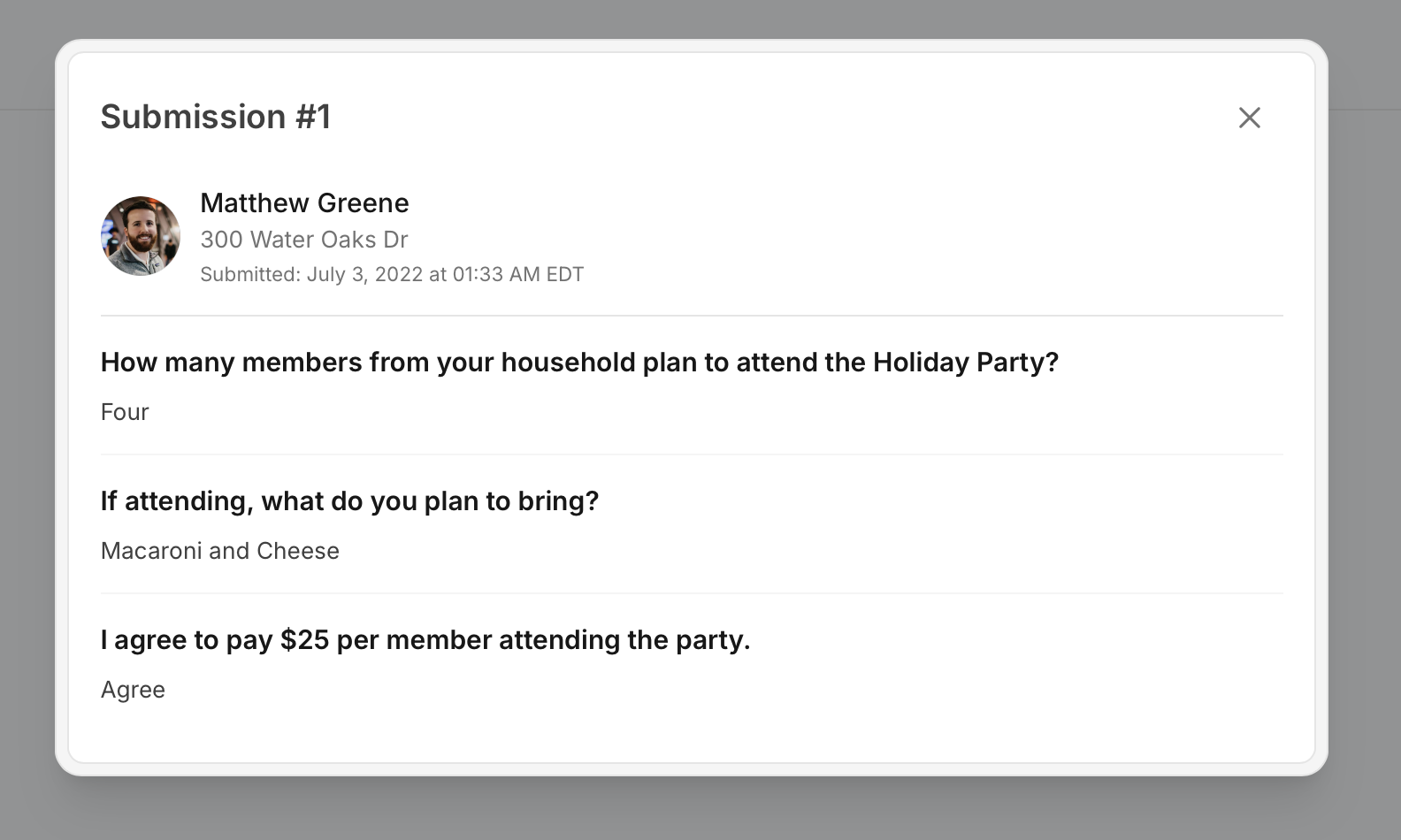
Click a card to open the full submission. The top shows the member's name, their address, and when they submitted. Below that is every question with its answer:
Checkbox: "Checked" or "Not checked."
Multi-Select: the chosen options, separated by commas.
File Upload: images show a preview you can click to enlarge, and other files open in a new tab.
Signature: the signature image.
Property: the address, or "(Property no longer in community)" if it has since been removed.
Payment: the items chosen, the amount charged, and the card or bank used. A Pending badge means a bank payment hasn't cleared yet, and Refunded means it was refunded.
Questions left blank show "(No response)."
If a question was deleted after someone answered it, their answer is still shown, crossed out with a Deleted badge. Questions added after someone submitted simply don't appear on their submission.
On the results page, click Export CSV.
A spreadsheet named after the form and today's date downloads to your device.
The spreadsheet has one row per submission and one column per question. It also includes:
# and Date for each submission.
Source: Member, or Public for website submissions.
Member, Email, Address, and Household ID. These columns are left out entirely on anonymous forms. For public submissions, the visitor's phone number appears in the Address column.
Deleted questions keep their column, marked "(Deleted)". Signatures and uploaded files are noted in the spreadsheet but not included, so open the submission in Communitrak to see them.
Money collected through a form goes to the member's household like any other payment. To refund one, open the charge from the household's transactions and use Process Refund. See Managing Charges and Payments. The submission then shows Refunded, both here and in the member's My Submissions.
Submissions can't be edited or deleted, by you or by the member. To stop new ones, close the form.
Anonymous forms hide who submitted in every view, including the export and notification emails, and the setting can't be turned off later.
If the form creates a request, manage the request itself from the Requests page. The submission doesn't link to it, but the request's activity notes the form it came from.
Deleting a form removes its results too. Export them first if you want to keep a copy.
If you have questions or need help, chat with Communitrak Support from any page using the messenger icon in the bottom-right corner.
