You don't have to send a message the moment you finish writing it. Schedule it instead, and Communitrak sends it at the time you choose. Scheduled messages wait in a Scheduled folder, where you can change, send, or cancel them until they go out.
Anyone who can send a message can schedule one, to the same recipients they could send it to now. That means the Send New Message permission, plus whatever your role needs for the recipients you pick. Scheduling a message under your community's name requires the Send New Message as HOA permission. Some options may be unavailable or appear differently depending on your level of account access.
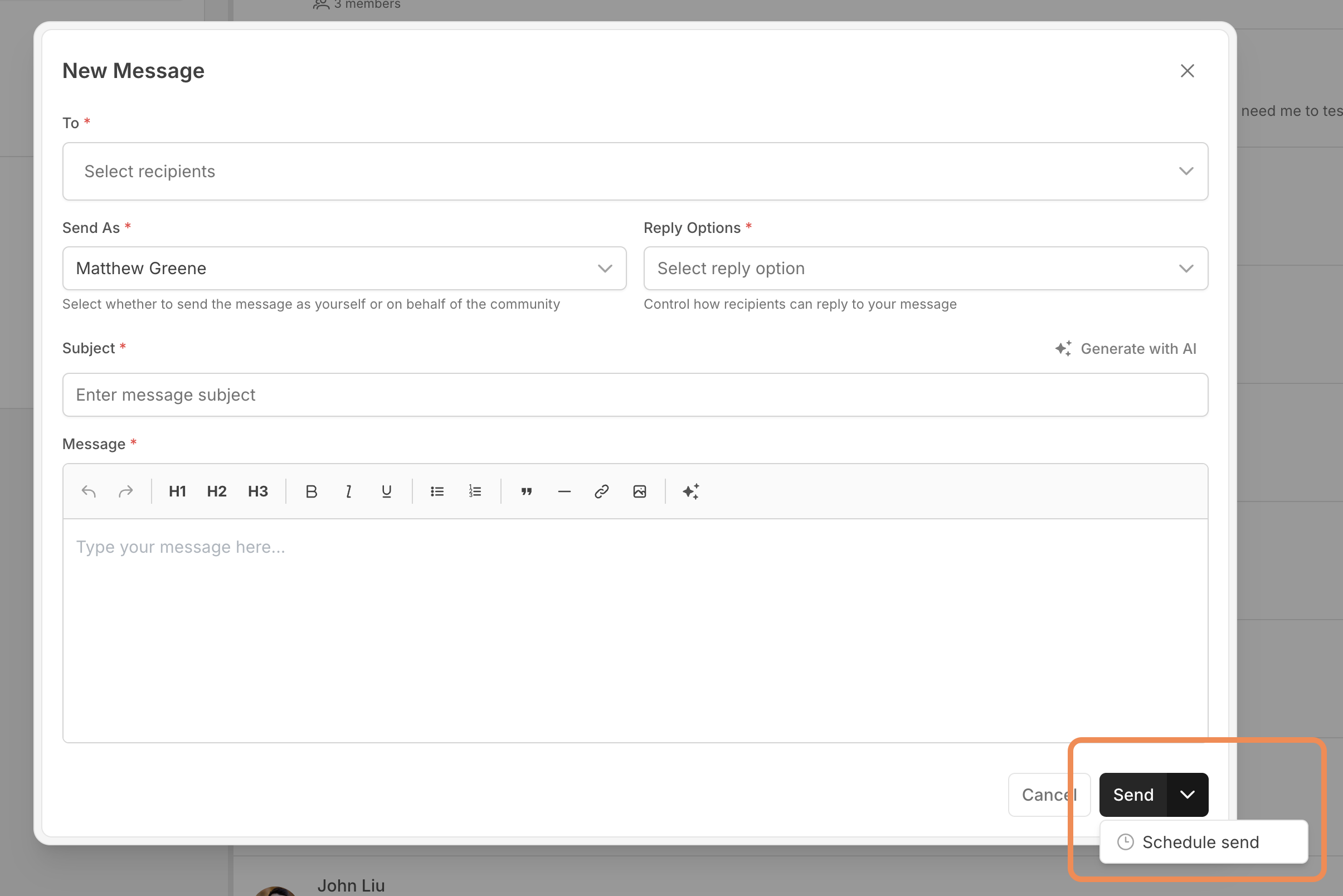
In Messages, click New Message.
Fill it out as usual: recipients, reply option, subject, message, and any files.
Click the arrow beside the Send button and choose Schedule send.
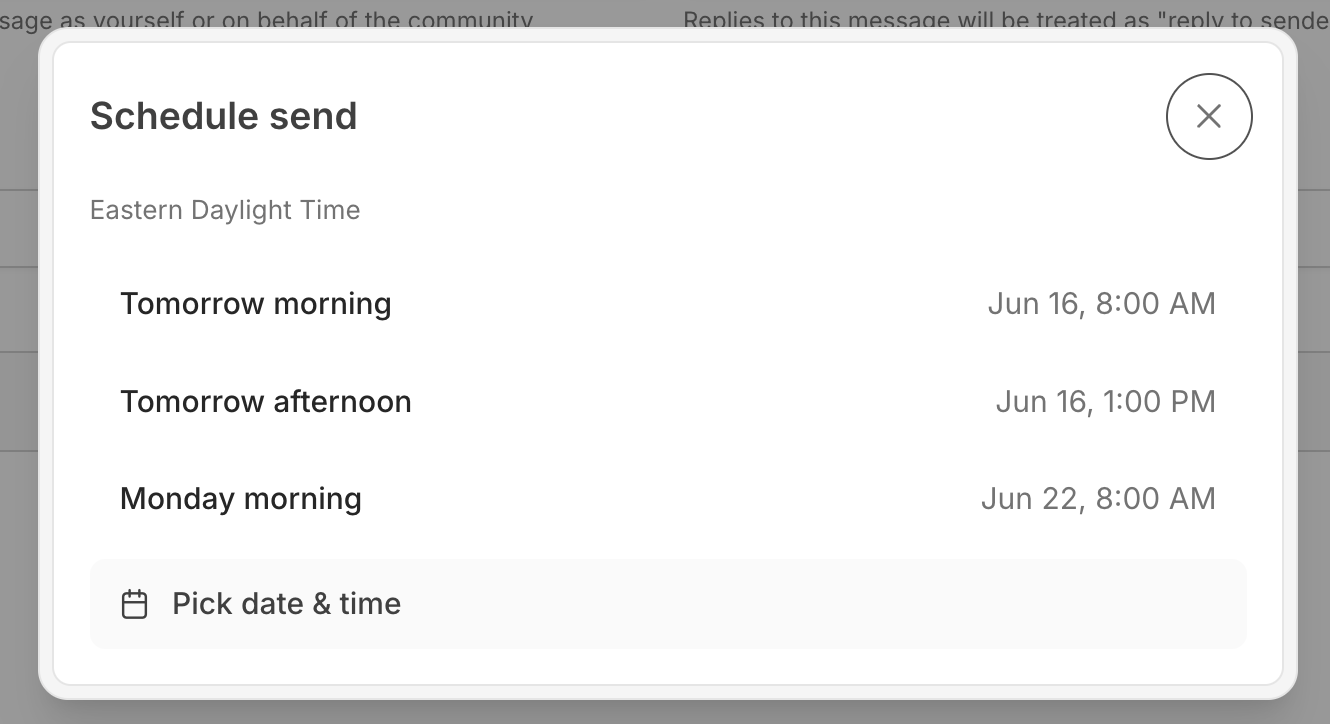
Choose when it sends. The times are in your community's time zone, which is shown at the top.
Click Tomorrow morning (8:00 AM), Tomorrow afternoon (1:00 PM), or Monday morning (8:00 AM). The message is scheduled as soon as you click.
Or click Pick date & time, choose a day and time, and click Schedule send.
A "Message scheduled successfully" notice confirms it, and the message waits in your Scheduled folder.

In Messages, click Scheduled under your Personal Inbox. Each entry shows the subject, who it's going to, and when it sends. Only messages still waiting to send are listed. Once one goes out, it leaves this folder and appears as a normal conversation.
Your Scheduled folder holds the messages you scheduled as yourself, or as a group you can send for. Nobody else sees them.
Open the Scheduled folder and click the message. It opens in Edit Scheduled Message.
Change the recipients, reply option, subject, or message.
To change when it sends, click Change time and choose a new time.
Click Save changes.
You can't add or remove files while editing. Files you attached when you scheduled the message still go out with it. To change them, cancel the message and schedule a new one.
In the Scheduled folder, click the send icon on the message, then click Send now to confirm. It goes out right away.
In the Scheduled folder, click the trash icon on the message and confirm. It won't be sent, and this can't be undone.
A message scheduled under your community's name doesn't go in your personal Scheduled folder. It goes in the Scheduled folder under Shared HOA Inbox, marked HOA. Everyone who staffs the Shared HOA Inbox sees every message scheduled there, with Scheduled by and the name of whoever scheduled it, and any of them can send it now or cancel it. Editing one requires the Send New Message as HOA permission, and only the person who scheduled it can change who it's from. See Using the HOA Shared Inbox.
When a scheduled message sends at its time, you get a "Scheduled message sent" notification in Communitrak and by push, so you know it went out.
A scheduled message is checked again when it sends. If it can no longer go out as written, for example because your role has lost a permission it needs or you're no longer a member, it isn't sent. You get a "Scheduled message not sent" notification saying why, and it leaves your Scheduled folder. If this happens when you click send now, it stays in the folder and you're told why, so you can edit or cancel it.
Scheduled times always follow your community's time zone, not your device's.
All Members, Head of Households, and groups are worked out when the message sends, so it reaches whoever is in that audience at that time.
If you have questions or need help, chat with Communitrak Support from any page using the messenger icon in the bottom-right corner.
