Events on the Calendar can belong to the community calendar, a group calendar, or an amenity calendar. This article covers creating a single event and editing or deleting it afterward.
Creating community and group events requires the Create Calendar Event permission. For a group event, you also need to be a member of that group, unless you have the Manage Member Groups permission. Creating events on an amenity calendar requires the Create Amenity Calendar Event permission.
Editing and deleting have their own permissions (Edit Calendar Event and Delete Calendar Event), and amenity events use a separate set (Edit Amenity Calendar Event and Delete Amenity Calendar Event). Some options may be unavailable or appear differently depending on your level of account access.
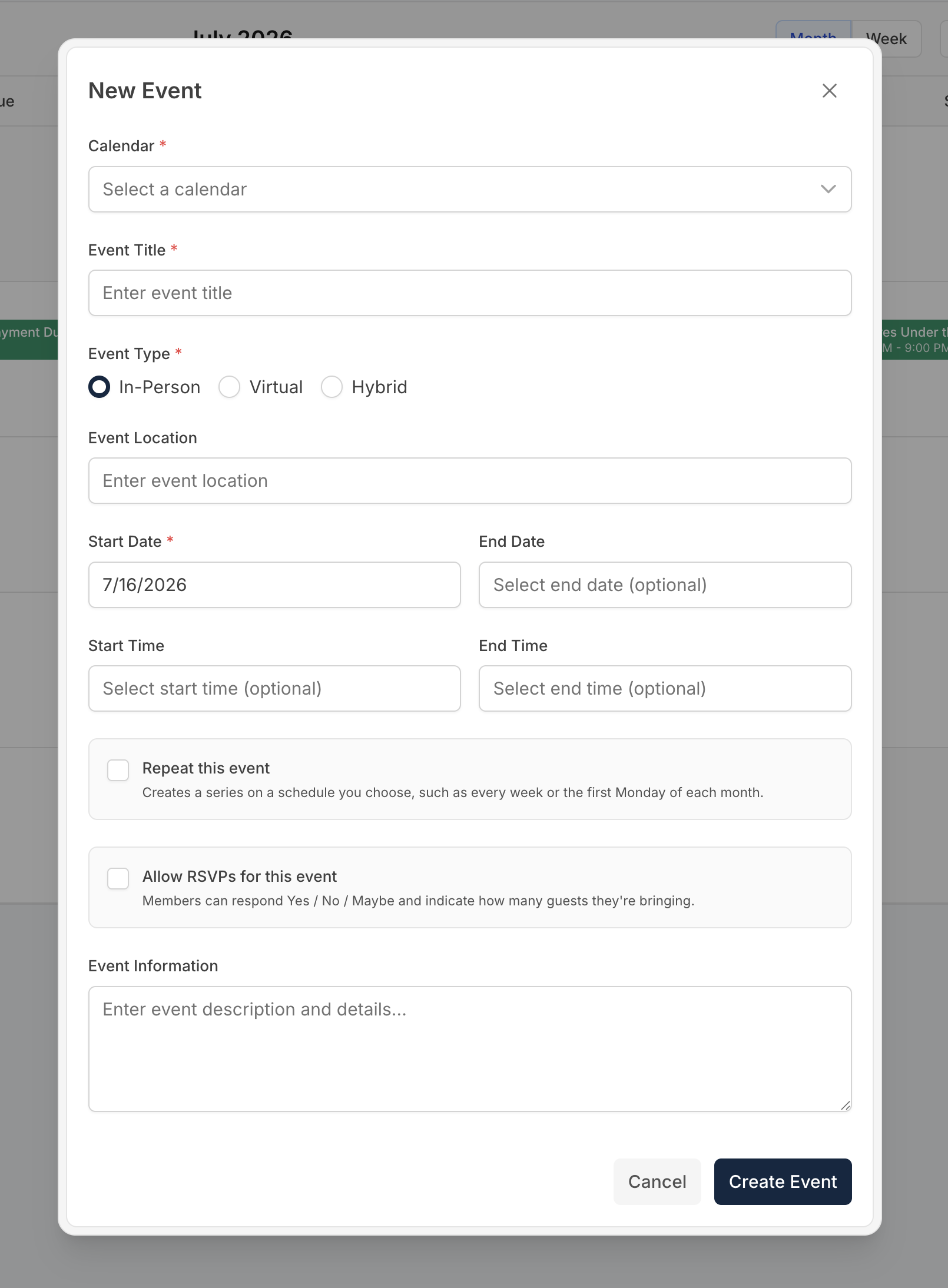
Click New Event in the top-right corner of the Calendar page. You can also click a date on the month view or a time slot on the week view to pre-fill the date and time.
Select a Calendar from the dropdown. You'll see Community Events and your groups if you can create calendar events, and your community's amenities if you can create amenity calendar events.
For Community Events, optionally choose a Category. This field only appears once your community has set up event categories (see below).
Enter an Event Title.
Choose an Event Type: In-Person (the default), Virtual, or Hybrid. Amenity events don't have this field or a location, because they always take place at the amenity.
For Virtual or Hybrid events, enter a Meeting Platform (e.g., Zoom, Teams) and a Meeting Link.
For In-Person or Hybrid events, enter an Event Location.
Set the Start Date and optionally an End Date.
Set the Start Time and End Time, or leave them blank for an all-day event.
Add any additional details in the Event Information field.
Click Create Event.

Every Community Event shows in the same green unless you give it a category. Categories are your community's own labels, such as Social, Meetings, Games, or Exercise, each with a color. An event with a category shows in that color on the calendar, and members can show or hide each category from the Calendars card.
Click Categories in the top-right corner of the Calendar page.
Click Add category, or Use a starter list if you don't have any yet. Enter a name and click the color square to pick a color.
Drag the handles to change the order categories appear in.
Click Save.
Managing categories requires the Manage Calendar Categories permission. Choosing a category for an event only needs permission to create or edit the event.
To remove a category, click its remove button and confirm. The removal takes effect when you click Save. Removing a category does not delete any events. Events that used it go back to the default Community Events color.
Events on the calendar of an amenity that takes reservations have a Block reservations during this event checkbox. Check it when the amenity should be unavailable for the duration of the event, for example a clubhouse reserved for a community meeting.
This prevents new reservations from being made during the event time. It does not cancel reservations that residents have already booked for that time, so check the Reservation Manager for conflicts and contact those residents yourself.
Click the event on the calendar or in the upcoming events list to open its details.
Click Edit Event.
Update the fields you want to change.
Click Update Event.
If the event repeats, choose which dates the change applies to and click Save. See the Repeating Events article.
You can move a community or group event to another calendar by changing Calendar while editing, for example from Community Events to a group. Amenity events stay on their amenity's calendar. To put one somewhere else, delete it and create it on the new calendar.
Click the event to open its details.
Click Delete.
If the event repeats, choose which dates to remove. Otherwise, confirm the deletion in the dialog that appears.

Members who answered Going or Maybe are notified when the event is canceled or its date, start time, or location changes. Edits to other details, like the title or description, don't send a notification.
The Event Information field is plain text. Links pasted there are not clickable. For an online meeting, choose Virtual or Hybrid and use the Meeting Link field.
Group events are only visible to members of that group and to anyone with the Manage Member Groups permission. They show in the group's color on the Calendar, and also on the group's own calendar.
If your community's account is read-only because of a billing issue, the New Event and Categories buttons are disabled, and events can't be created, changed, or deleted until the account is back in good standing.
If you have questions or need help, chat with Communitrak Support from any page using the messenger icon in the bottom-right corner.
