Some events ask whether you're coming. RSVPs are off by default, so you'll only see response options on events where an organizer has turned them on.
Any active member can RSVP. No special permission is needed. Responses can't be saved while your community's Communitrak account is read-only because of a billing issue; the dialog says so when that happens.
Events that ask for a response show an RSVP button in three places, and all three open the same dialog:
The Upcoming Events list in the sidebar of the Calendar page.
The Upcoming Events card on the Dashboard.
The event details dialog, on the RSVPs line. The button reads Change RSVP once you've answered, and View RSVPs after responses close.
Click RSVP on the event.
Choose Going, Maybe, or Not going.
If you choose Going, a Your party section appears. Use Guests joining you to add anyone you're bringing, and Notes for the organizer (optional) for anything they should know, such as an allergy or a late arrival (up to 255 characters).
Click Save.
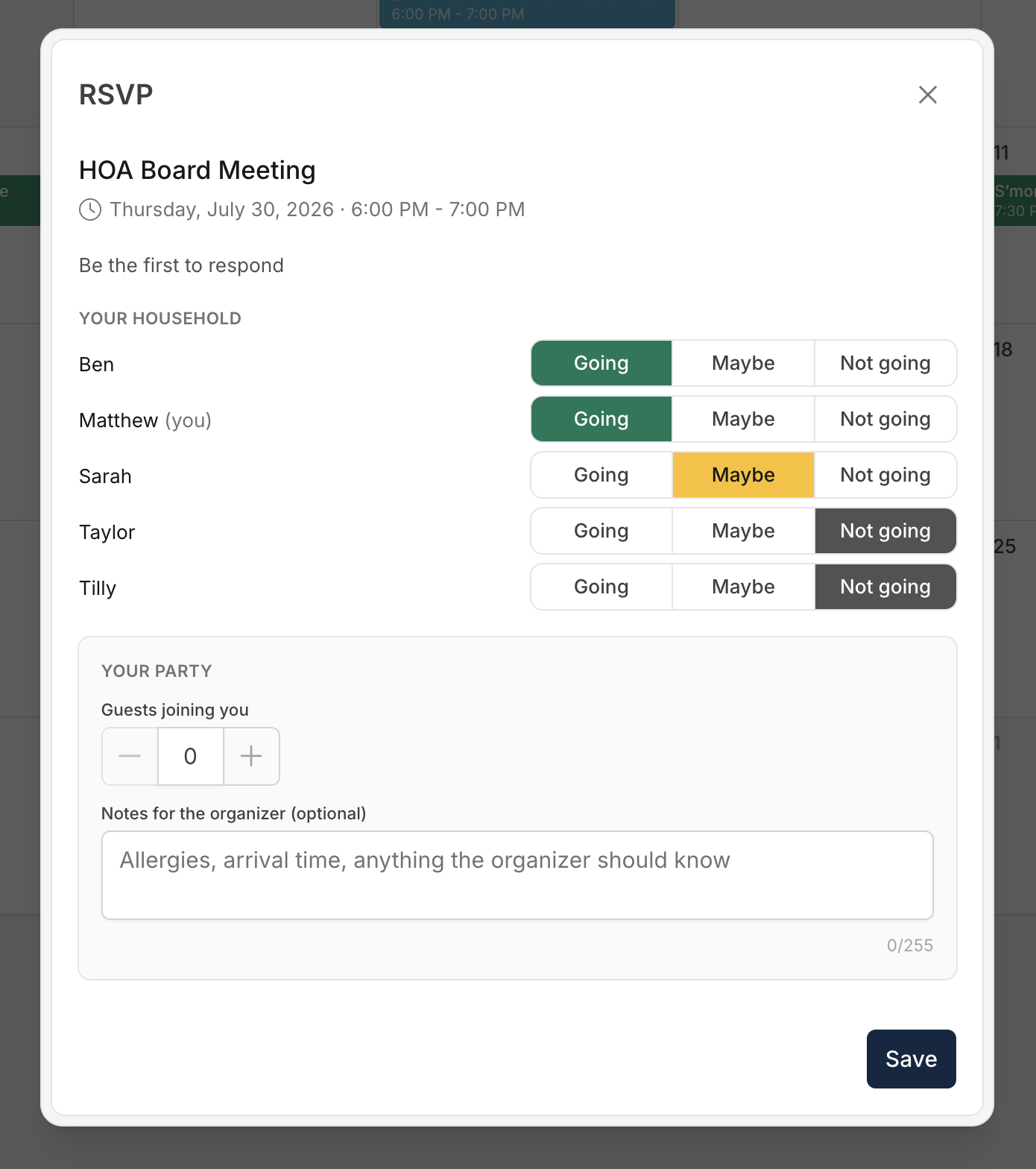

The dialog shows where the event stands, for example "12 going · 3 maybe" along with the number of spots filled and when responses close. Once you've answered, your response also appears as a small tag next to the event in the upcoming events lists.
If more than one person in your household has a Communitrak account, the dialog shows a Your household section listing each of them with their own set of options. Anyone in the household can answer for the others, so whoever opens the event first can respond for everyone. Pick everyone's answers, then click Save once.
Each person is counted individually, so there's no need to add your spouse or another household member as a guest. When someone answers on another person's behalf, that person's row shows "answered by" with the first name of whoever answered, so everyone can see who responded and change it themselves.
Guests and notes belong to your own row only. Answering for someone else leaves their guests and note as they were.
The Guests joining you field is for anyone coming with you who doesn't have their own Communitrak account, such as children, visitors from outside, or a household member who hasn't signed in yet. Household members with accounts have their own row and should not be counted here. You can add up to 20 guests.
Guests are only for Going. Switching to Maybe or Not going clears your guests and note.
Guests count toward the event's capacity. If you're coming with two guests, that uses three of the available spots. If you add more guests than there are spots left, Communitrak tells you how many remain and doesn't save the response.
Open the event again and click Change RSVP, or use the Change link beside your response in the upcoming events list. Pick a different answer and click Save.
To remove your response entirely, use Withdraw my RSVP at the bottom of the dialog. If your household has more than one member, this link reads Clear all responses and clears everyone in the household at once. Withdrawing takes effect right away, without a separate save.
Events can fill up. When an event reaches capacity, the dialog says "This event is full" and Going is unavailable unless you're already going. You can still answer Maybe or Not going.
Responses can close. Organizers can set a deadline. After it passes, the dialog shows what you said, but you can no longer change or withdraw it, and the lists show "RSVPs closed."
Repeating events are answered one date at a time. Saying you're going to the August 3 meeting says nothing about August 10. Respond to each date you plan to attend.
Organizers can see your response, including your guest count, any note you leave, and your household's address. That means the person who created the event and anyone whose role can edit the event or manage its RSVPs.
Some events show who's going. If the organizer turns this on, every member can see the attendee names, responses, and guest counts. Your note and address stay visible only to organizers.
You'll hear about changes. If you answered Going or Maybe, you're notified when the event is canceled, or its date, start time, location, or repeat schedule changes. If a schedule change moves the date you answered for, your RSVP for it is removed and the message asks you to respond again. The notification always appears in Communitrak. To choose whether it also arrives by email or push, go to My Account > Notifications and find Changes to events you're attending under Calendar.
If you have questions or need help, chat with Communitrak Support from any page using the messenger icon in the bottom-right corner.
