Events can ask members whether they're coming. RSVPs are off by default, so members only see response options on events where you've turned them on.
RSVP settings are part of the event form. You can turn them on while creating an event with the Create Calendar Event permission (or Create Amenity Calendar Event on an amenity calendar). Changing them later takes the matching edit permission, Edit Calendar Event or Edit Amenity Calendar Event.
The full attendee list, with addresses, notes, and the CSV export, is available to the member who created the event and to anyone with the Manage Event RSVPs permission or permission to edit the event. Some options may be unavailable or appear differently depending on your level of account access.
While creating or editing the event, check Allow RSVPs for this event.
Set a Capacity (optional). Leave it blank for unlimited. Once the event is full, members who aren't already going can't select Going.
Set an RSVP deadline (optional). After it passes, members can no longer change or withdraw their response.
To share the attendee list with every member, check Let members see who's going (see below).
Save the event.
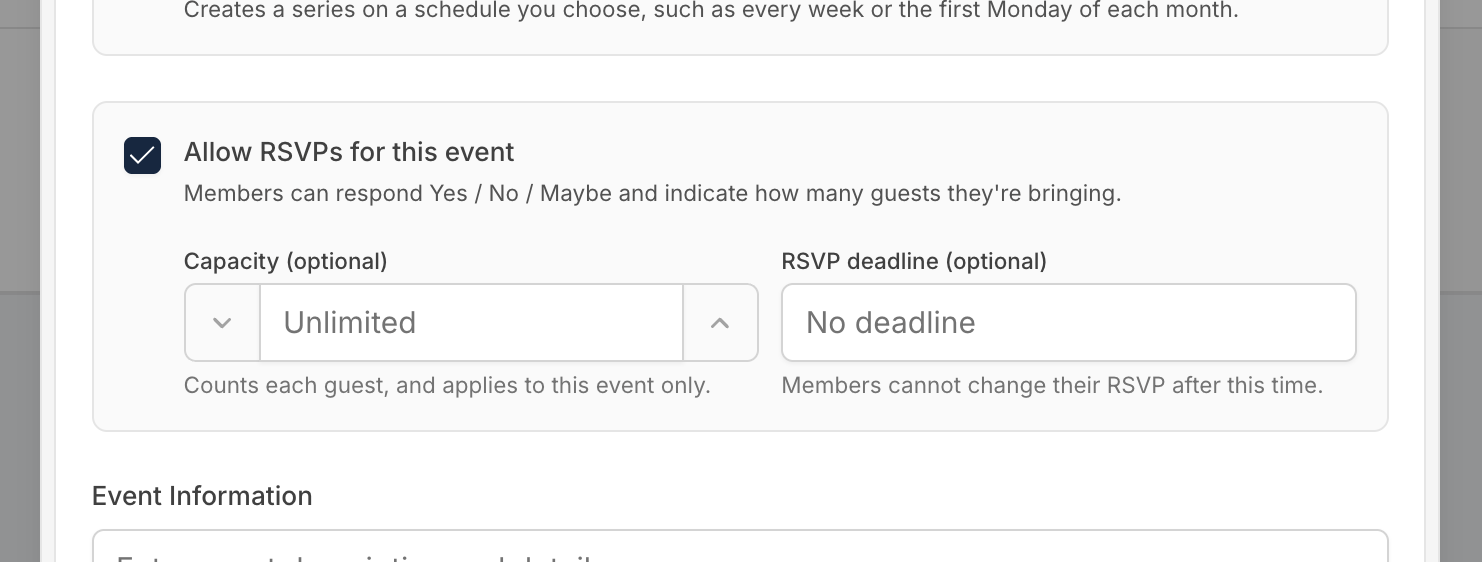

On a repeating event, the deadline is a number of minutes, hours, or days "before each" date, so every date closes at the right moment. Capacity applies to each date on its own. Deadlines use your community's local time.
By default, only organizers can see who responded. Check Let members see who's going on events where the guest list is part of the fun, such as a block party. Every member can then open the attendee list and see names, responses, and guest counts.
Addresses, notes, and the CSV export stay limited to organizers either way. This is set per event, so a board meeting can keep its list private while a social event shares it.
Click the event to open its details.
In the RSVPs section, click the response summary (for example "12 going · 3 maybe") to open the attendee list.
Each row shows the member, their household address, their response, how many guests they're bringing, and any note they left.
Turn on Show going only to hide maybes and declines.
Click Export CSV to download the list for a sign-in sheet or catering count. The file always includes every response, even when Show going only is on.
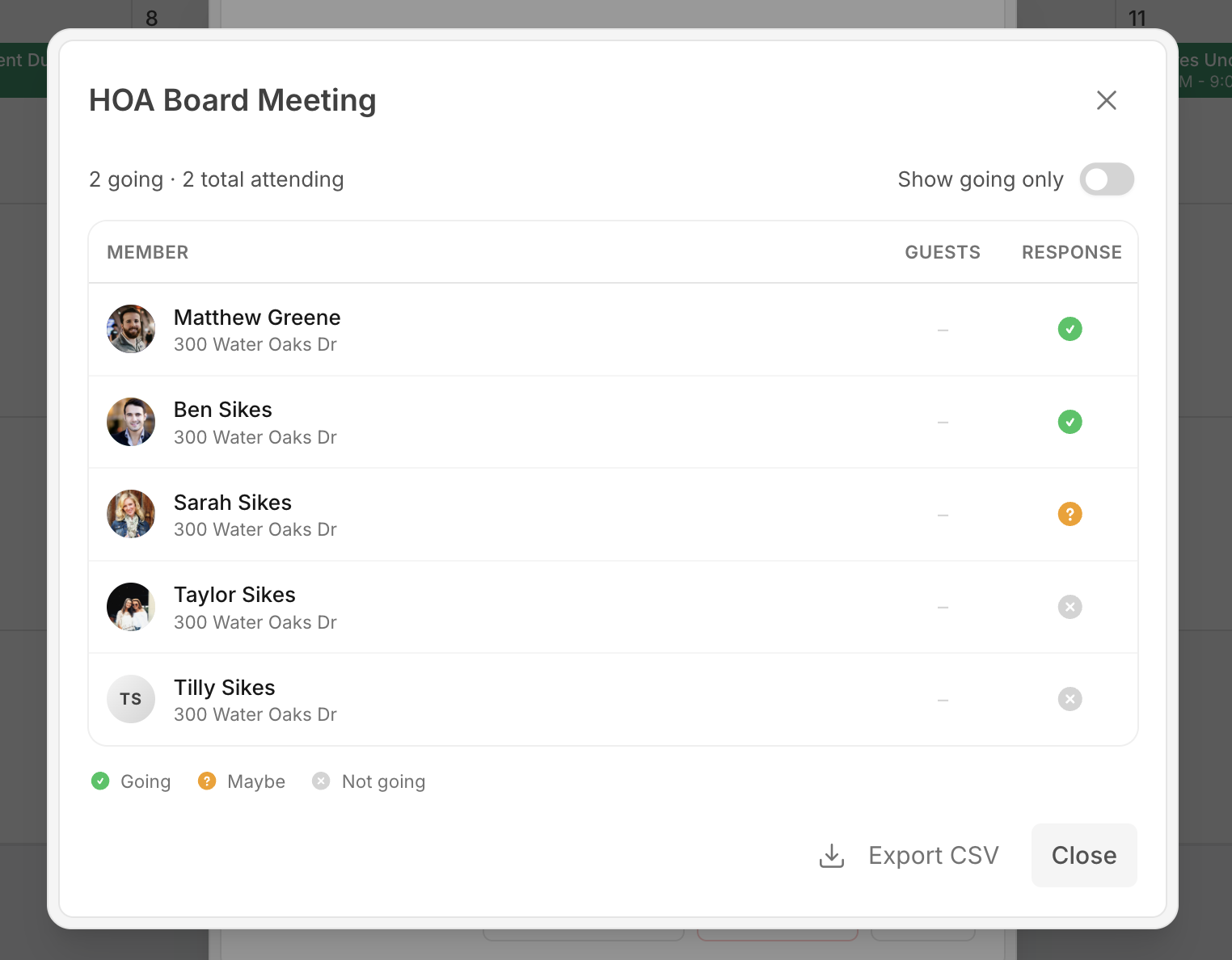
The top of the dialog totals the headcount, for example "12 going · 4 guests · 16 total attending." If the event has a capacity, a line below shows how many spots are filled, for example "16 of 20 spots filled."
The response summary is only clickable once the event has at least one response. Members viewing a shared list see the same names and counts, without addresses, notes, or Export CSV.
The member who created the event gets a notification in Communitrak each time someone responds or changes a response. These don't go to email or push, so a well attended event doesn't fill an inbox.
Members who answered Going or Maybe are notified when the event is canceled or its date, start time, or location changes. Edits to other details, like the description, don't send a notification. On a repeating event, they get one message covering the whole change, not one per date.
Deleting an event, or dates from a repeating event, deletes the RSVPs for those dates. So does changing a repeating event's schedule, for example moving it from Mondays to Tuesdays, which removes the RSVPs on the future dates it replaces and asks those members to respond again. Export the attendee list first if you need it.
Any active member can RSVP. No permission is needed to respond.
Members of the same household each respond individually, and any of them can answer for the others.
An RSVP applies to one date, not to the whole series. Each date of a repeating event keeps its own capacity and attendee list.
Turning off Allow RSVPs on an event that already has responses hides the response options from members. The responses already given are kept, so turning it back on brings them back. Turning it off also turns off Let members see who's going, so check that box again if you want the list shared.
RSVPs work on community, group, and amenity events. On a group event, only members of that group see the event.
If you have questions or need help, chat with Communitrak Support from any page using the messenger icon in the bottom-right corner.
