Violations let leaders document a compliance issue and notify the household involved. From a violation you can track it to resolution, discuss it privately with other leaders, mail a physical letter, and assess a fine. The household responds on the same page with comments and files, and pays any fine from their payments page.
This article is for leaders. For what the household sees and can do, see "Responding to a Violation".
Creating violations requires the Create Violation permission. Leaders with the View Community Violations permission can see every violation in the community. Members without it see only violations about their own household and the ones they have been added to the watchlist for, and that list is filtered on the server. Editing, completing, deleting, assessing fines, and sending letters each require their own permission. Some options may be unavailable or appear differently depending on your level of account access.
Log in to Communitrak at https://app.communitrak.com.
Click Violations in the main navigation menu.
A badge on the Violations menu item shows the number of pending violations, and a dot appears when one has activity you haven't seen. The Violations module must be enabled in your community's preferences for this menu item to appear.
Tabs across the top filter violations by status, each with a count.
Pending: Open violations awaiting resolution. A pending violation past its compliance deadline shows as Past Due.
Completed: Violations that have been resolved.
Deleted: Violations that have been removed.
Violations don't have Approved, Denied, or Withdrawn statuses. A violation is something the association raised, so the household can't withdraw it.
Use the search bar to find violations by title, description, ID, the household or address, or the creator's name. Click the filter icon to open the filter panel:
Target: Filter by All Targets, Property, or Other.
Past Due: Show only violations that have passed their compliance deadline.
Watching: Show only violations you are on the watchlist for.
New activity: Show only violations with updates you haven't seen yet.
Use the Sort by dropdown to order results by Newest First, Oldest First, Title (A-Z), or Title (Z-A). Long lists are paginated, and you can show 12, 24, or 48 violations per page.
Creating a violation requires the Create Violation permission.
Click New Violation in the top-right corner of the Violations page.
Enter a Title for the violation. This field is required.
Under Select Impact Area, choose Household and pick the affected household, or choose Other and enter an Area Name for a violation that isn't tied to one household. Violations can't be filed against an amenity.
Add an optional Description using the rich text editor. Describe the compliance issue and any relevant details.
Optionally set a Compliance Deadline for when the issue should be resolved. Past dates can't be selected.
Click Create Violation.
When you select a household, its members are added to the violation's watchlist automatically and notified by email, push, and in the app.
You can also start a violation from a household's page: on the Recent Requests & Violations card, click New and choose Violation, and the household is filled in for you.

Open a violation by clicking its card. The action buttons sit below the details, and each asks you to confirm.
Complete: Mark the violation as resolved. Requires the Complete Violation permission.
Edit: Update the title, impact area, description, and deadline. Only available while the violation is pending. Requires the Edit Violation permission, though whoever created the violation can always edit it.
Delete: Remove the violation. Only available while the violation is pending. Requires the Delete Violation permission.
Reopen: Return a completed or deleted violation to pending. Requires the View Community Violations permission.
Send Letter: Mail a physical letter to the household. Only appears on pending violations that target a household.
Nobody can complete, edit, delete, or reopen a violation issued to their own household, whatever their permissions.

You can charge a fine directly from a violation. The fine becomes a charge on the household's account, listed with their other charges and payable from their payments page.
Assessing a fine requires the Assess Violation Fine permission, the Payments module must be enabled, and the violation must be pending and target a household.
In the Fines section of the violation detail page, click New.
Enter the Amount.
Enter a Description, up to 70 characters. This is what the resident sees on the charge, for example "Unapproved exterior paint."
Set a Due Date. Past dates can't be selected.
Optionally add a Note, up to 150 characters, with more detail for the resident.
Click Assess Fine.
Everyone on the violation's watchlist is notified. Each fine appears in the Fines section with its amount, description, due date, and a status: Unpaid, Past Due, Pending (a bank payment that is still clearing), Paid, or Voided. Click a fine to see its full details, including when it was assessed and paid.
To cancel an unpaid fine, click Void on the fine, enter a Reason (up to 150 characters, recorded on the charge), and click Void Fine. The household no longer owes it. Voiding requires the Manage Charges permission, so the button only appears for leaders who hold it, and it can't be undone.
There is no separate community-wide list of fines. To review them, open the violation, or look at the household's charges under Payments.
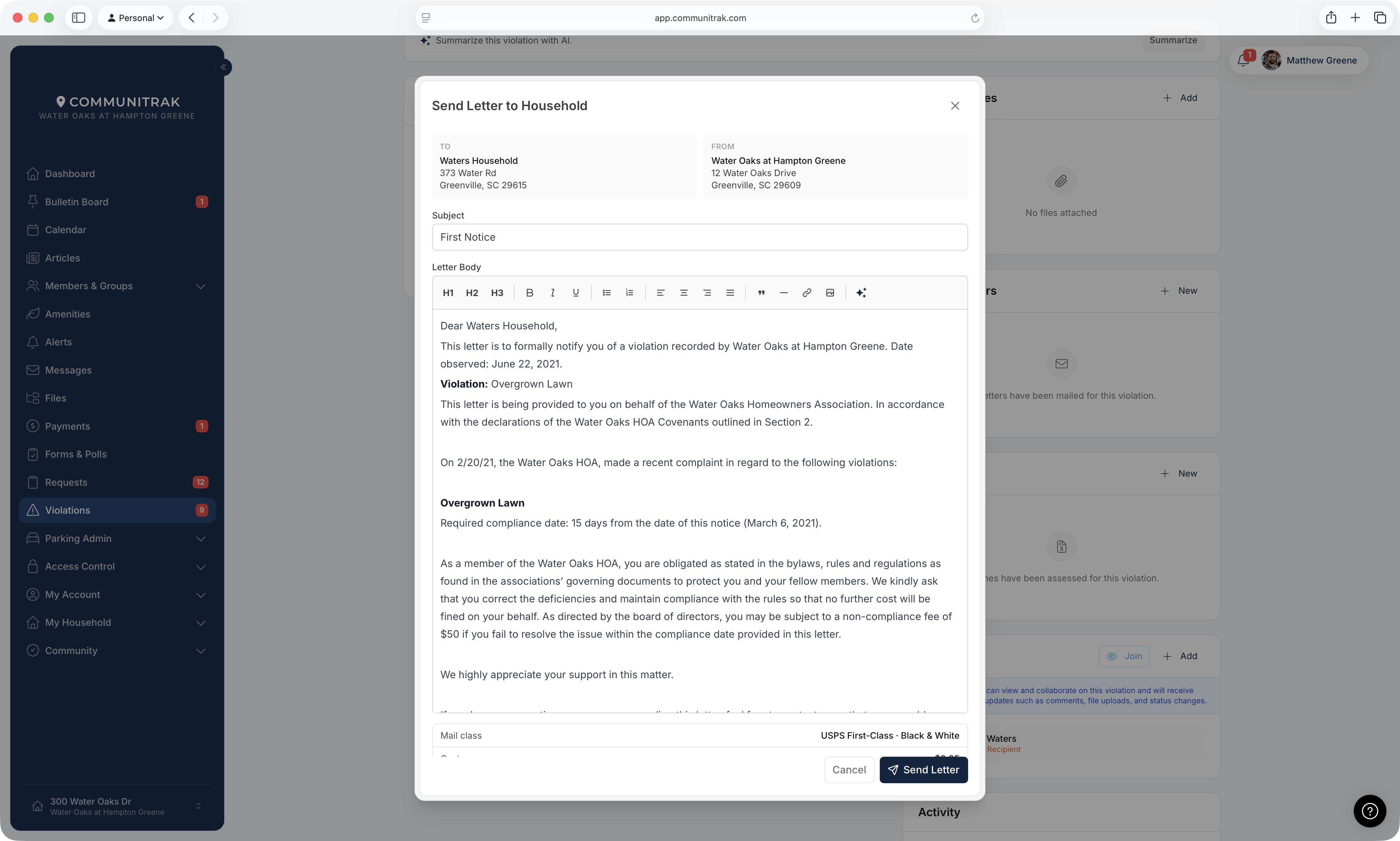
For violations that target a household, you can mail a physical letter via USPS directly from the violation. This requires the Send Violation Letters permission, which also covers canceling a letter during the cancellation window. You can't send or cancel letters for a violation issued to your own household.
Click Send Letter on the violation detail page, or click New in the Mailed Letters section.
Review the pre-filled To and From addresses. The recipient address comes from the household's property, and the sender address from your community's profile, which must have a complete mailing address.
Check the Subject. It is suggested for you, "First Notice", "Second Notice", and so on, and you can change it (up to 100 characters).
Edit the Letter Body. It starts as a draft built from the violation's title, description, and deadline, with a greeting and sign-off.
Review the cost summary. Each letter is sent USPS First-Class in black and white for $2.25, charged to your community's payment method on file.
Click Send Letter.
For five minutes after sending, the letter shows Cancellable for with a live countdown and a Cancel button. Canceling within that window stops the letter and refunds the charge. Once the countdown reaches zero the letter is on its way and can't be canceled.
Sent letters appear in the Mailed Letters section, each showing its status, subject, who sent it, and the expected delivery date once USPS provides one:
Queued: The letter has been submitted and is inside the cancellation window.
Mailed: The letter has been printed and entered the mail stream.
In Transit: The letter is being transported by USPS.
In Local Area: The letter has arrived at the local post office.
Out for Delivery: The letter is out for delivery.
Delivered: The letter has been delivered.
Re-Routed: The letter has been re-routed by USPS.
Returned: The letter was returned to sender.
Failed: The letter could not be delivered.
Cancelled: The letter was canceled during the cancellation window.
A PDF link appears once the letter has been generated, so you can see exactly what was mailed. Letter milestones are also recorded in the Activity timeline. Violation letters are sent First-Class only; certified mail is offered for architectural decision notices, not violations.
Below the public comments, leaders see an Internal Discussion card outlined in amber. Nothing posted here is ever visible to the household the violation is about.
It has a Discussion tab for notes and a Files tab for documents only leaders should see. An internal file can later be published to the violation's shared files.
To take part, you need the Manage Internal Violation Comments permission and you must be on the violation's watchlist. If you have the permission but aren't following it, click Join on the watchlist to unlock the thread.
Members of the household the violation is about are always excluded, even if they would otherwise qualify.
Click Only visible to N internal members in the card header to see exactly who can read the thread.
The Watchlist section shows everyone who can view the violation and gets notified about updates. Everyone on the violation can see this list, including the household.
Members of the targeted household are added automatically and labeled Violation Recipient.
The person who created it is labeled Violation Creator. Everyone else is a Collaborator.
Click Join to follow the violation yourself, or Leave to stop. Joining requires the Join Violation Watchlist permission.
Click Add to search the member directory and add one or more members at once. This requires the Manage Watchlist permission in the Violations group, along with View Community Violations.
The violation creator and violation recipients can't leave or be removed.
Everyone on the watchlist, including the household, can add comments. This is how a resident responds to a violation or reports progress. You can delete your own comments at any time. Leaders with the Violations group's Manage Comments permission (along with View Community Violations) can delete anyone's.
Everyone on the watchlist can upload files, up to 10 MB each, which is how residents send proof of compliance such as photos of completed work. Supported types include PDF, Word, Excel, PowerPoint, text, CSV, and common image formats. You can delete your own files at any time. Leaders with the Violations group's Manage Files permission (along with View Community Violations) can delete anyone's.
The Activity timeline is a chronological log of every change: opened, updated, completed, deleted, reopened, comments and files added or removed, watchlist changes, fines, and letter milestones.
When a violation has changed since you last opened it, a blue banner at the top summarizes what's new. Click Jump to it to go straight to the new comments, files, or fines, which are highlighted in blue.
If your community has AI features enabled, use Summarize above the comments to generate a short summary of a long violation thread.
The Violations module must be enabled in Preferences for the Violations menu item to appear.
Violations don't have types like requests do, and committee review, appeals, and hearings don't apply to them. A household responds through comments and files.
Violations can target a household or an "Other" area. Letters and fines are only available when the target is a household.
The Fines section is hidden entirely if the Payments module is disabled for your community.
On a property's page, the Request History card includes past violations for leaders who can see all violations.
The $2.25 per-letter charge is billed to the community's payment method on file when the letter is sent, and refunded if you cancel within the five-minute window.
If your community's account is read-only because of a billing issue, the action buttons are disabled until the account is back in good standing.
If you have questions or need help, chat with Communitrak Support from any page using the messenger icon in the bottom-right corner.
