Communitrak includes built-in payment processing, so residents can pay dues, assessments, and other charges online. This article walks through turning payments on for the first time. Once you're set up, see Using the Financial Dashboard for day-to-day tracking.
Opening the Financial tab requires the View Community Financials permission.
Clicking Get Started and completing the Legal tab requires the Update Legal Information permission.
Linking or changing the payout account requires the Update Community Transfer Account permission.
Turning on the Financial module and changing Financial preferences requires the Update Community Preferences permission.
Some options may be unavailable or appear differently depending on your level of account access.
The Financial module must be turned on. If you see "Financial tools are turned off," click Community preferences and turn on the Financial toggle.
Have your community's EIN, legal name exactly as it appears on IRS Letter 147c, and legal address ready.
Decide who will be the community representative. Stripe verifies this person's identity, so they need to be available to enter their own details.
Log in to Communitrak at https://app.communitrak.com.
Click Community in the main navigation menu.
Click the Financial tab.
On the Payment Processing card, review the overview and your community's processing rates, then click Get Started.
A dialog confirms that payments are enabled and lists the two steps left on the Legal tab. Click Continue to Legal.
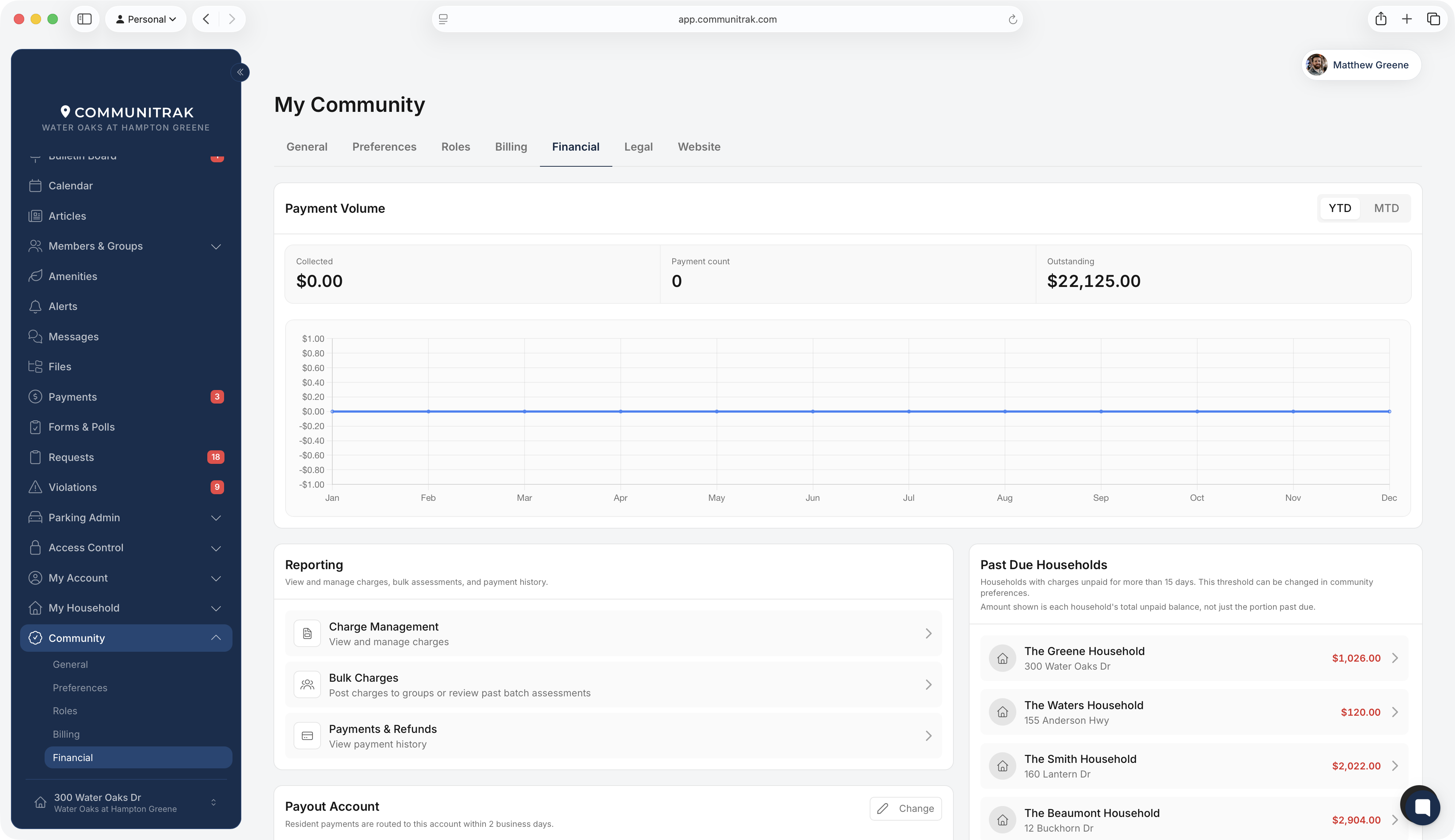
Payment processing is included in your Communitrak plan. Processing fees depend on how a resident pays, card or bank account, and rates can differ from one community to another. The Payment Processing card shows your community's rates before you click Get Started, and they're always listed under the fee setting on the Preferences tab.
The Legal tab collects what Stripe needs to verify your community. It has two cards, and both must be complete before payments and payouts can be processed.
On the Homeowner Association card, click Edit Details.
Fill in the fields:
Display Name: shown on resident-facing pages and emails.
Legal Name of HOA Business Unit: should match your IRS Letter 147c, including capitalization and punctuation.
Legal Structure: choose the option that matches your HOA, such as Incorporated Non-Profit, Unincorporated Non-Profit, or Unincorporated Association.
Employer Identification Number (EIN): required for accepting payments, in the format XX-XXXXXXX.
HOA Phone: leave blank if your HOA doesn't have one.
Address Line 1, Address Line 2, City, State, and ZIP Code: your community's legal address.
Click Save information. Saving accepts the Communitrak Terms of Service and the Stripe Connected Account Agreement on your community's behalf.
Stripe requires one person to verify on behalf of the community, usually a board officer such as the treasurer or president. The representative enters their details directly with Stripe, not in Communitrak.
On the Community Representative card, click Add Representative on Stripe.
Stripe's secure page opens in a new tab. The representative enters their name, title, contact information, date of birth, and Social Security Number there.
When they finish, return to the Legal tab. The card shows the representative's details, whether an SSN was provided, and a verification status.

The representative's status shows as Verified, Pending Review, or Action Needed. Stripe usually reviews submitted information within 1 to 2 business days.
If Stripe needs more, the card lists the items under Information needed for verification or Overdue verification requirements, and the button changes to Verify Details. Click it to finish the items on Stripe.
To change the representative's details later, click Update Details.
A banner at the top of the Legal tab tells you if payouts aren't enabled yet or have been paused for overdue requirements.

Collected payments are deposited into your payout account. The Payout Account card on the Financial tab shows the account on file.
On the Financial tab, find the Payout Account card and click Link Payout Account.
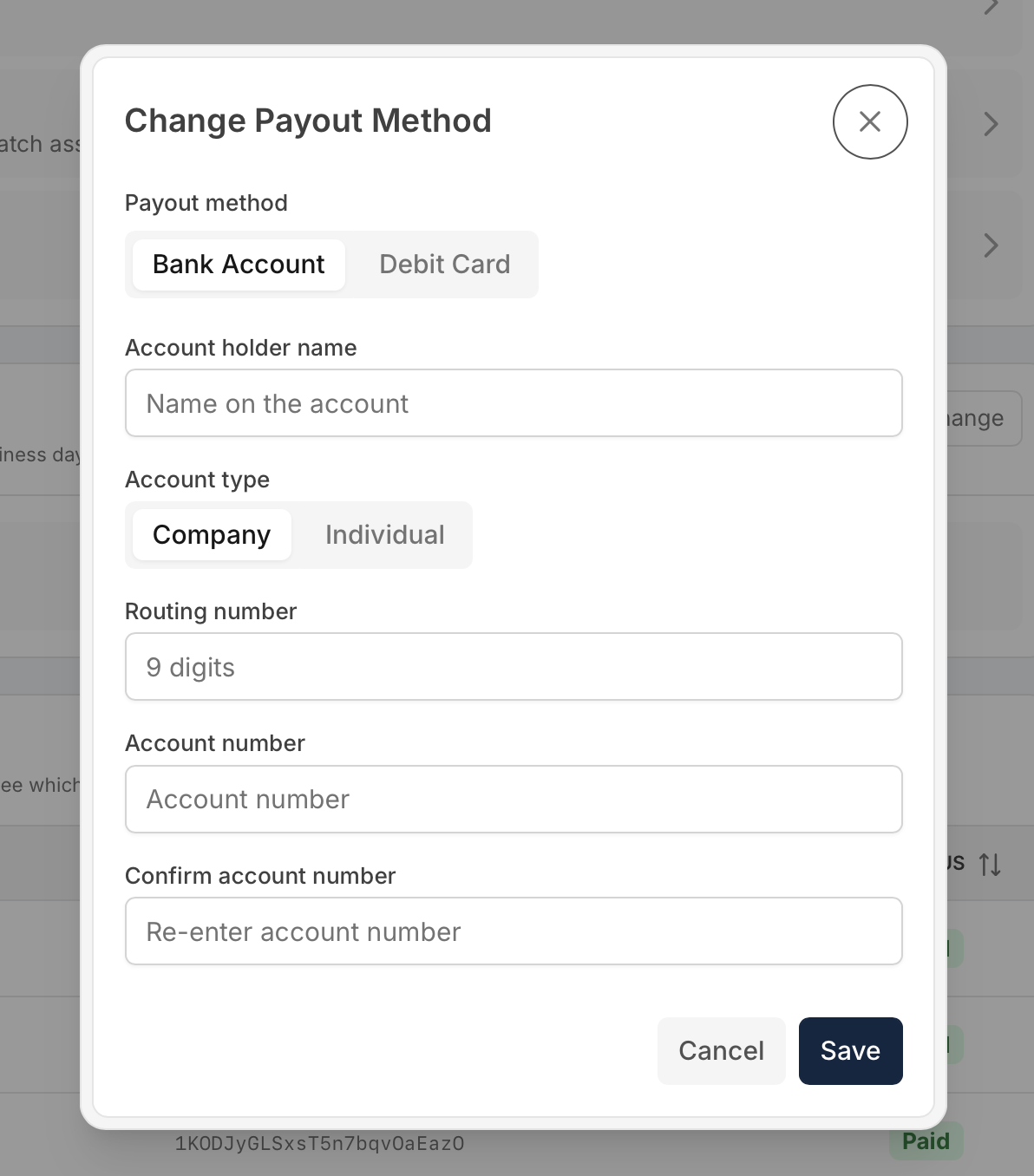
Choose Bank Account or Debit Card.
For a bank account, enter the account holder name, choose the account type (Company or Individual), and enter the 9-digit routing number, the account number, and the account number again to confirm it.
For a debit card, enter the card details. Credit and prepaid cards aren't accepted for payouts, and debit cards may have a daily payout limit.
Click Save.
To switch accounts later, click Change on the Payout Account card.
Go to Community > Preferences and find the Financial card. It has three settings:
Who is responsible for payment processing fees? Your community's card and bank account (ACH) rates are shown below this setting. Choose your community (the community absorbs the fee) or Members (the fee is added to each resident's payment). The community always absorbs the fee on amenity reservation fees and deposits, whatever you choose here.
How many days before a new charge is due? The default due date for new charges, from 1 to 365 days after the charge is created. You can still pick a different date on each charge.
How many days after the due date is a charge past due? The grace period before a charge is marked Past Due, from 1 to 365 days. The default is 30.
Before residents can add a payment method or pay, two things need to be true:
Stripe has verified your community's legal and representative information.
Communitrak has verified your community. New communities start in a short review, and payments stay paused until it's complete.
Until then you can still post charges. Residents see them on their Payments page along with a message that payments are unavailable, and Auto Pay enrollments wait. Everything resumes automatically once verification is complete.
Processing fees are always deducted from your payouts and shown as Fees in each payout's details. When residents pay the fee, it's added to their payment, so your community still receives the full charge amount. When your community absorbs the fee, you receive the charge amount minus the fee.
Card statements show your community's name, shortened to 17 characters.
Once payments are enabled, the Financial tab shows your payment activity, payouts, and past-due households. See Using the Financial Dashboard.
If your Communitrak subscription becomes inactive, the Legal tab and Financial preferences become read-only, and you can't change the payout account until the subscription is active again.
If you have questions or need help, chat with Communitrak Support from any page using the messenger icon in the bottom-right corner.
