Alerts get a short, urgent message to your whole community at once, by dashboard banner, email, text message, phone call, or any combination. This article covers sending an alert, who receives it, checking who it reached, text message billing, the phone call limit, and dismissing or deleting alerts. For what residents see, see the article on using alerts.
Each part of Alerts is its own permission, granted per role:
Create Alert: can send alerts, and sees the delivery results on each alert, including who was and wasn't reached.
Dismiss Alert: can take down an active dashboard banner for the whole community.
Delete Alert: can permanently remove an alert from the Alerts page.
Turning the module on or off and setting the SMS Display Name require the Update Community Preferences permission. Some options may be unavailable or appear differently depending on your level of account access.
Turn on Alerts. Click Community in the main navigation menu, click the Preferences tab, and turn on the Alerts toggle. Alerts then appears in the main navigation menu for everyone.
Text, phone call, and email alerts need a verified community. While Communitrak is still verifying a new community, or until you confirm your own email address, you can post a dashboard banner but can't send by text, phone call, or email. The form tells you when this applies.
A community on a free trial can send one alert. That's one alert in total, whatever delivery methods it uses, and deleting it doesn't free up another. You can send more once your subscription begins. The form tells you before you start whether you've used it.
Log in to Communitrak at https://app.communitrak.com.
Click Alerts in the main navigation menu, then click New Alert.
Under Delivery Methods, select one or more:
Dashboard Banner: shows a banner at the top of everyone's Dashboard.
Email: sends to members' email inboxes.
SMS Text: sends a text message to members' mobile phones.
Phone Call: calls members who turned on phone calls and reads the alert aloud. Useful for residents who are more comfortable with a call than a text.
If you picked Email, SMS Text, or Phone Call, check the estimate on its card, for example "Reaches 42 of 50 members" followed by "Not reached: 5 have no usable phone number on file, 3 turned off text alerts." It tells you before you send how many people the alert can actually reach, and why the rest won't get it (see Who receives an alert below).
Type your Alert Message. The line under its label says where it will appear. A counter below the box shows how many characters you've used out of the limit (see Message length below).
If you picked SMS Text along with Dashboard Banner or Email, a Text Message box appears below. It fills in from your Alert Message, shortened to fit one text if needed. Read it over and edit it so it says everything residents need, since it's all they'll get on their phones. Once you edit it, it stops following the Alert Message. Click Match alert message to start over from it.
If you picked Phone Call along with Dashboard Banner or Email, a Phone Call Message box appears too. It works the same way as the Text Message box, shortened to fit the 500-character call limit if needed, with its own Match alert message button.
If you picked SMS Text, check the SMS Preview. It shows the exact text residents will receive, as it will look on their phones, including your community's name at the start. If you picked Phone Call, the Phone Call Script shows what the call says, in order.
If you picked Dashboard Banner, choose how long the banner stays up under Dashboard Banner Expiration: 24 hours, 3 days, 1 week (the default), Custom to pick a date and time, or No expiration. A banner with no expiration stays until someone dismisses it.
Click Create Alert.
Review the confirmation, which lists the delivery methods you chose, and click Send Alert.
Email, texts, and phone calls go out as soon as you click Send Alert. Alerts can't be edited, scheduled, or recalled once sent, so read the message over before you confirm.
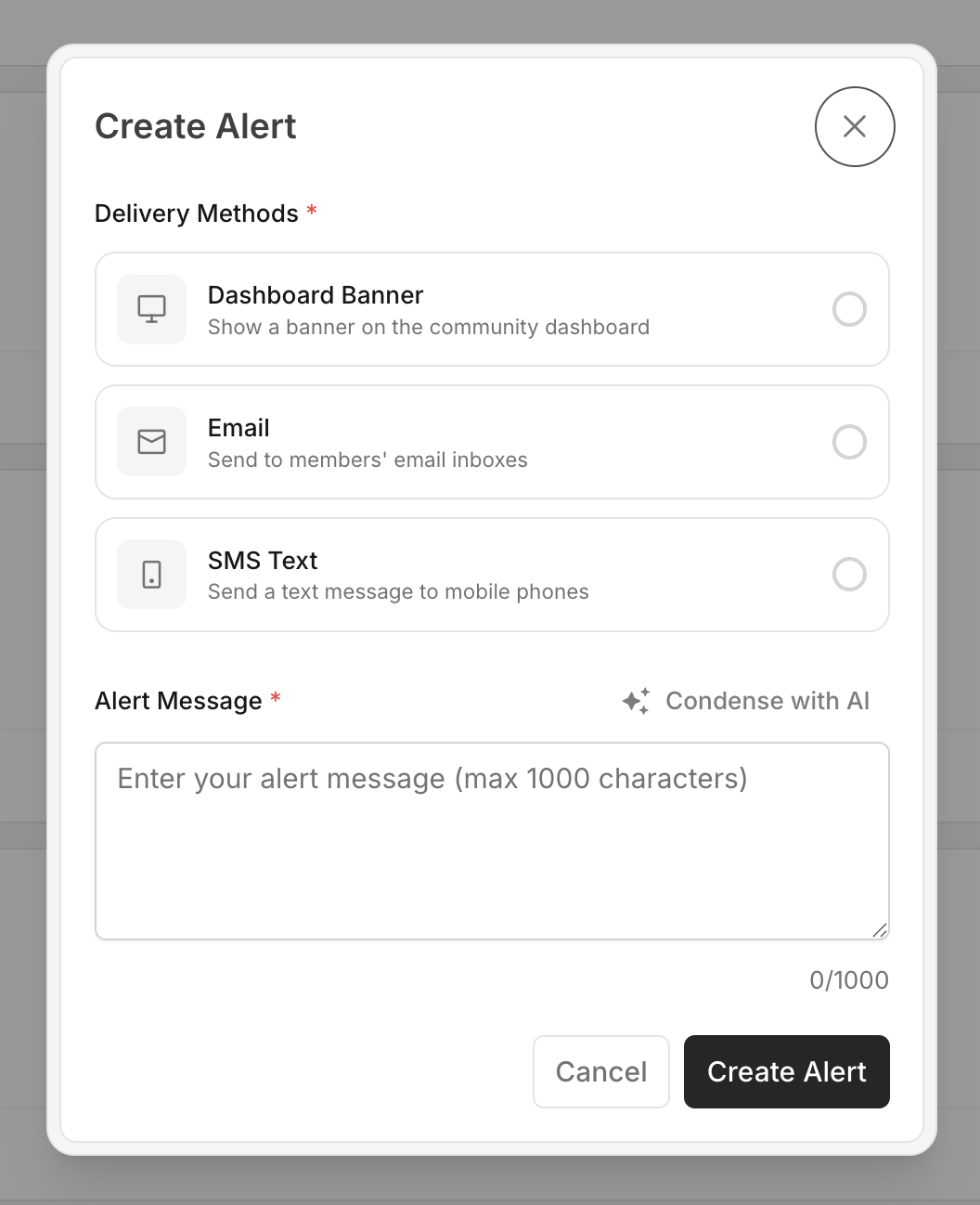
The Alert Message can be up to 1,000 characters. It's what appears on the dashboard banner and in the email.
The text residents receive, including your community's name, must fit in one text message of 160 characters. The longer your community's name, the less room for the message. Setting a shorter SMS Display Name (below) gives you more.
If SMS Text is the only delivery method, there's just one box, and it's held to the text limit.
A phone call reads up to 500 characters, about 35 seconds of speech. If Phone Call is chosen without Dashboard Banner or Email, the Alert Message box is the call message and is held to 500.
Emojis and special symbols aren't supported and are removed as you type, because they would split a text into several billed messages.
If your community uses AI features, the Shorten button shortens what you've written into a brief alert. When there's a Text Message box, the button is next to it and writes the short version there, leaving your full Alert Message as it is.
In-app and push notification: every active member gets a Community Alert notification for every alert, whichever methods you chose, plus a push notification on each device where they've turned push on. Members can't turn these off. You don't get one for your own alert.
Dashboard banner: everyone who opens the Dashboard while the banner is active.
Email and text: members who have accepted their invitation, belong to an active household at an active property, have an email address or mobile number on file, and haven't turned off that channel under Community Alerts in their notification settings. You receive your own copy.
Phone call: only members who have turned on phone calls under Community Alerts in their notification settings, and who meet the same household and phone number rules as text. Phone calls are off for everyone until a member turns them on, so expect the number reached to be small at first.
Someone who belongs to more than one household in the community gets one email, one text, and one call per alert, not one per property. Residents don't need to have verified their phone number to receive text or phone call alerts.
The call says "This is a community alert from" your SMS Display Name, reads the message once, then offers "To hear this message again, press 1." If no one answers and the call goes to voicemail, it waits for the beep and leaves the whole message. Calls go out about one per second, so calling a long list takes a few minutes.
The estimate on the form gives one of these reasons for each member it can't reach:
No usable mobile number or no email address on file: the member needs to add one in their account.
Turned off text alerts or turned off email alerts: the member switched that method off in their notification settings. Only they can turn it back on.
Hasn't turned on phone calls: phone calls are off until a member turns them on in their notification settings. Only they can.
Isn't in an active household: the member's household or property is inactive. Check their household.
Anyone with the Create Alert permission sees a delivery summary on each email, text, or phone call alert:
Preparing to send… and Sending… 120 of 300, with a progress bar, while the alert goes out. Text alerts to a large community go out in batches over a few minutes. The page updates on its own.
Delivered to 300 members when everyone was reached.
Delivered to 290 of 300 members · 10 failed when some deliveries failed. If you used more than one method, a line for each shows below. For phone calls the line shows how many were answered, left on voicemail, and not reached. A voicemail counts as delivered.
Sent to nobody — no eligible recipients when no one had a contact method on file for the methods you chose.
Click See who received it to open Alert delivery details, with one row per member and a column for each method used (Text, Email, Call):
A green check means Delivered, a red X means Failed, a gray symbol means Not sent, and a clock means Still sending.
Hover over a symbol to see why, such as No mobile number on file, Number on file is not a valid mobile number, Opted out of these alerts, or No active household or property. For a call, it shows how the call ended: Answered, Left on voicemail, No answer, Line busy, or Hasn't turned on phone calls.
Turn on Show not reached only to list just the members who got the alert by none of the methods. They're the people to follow up with another way.
Alerts sent before delivery tracking was added don't have a per-member record.
Each community gets 5 text alerts included per calendar month. Each text alert after that costs $2.00, charged to your community's Communitrak account right away. Billing is per alert, not per recipient, and a deleted text alert still counts toward the month's 5. Email alerts and dashboard banners have no charge.
When you pick SMS Text, the form shows how many of your 5 included text alerts you've used this month, and says so when the next one will be billed.
Each community can send 5 phone call alerts per calendar month, at no charge. Like text alerts, it's counted per alert, not per person called, and a deleted alert still counts. When you pick Phone Call, the form shows how many you've used this month. Once all 5 are used, the Phone Call option is unavailable until the 1st of next month. Your other delivery methods still work.
Every text alert starts with your community's name so residents know who it's from, and phone calls say it at the start. For example: Sunset Ridge: The pool is closed today for maintenance. If your community's full name is long, set a shorter name to leave more room for the message.
Click Community in the main navigation menu, then click the Preferences tab.
In the Communication Preferences card, enter a short name in SMS Display Name. It can be up to 30 characters.
Click Save Communication Preferences.
Leave it blank to use your full community name. It only changes text alerts and phone calls, not emails or banners.
The Alerts page lists every alert, with active banners first. Each card shows a status:
Active: the dashboard banner is still showing.
Sent: the alert went out by email, text, or phone call only, with no banner.
Expired: the banner reached its expiration or was dismissed. The card shows when.
When an alert went out with its own Text Message or Phone Call Message, its card shows it under the message, so you can see exactly what residents got on their phones.
Use Search alerts... to search by message, text message, or sender name, and the All Alerts dropdown to show Active Only, Sent Only, or Expired Only.
Dismissing takes an active dashboard banner down for the whole community before it expires. The alert stays on the Alerts page as Expired.
On the Alerts page, click the Dismiss Alert button (the crossed-out eye) on an Active alert. Or click the X on the banner itself on the Dashboard.
Click Dismiss to confirm.
Dismissing only affects the banner. Emails, texts, and calls already sent stay sent.
Deleting removes an alert from the Alerts page for everyone, including its delivery details.
On the Alerts page, click the Delete Alert button (the trash can) on the alert.
Click Delete to confirm. This can't be undone.
Deleting doesn't recall anything. Emails, texts, and calls that already went out stay sent, texts and calls still being sent to a large community keep going out, and the alert still counts toward your monthly text and phone call alerts (and your one trial alert, if you're on a free trial).
The dashboard banner appears on the Dashboard only, not on other pages.
If your community's Communitrak subscription is in a read-only state, New Alert, Dismiss Alert, and Delete Alert are unavailable.
Alerts are for short, urgent messages. Use the Bulletin Board for longer announcements and discussion.
If you have questions or need help, chat with Communitrak Support from any page using the messenger icon in the bottom-right corner.
