The Bulletin Board is your community's shared feed. It's where residents and Community Leaders post announcements, share news, ask questions, and react to what others have posted. This article covers reading the feed, writing your own posts, commenting, and reporting a post. To approve, pin, or moderate posts, see the article on managing the Bulletin Board.
Everyone can read the Bulletin Board. Whether you can post, like, or comment depends on your role, and in a group's posts, on that group's settings. Some communities publish residents' posts right away, and others hold them for a Community Leader to approve first. Some options may be unavailable or appear differently depending on your level of account access.
Log in to Communitrak at https://app.communitrak.com.
Click Bulletin Board in the main navigation menu.
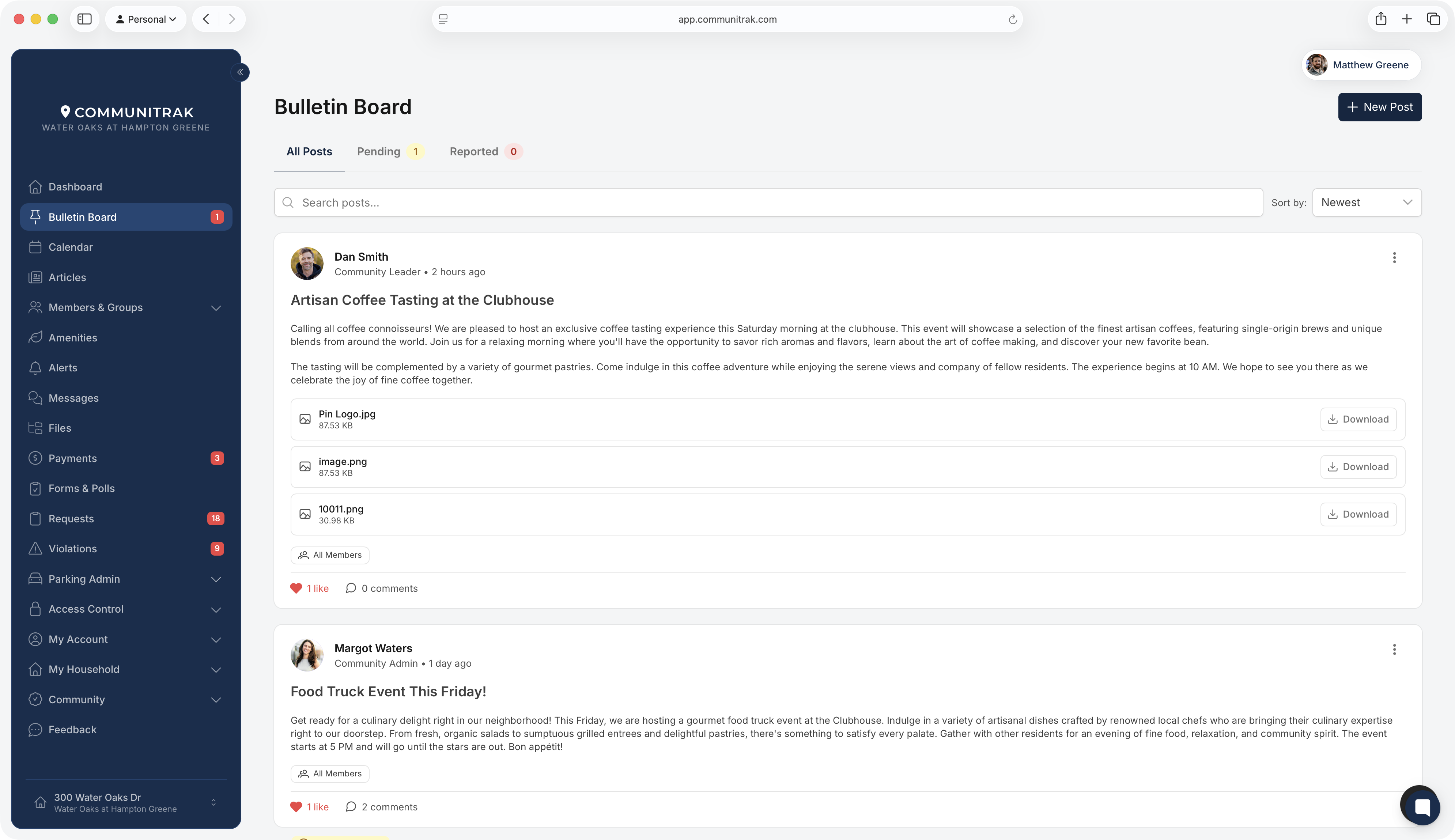
Posts are listed newest first. The All Posts tab shows every post you can see. If you have posts of your own waiting on approval, a Pending tab appears too, with a yellow badge showing how many.
Use the search bar to filter posts by subject or content. Use the Sort by dropdown (or the sort icon on mobile) to switch between Newest and Oldest.
Each post shows the author, when it was posted, the subject, the content, any attached files, and who it was shared with: All Members, or the name of a group. Some posts are signed by your community's leadership or by a group rather than by a person. Pinned posts sit at the top of the feed with a blue background and a Pinned tag.
Click a post's title to open it on its own page, where you can see the whole post and all its comments.
Click New Post in the top-right of the Bulletin Board.
Under Who can see this post?, choose who should see it. All Residents is the default. Groups you belong to that let members post are listed too.
Enter a Subject. If your community uses AI features, the sparkle button beside Subject can draft one from what you've written in Content.
Write your post in the Content editor. It supports headings, lists, links, and formatting.
Click Create Post.

To attach a document or photo to a post, share it from the Files module. See the article on sharing files.
A group only appears under Who can see this post? if you're an active member of it. Groups set to Admins Only appear only for their group admins. If a group you expect isn't listed, you may not have joined it yet, or it may only accept posts from its admins.
You can also post from inside the group: open the group's page and use New Post on its Bulletin Board tab. A post shared with a group shows on the main Bulletin Board for the group's members, tagged with the group's name.
If you can engage with a post, you'll see buttons at the bottom of it.
Click the heart icon to like a post. Click it again to unlike.
Click the comment icon to open the comments. Type in the Write a comment... box and press the send button.
On any comment, click Reply to start a threaded reply. On your own comments, use Edit or Delete.
When a post has more than three comments, click View all comments to open the full post page.
Groups decide separately whether their posts allow likes and comments, so you may be able to comment in one place and not another.
Click the three-dot menu in the top-right corner of the post.
Choose Edit Post to change the subject or content, or Delete Post to remove it.
Deleting a post removes it for everyone, along with its likes and comments.
If a post is inappropriate, spam, or abusive, you can flag it for Community Leaders to review.
Click the three-dot menu in the top-right corner of the post.
Choose Report Post.
Select a reason: This post is inappropriate., This post is spam., This post is abusive or harmful., or Other reason.
Click Report.
The post stays visible while leaders review it. You can report a post once, and you can't report your own post.
The Bulletin Board only appears in the main navigation menu if your community has it turned on.
If your role doesn't allow posting, liking, or commenting, those buttons won't appear for you.
Choose which Bulletin Board emails and push notifications you get in My Account > Notifications: New posts from Members, New posts from Leaders, and Comments on posts you've shared.
If you have questions or need help, chat with Communitrak Support from any page using the messenger icon in the bottom-right corner.
