Your community owns its records. The Data Export page lets a Community Admin download a copy of everything Communitrak holds for the community as zip files you can keep: members, posts, requests, messages with the HOA, payments, files, and more. Each export comes with a viewer you open in any web browser, without an internet connection, so the records read the way they do in Communitrak rather than as raw tables. This article covers requesting an export, downloading it, and finding your way around what's inside.
Requesting and downloading an export requires the Download Community Data permission. Out of the box, only Community Admin has it.
It's an Admin only permission, like Manage Communitrak Billing. Only a Community Admin can give it to another role, and a role that has it can't be your Default Member Role. See "Managing Roles and Permissions" for details.
Exporting still works while your community's account is read-only because of a billing problem.
Some options may be unavailable or appear differently depending on your level of account access.
Members, households, and properties, including former members
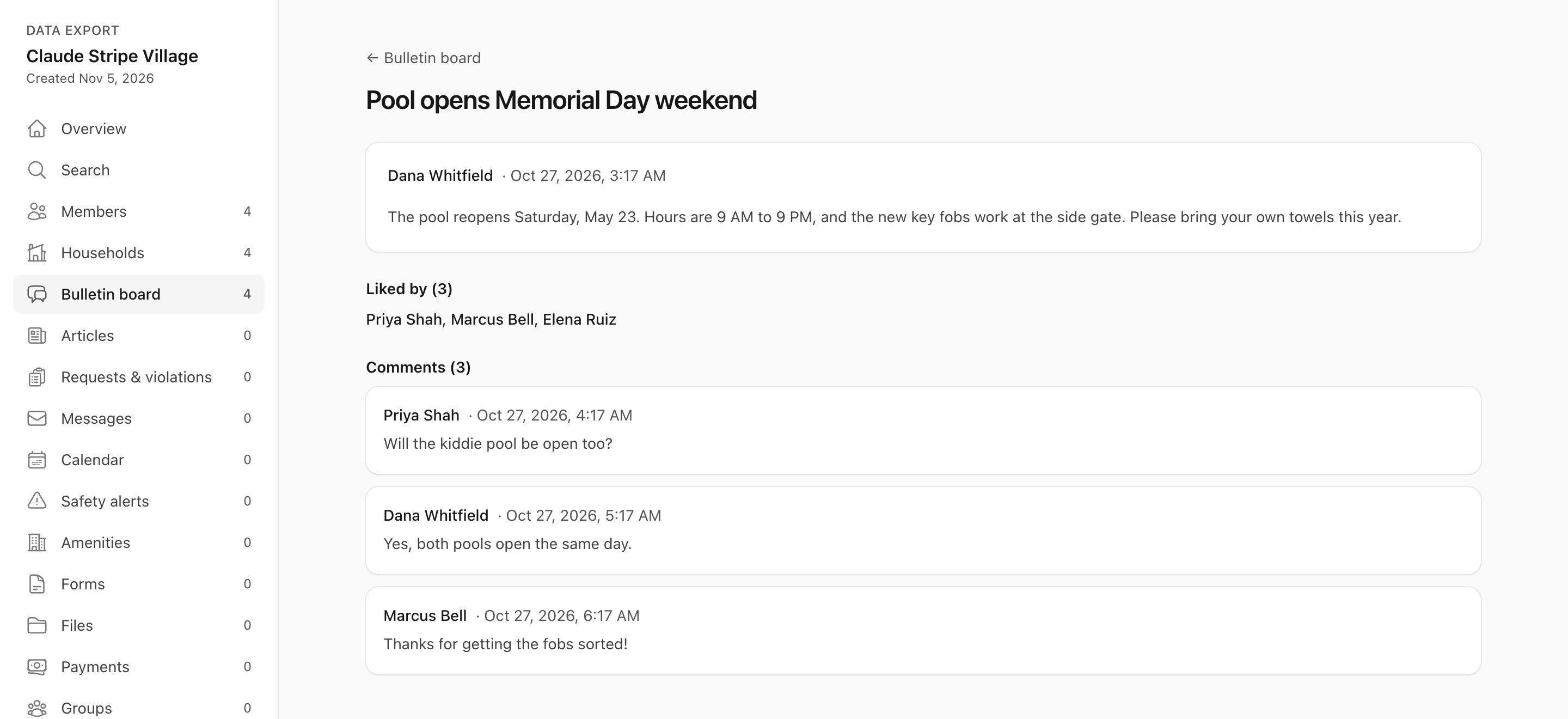
Bulletin board posts, comments, and likes
Articles, events, safety alerts, and amenity reservations
Requests, violations, and architectural reviews, with their full timelines
Messages to or from the HOA, group messages, and messages sent to everyone, along with replies to them
Charges and payments for each household
Forms and their responses
Files: everything in Files, plus attachments on posts, requests, messages, forms, and pet records
Private messages between residents. A conversation between two residents belongs to them, not to the community, so it stays out. Messages sent to or from the HOA or a group are included.
Passwords and other sign-in secrets, such as two-factor settings and household PINs.
Communitrak's own records, such as your Communitrak subscription billing and support conversations.
Communitrak team accounts. Communitrak staff aren't listed as members. Where a team member posted or replied, the export labels it "Communitrak team."
Log in to Communitrak at https://app.communitrak.com.
In the main navigation menu, expand Community and click Data Export. You can also open My Community and click the Data Export tab.
Click Request data export.
Communitrak emails a 6-digit code to the address on your account. Enter it in the Confirm your data export dialog. The export starts as soon as the last digit is in, or click Start export.
The code works for 10 minutes. If it doesn't arrive or runs out, click Send a new code. After 5 wrong tries the code stops working, and you'll need to click Request data export again.
Once you confirm, every other Community Admin gets a notification and an email saying you requested an export. That way nobody's records leave Communitrak without the other admins knowing.
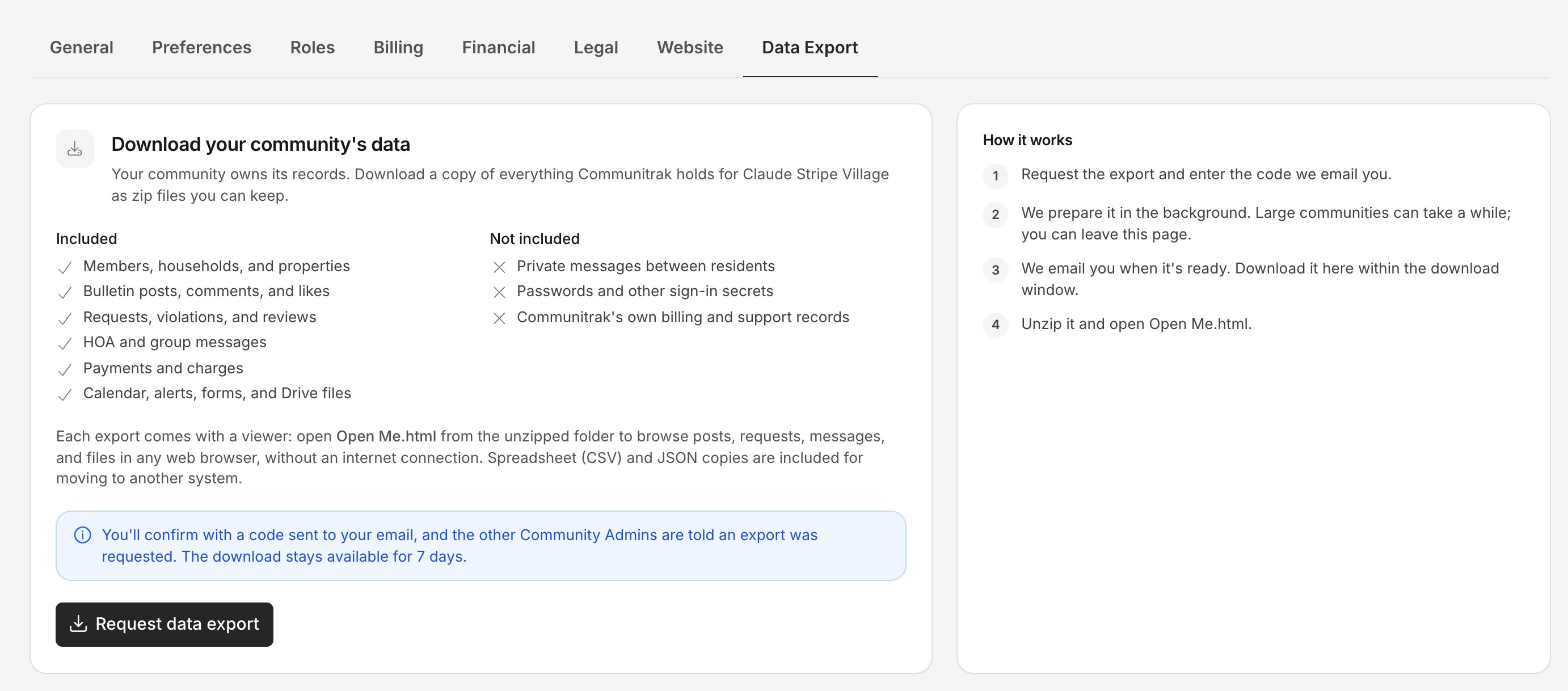

The export is prepared in the background, and its progress shows under Exports: Waiting to start, then Preparing while it collects records and files. Most communities take a few minutes. Large communities with many files can take longer. You can leave the page; you'll get an email and a notification when it's ready.
Until it starts preparing, you can click Cancel to call it off.
When the export is Ready, it shows how many records and files it holds and the date it's available until. Click the download button to save the zip file.
A large export is split into parts of about 2 GB each, with a button for each one. Download every part and extract them all into the same folder. Part 1 holds the records and the viewer, and the other parts hold files, so the viewer can only open a file once its part is extracted next to it.
Downloads stay available for 7 days. After that the export shows as Expired, and you can request a new one.


Extract the zip file (or every part, into one folder). On a Mac, double-click it. On Windows, right-click it and choose Extract All.
Open the extracted folder and double-click Open Me.html. It opens in your web browser.
The viewer works entirely on your computer. It doesn't need an internet connection and never sends anything anywhere.
Use the menu on the left to move between sections: Overview, Search, Members, Households, Bulletin board, Articles, Requests & violations, Messages, Calendar, Safety alerts, Amenities, Forms, Files, Payments, and Groups. A few things worth knowing:
A member's page lists everything they posted, requested, and wrote.
Request and violation timelines mark comments and files that were visible only to the board.
Search looks across members, posts, comments, articles, requests, messages, files, events, alerts, and forms.
All data shows every exported table, row by row, for anything the other sections don't cover.
csv: a spreadsheet for each table, which opens in Excel, Numbers, or Google Sheets.
json: the same data in a format another system can import, useful if you're moving to different software.
files: your community's files, in folders by where they came from. Files keeps its folder structure.
README.txt: a plain-language summary of what's in the export.
manifest.json: a technical list of every table, how many records it holds, and anything left out and why.
Occasionally a file can't be added, usually an older one stored by a file service Communitrak no longer uses. When that happens, the export says how many under its download buttons, and manifest.json lists each file and the reason. The record the file belonged to is still included. If a file you need is missing, contact Communitrak Support.
If you ask Communitrak Support for a copy of your records, a Communitrak team member can prepare the same export for you. Exports prepared by Communitrak don't appear on your Data Export page.
