The Activity Log shows every change made in your community: who made it, when, and to what. When a post is deleted, a charge is voided, a role's permissions change, or a request is approved, it's recorded here, so your board can always answer "who did that, and when?" This article covers what the log shows, who can see it, and how to find what you're looking for.
Viewing the activity log requires the View Activity Log permission. Out of the box, only Community Admin has it.
It's an Admin only permission, like Manage Communitrak Billing and Download Community Data. Only a Community Admin can give it to another role, and a role that has it can't be your Default Member Role. See "Managing Roles and Permissions" for details.
Every resident can see their own activity under their account. See "Your own activity" below.
Some options may be unavailable or appear differently depending on your level of account access.
Log in to Communitrak at https://app.communitrak.com.
In the main navigation menu, expand Community and click Activity Log. You can also open My Community and click the Activity Log tab.
The newest changes are at the top, grouped by day. Each entry says who made the change, what they did, and when. Hover over the time to see the full date and time. Where there's a page for the record, such as a request, post, event, or member, its name is a link you can click to open it.
When a change touched specific fields, the entry lists them under Changed, and a status change shows what it went from and to. Click Load more at the bottom to see older activity.
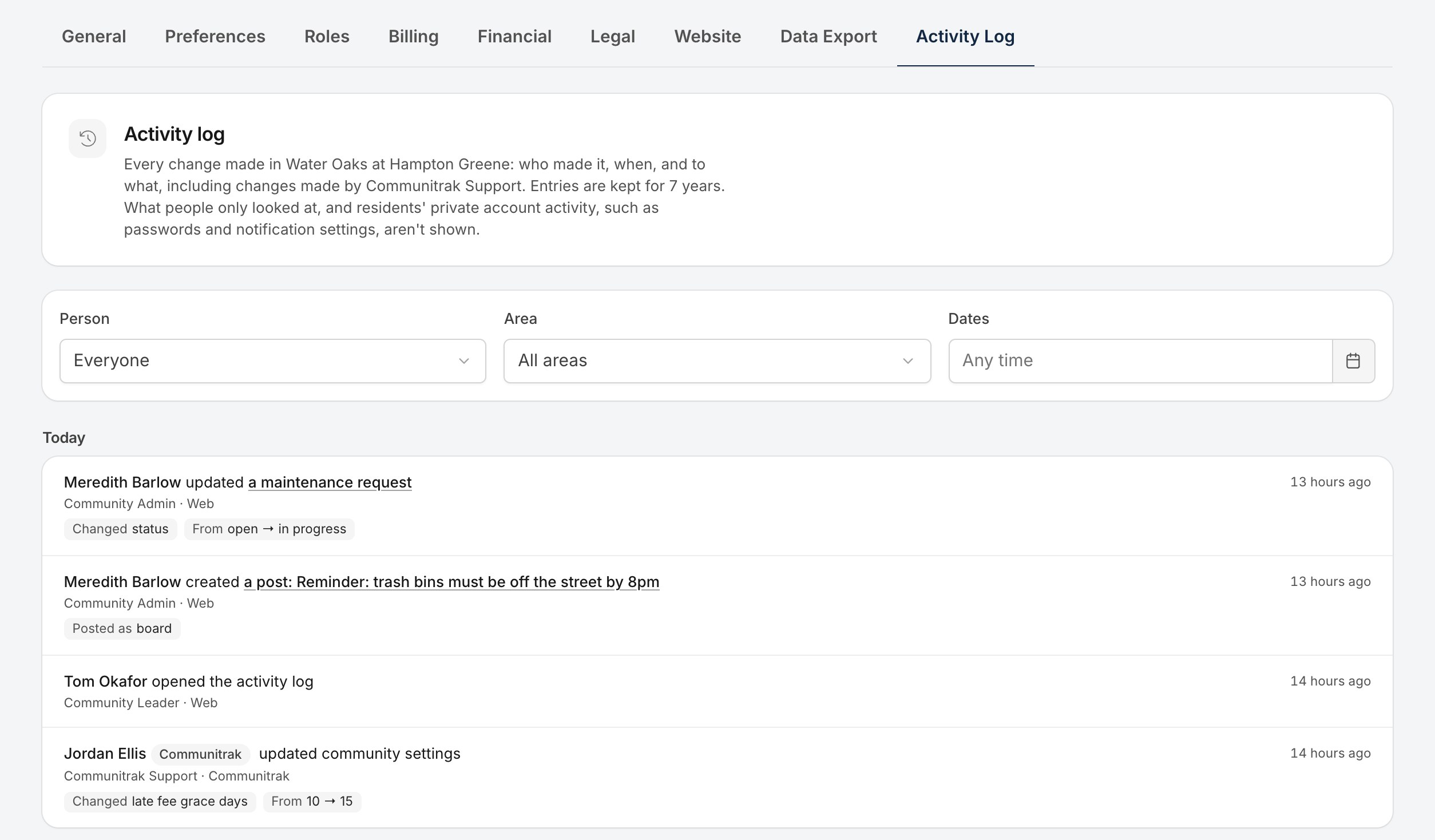
Use the filters above the list to narrow it down:
Person: only the changes one person made. Communitrak team members are marked Communitrak.
Area: only one part of Communitrak, such as Requests and violations, Payments, or Bulletin board.
Dates: pick a start and end date to see only changes made between them.
Click Clear filters to go back to everything. The filters are saved in the page's web address, so you can bookmark a filtered view or send the link to another admin.
When a Communitrak team member makes a change in your community, for example while helping you with a support request, the entry shows their name with a Communitrak label. Changes Communitrak makes on its own, such as scheduled tasks that run overnight, show as Communitrak (automatic).
Things people only looked at. The log records changes, not who viewed a page or opened a record.
Residents' private account activity, such as signing in, changing a password, turning on two-factor authentication, or updating notification settings. That belongs to each resident, and only they can see it.
Private messages between residents.

Entries are kept for 7 years, then deleted automatically. Changes made before the activity log was turned on for your community don't appear.
Every resident, not just admins, can see the things they've done in Communitrak. Expand My Account in the main navigation menu and click Activity, or open My Account and click the Activity tab. This list shows only your own actions, including your account changes, and nobody else can see it there.
