The Calendar shows everything happening in your community in one place: community-wide events, amenity schedules, and group events. You can browse by month or week, choose which calendars are visible, and open any event to see its details.
All residents and Community Leaders can view the Calendar. Creating, editing, and deleting events requires specific permissions. Some options may be unavailable or appear differently depending on your level of account access.
Log in to Communitrak at https://app.communitrak.com.
Click Calendar in the main navigation menu.
The page opens in month view by default. On a wide screen, the calendar grid takes up the left two-thirds of the page and a sidebar on the right shows calendar toggles and upcoming events. On smaller screens, the sidebar moves below the grid.
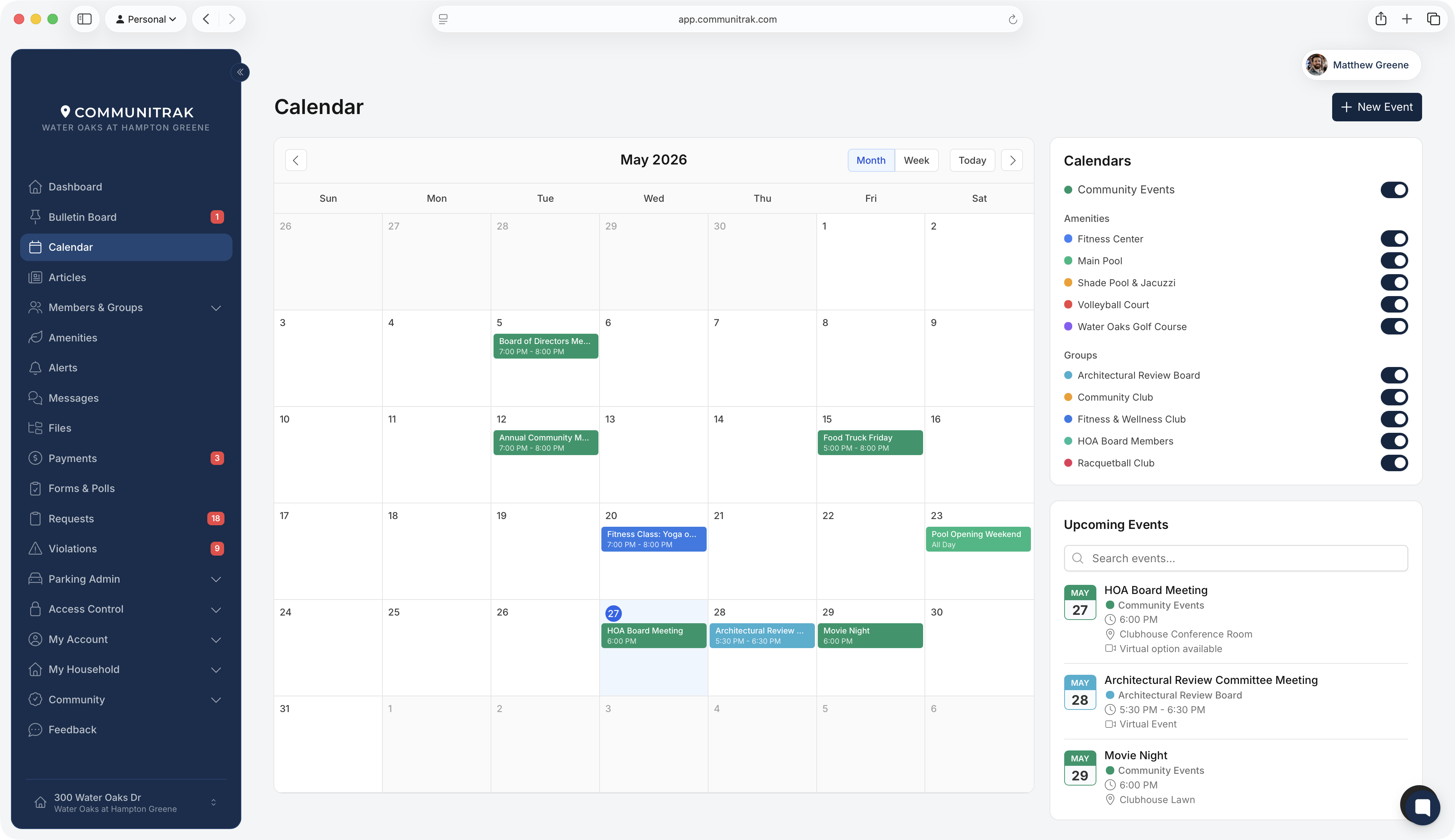
Use the view toggle in the calendar header to switch between Month and Week. Communitrak remembers your preference for each community, so you'll see the same view the next time you visit.
In week view, the calendar displays an hour-by-hour grid. On a phone, week view shows the days of the week across the top instead, and tapping a day lists its events.
If you have permission to create events, clicking a date in month view, or an empty time slot in week view, starts a new event with that date and time already filled in.
The Calendars card in the sidebar lets you control which events appear on the grid. Each calendar has a colored dot and a toggle switch:
Community Events: community-wide events visible to all members. If your community uses event categories (such as Social or Meetings), each category gets its own toggle underneath, plus one for Uncategorized events. The category toggles show while Community Events is turned on.
Amenities: one toggle per amenity (for example, Pool or Clubhouse). Only appears if your community uses Amenities.
Groups: one toggle per group you belong to. Only appears if you're a member of at least one group. Anyone with the Manage Member Groups permission sees every group here.
Turn a toggle off to hide that calendar's events from the grid and the upcoming events list. Your toggle preferences are saved per community.
When a day in month view has more events than fit, click +N more (for example, +2 more) to see the whole list for that day, then click any event to open it.
Below the calendar toggles, the Upcoming Events list shows your next events in chronological order. Each entry displays the event title, date, time, location (if set), and which calendar it belongs to (indicated by the colored dot).
Use the Search events... box at the top of the list to find an event by its title, description, location, or calendar.
Click an event title to open its details.
Use Show More at the bottom to load additional events, and Show Less to collapse the list again.
Events that ask for a response show an RSVP button here, so you can answer without opening the event first. If you have already responded, the list shows your answer as a small tag with a Change link beside it.
Click any event on the calendar grid or in the upcoming events list to open the event details dialog. The dialog shows:
Event title
Which calendar it belongs to, with its color, and the category if it has one
Date and time
Location, for in-person events. Amenity events show the amenity.
A Join Meeting link and the meeting platform, for virtual events
For hybrid events, a Hybrid Event label with both the physical location and the virtual option
Description
Repeat schedule, if the event repeats (for example, "Every week on Monday and Wednesday"), and a note if this date was changed from the rest of the series
RSVPs, if the event asks for a response
At the bottom of the dialog, Add to Calendar saves the event to your own calendar app (see below). If you have permission to edit or delete the event, Edit Event and Delete buttons appear there too.
You can see community events in Google Calendar, Apple Calendar, or Outlook in two ways.
A subscription is a private link your calendar app checks for changes, so new events, edits, and cancellations show up there without you doing anything.
Click Subscribe in the top-right corner of the Calendar page.
Click New subscription.
Give it a Subscription name. This is the name your calendar app will show.
Under Calendars, check the calendars to include: Community Events, any amenities, and any of your groups.
Optionally check My household's reservations to include amenity times anyone in your household has booked.
Click Create subscription.
Click Copy and paste the link into your calendar app's "subscribe" or "add calendar from URL" option, or click Open in Apple Calendar or Outlook.
Calendar apps decide how often to check for changes. Apple Calendar and Outlook usually update within the hour, and Google Calendar can take up to a day, so a new event won't appear right away.
Each subscription card has buttons to edit it, generate a new link, or delete it. Treat the link like a password: anyone who has it can see the events it includes. If it gets shared by mistake, use Generate a new link. The old link stops working, and you'll need to add the new one to your calendar app.
Open an event and click Add to Calendar to download it as a calendar file your app can open. This is a one-time copy. If the event changes later, your calendar won't update, so use a subscription for events you want to keep current.
Event notifications link straight to the event. The link opens the Calendar with that event's details already showing.
The Calendar only appears in the main navigation menu if the Calendar module is enabled for your community.
Calendar toggle and view preferences are saved to your browser. Logging in on a different device or browser will start with the defaults. Subscriptions are saved to your account.
Group calendar events are also visible on the main Calendar for group members, tagged with the group's color.
If a link points to an event you don't have access to, the Calendar opens without the event and shows an "Event Not Found" message.
Your next few events also appear on the Dashboard in the Upcoming Events card.
If you have questions or need help, chat with Communitrak Support from any page using the messenger icon in the bottom-right corner.
