Welcome! Follow these steps to set up your Communitrak account and open your community’s information. You only need to set up your account once.
You can use a computer, tablet, or phone.
Have your invitation from your community ready. It may be an email, a text message, or a printed Access Pass. Your invitation includes an Access Code made up of 8 letters and numbers.
If you do not have an invitation, ask a board member or community leader for one. Communitrak Support cannot issue access codes.
Choose one way to begin: If you have an invitation email, use Option 1. If you have a text message or printed Access Pass, use Option 2. Both options lead to the same account setup steps.
Open the invitation email. Its subject begins with Welcome to and includes your community’s name and Communitrak.
Click the Accept Invitation button. Communitrak opens with your Access Code already filled in.
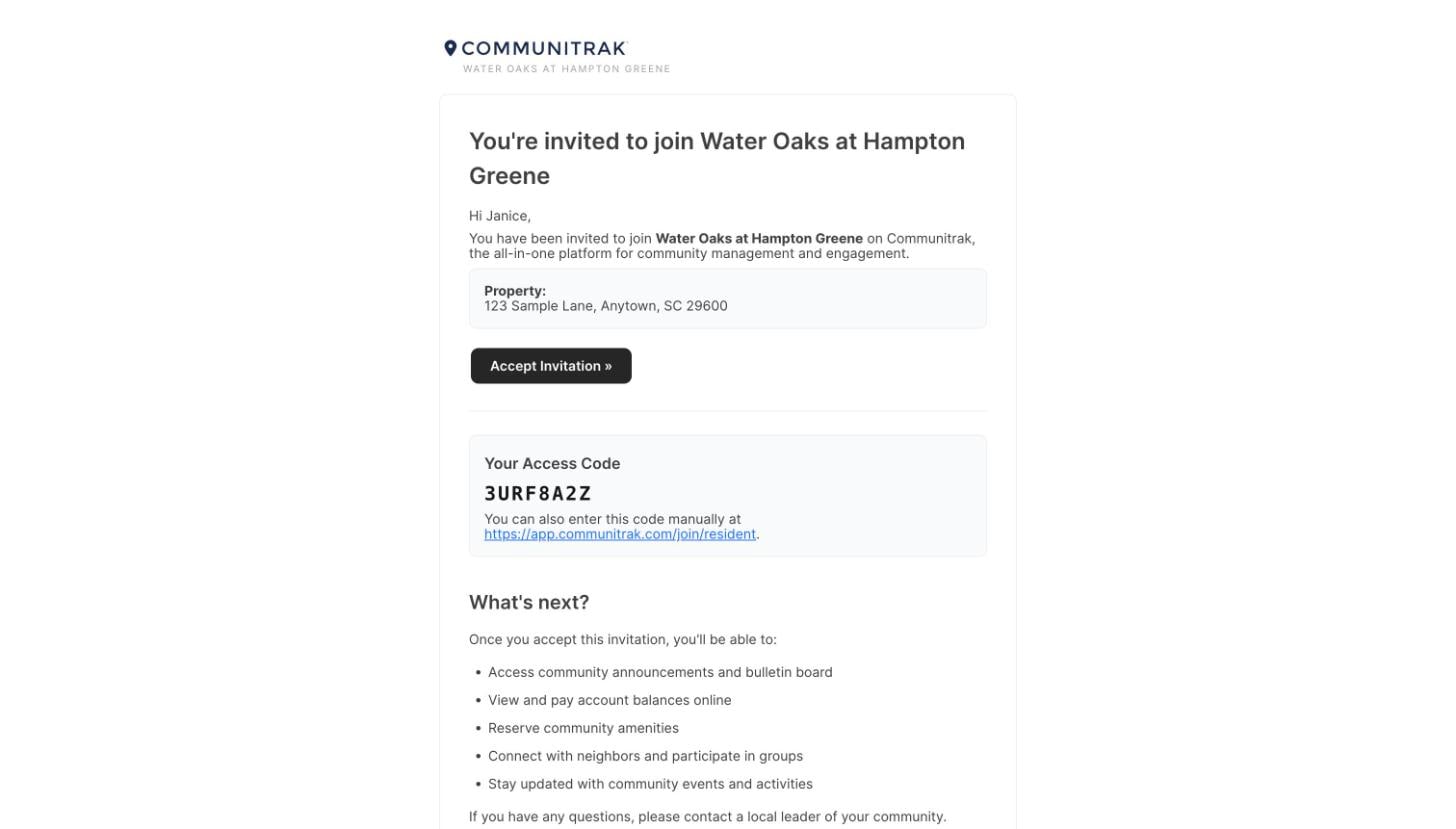
If an Access Code screen appears, click Continue. Then go to Finish setting up your account below. You do not need to follow Option 2.
Use these steps if your invitation came by text message or on a printed Access Pass. You can also use them if the button in your invitation email does not work.
Click this link to open Communitrak: app.communitrak.com.
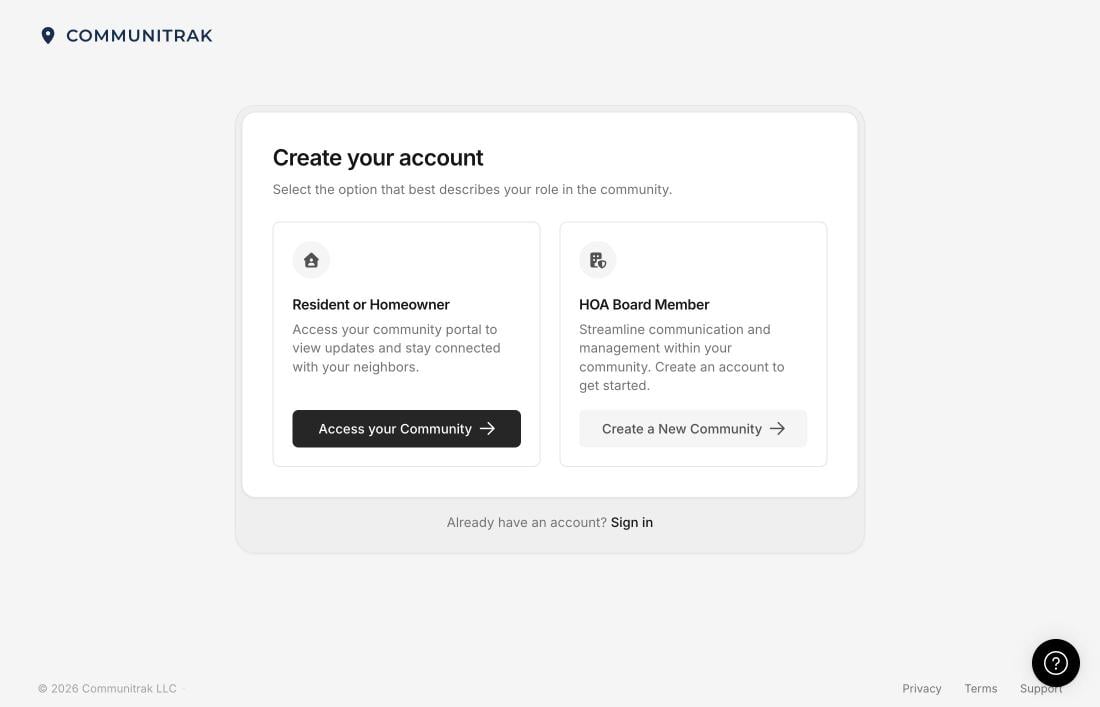
Below the sign-in boxes, find New to Communitrak? and click Create an account.
Under Resident or Homeowner, click Access your Community.
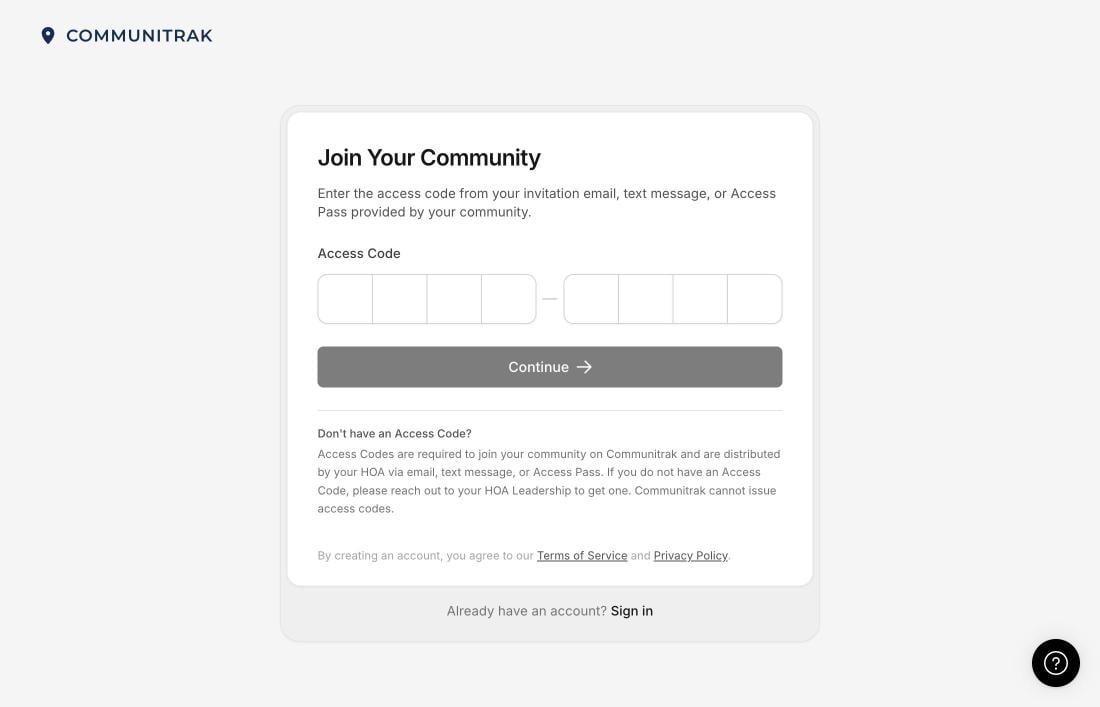
Click the first Access Code box and type the 8 letters and numbers from your invitation. As you type, you move to the next box automatically.
Click Continue.
Follow these steps after using either option above. Some screens may not appear if your community has already provided that information.
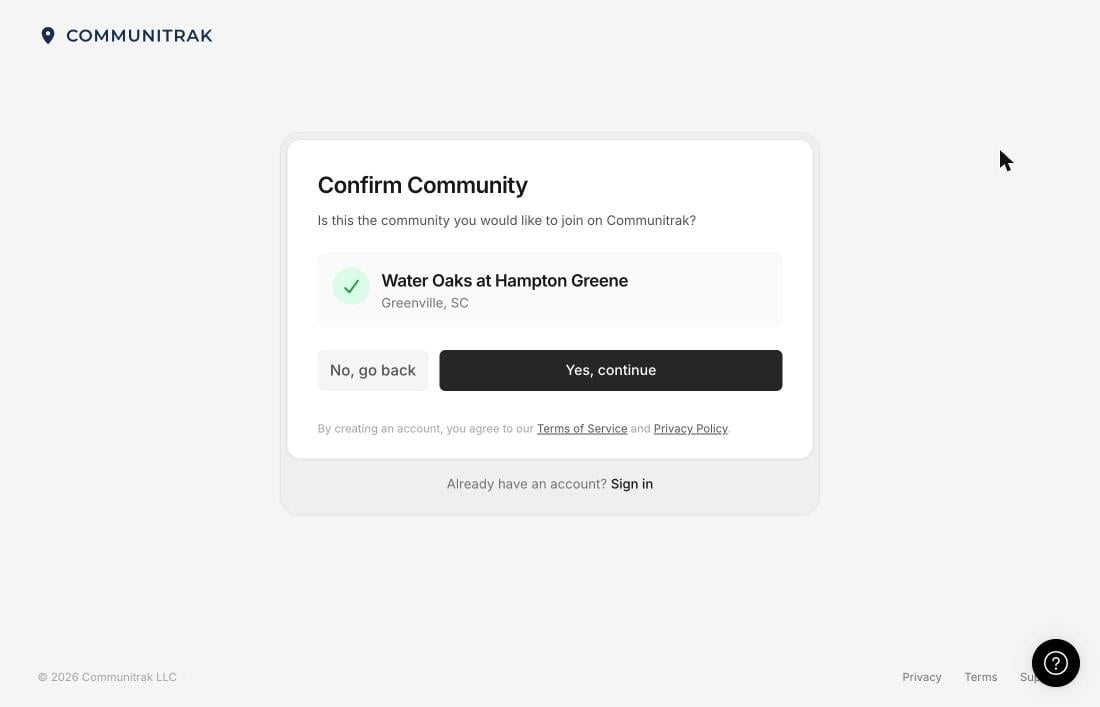
On the Confirm Community screen, check the community name and city.
If they are correct, click Yes, continue. If they are incorrect, click No, go back and check the Access Code in your invitation.
On Account Information, check your First Name and Last Name. Correct them if needed.
If your email address is already filled in, some of it may be hidden with dots for privacy. This is normal. If the email box is empty, enter the email address you want to use to sign in.
You may enter your Mobile Phone number to receive text messages about important community alerts. This is optional; you can leave it blank.
Click Continue.
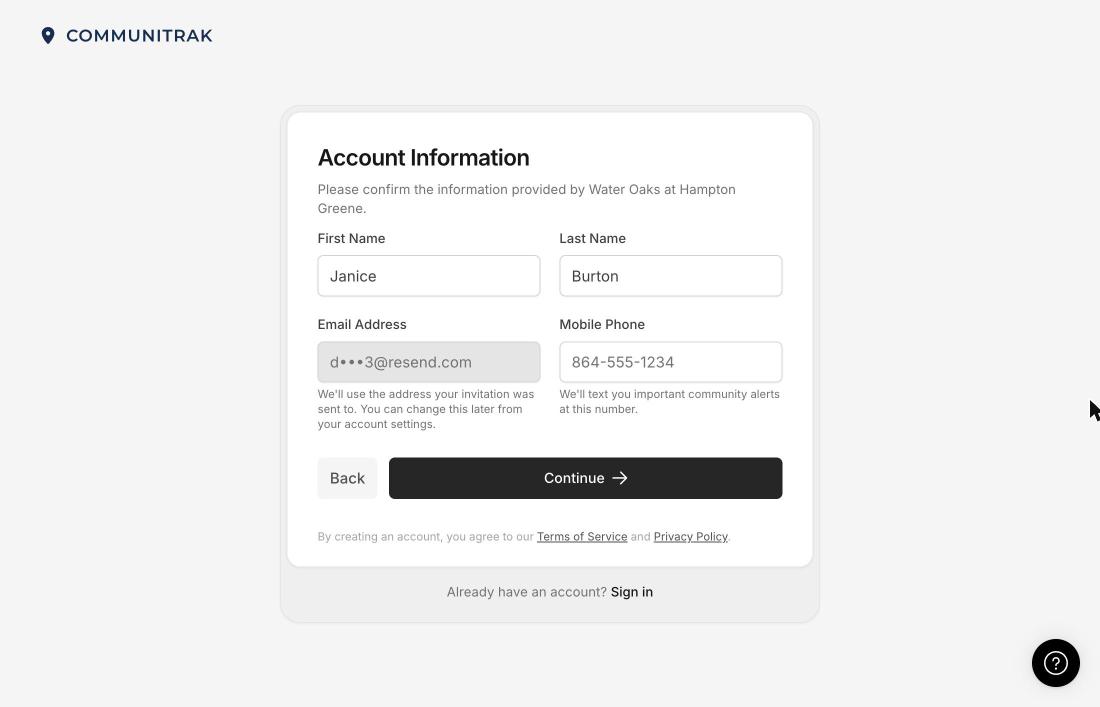
Already have a Communitrak account? If you see Welcome Back, enter the password you already use and click Sign In & Continue. Your new community is added to that account, so you do not need to create another password.
If you do not see a Property Address screen, move on to the next step.
Enter your street address or lot number.
Click Continue.
Check the address shown. If it is correct, click Use This Address.
On Account Password, enter a new password. Choose one you do not use for other accounts.
Your password must include:
At least 8 characters in total. Characters are letters, numbers, or symbols.
At least one uppercase (capital) letter, such as A.
At least one lowercase (small) letter, such as a.
At least one number or special character, such as 7 or !.
The checklist below the password boxes shows which requirements you have met.
Type your password again in Confirm Password. Both entries must match exactly.
Click Create Account.
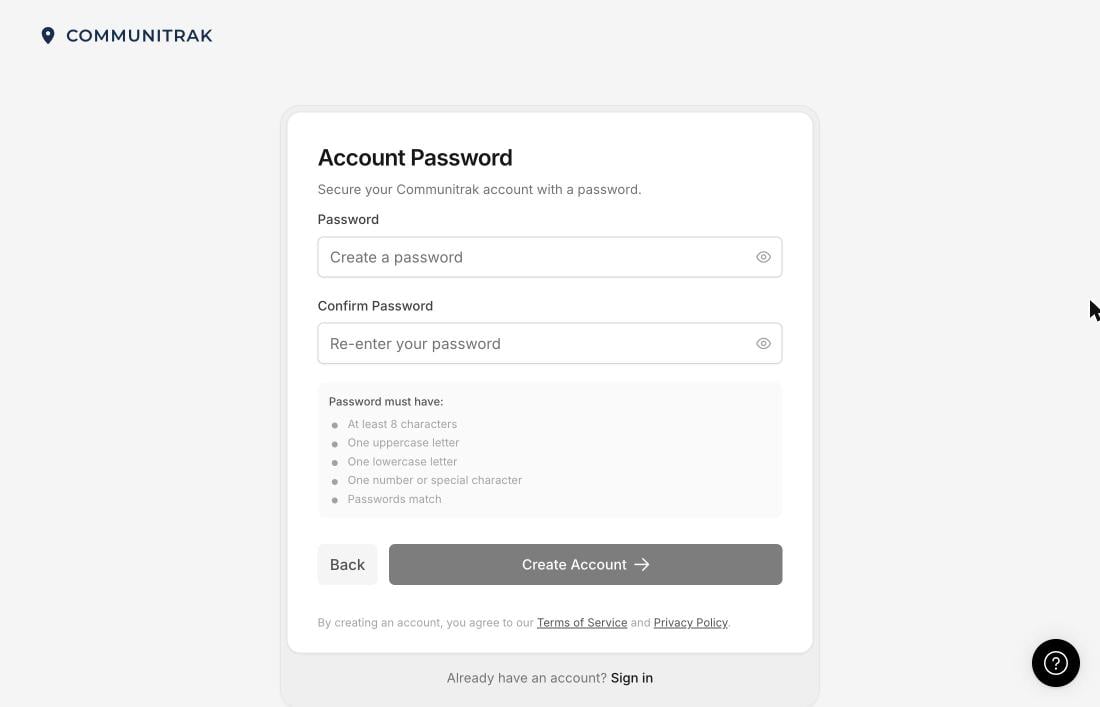
Keep your password somewhere safe, or save it on your own phone or computer when asked. You will use your email address and this password to sign in later.
If you see Verify Your Email, Communitrak has sent a separate 6-digit code to your email address. This is different from the 8-character Access Code in your invitation.
Open your email and find the message containing the 6-digit code.
Return to the Communitrak screen and enter that code.
Click Verify Email.
If the message does not arrive within a few minutes, check your spam or junk email folder. You can also click Resend code on the Communitrak screen.
If you do not see this screen, continue to the next step.
When you see Welcome, your account is ready. Click Get Started to open your community’s Dashboard — the main page with community information and updates.
You do not need your Access Code again after setting up your account.
Open app.communitrak.com.
Enter the Email address and Password you used when setting up your account.
On your own phone or computer, you can leave Remember me checked to help you stay signed in. On a shared computer, uncheck it.
Click Sign in.
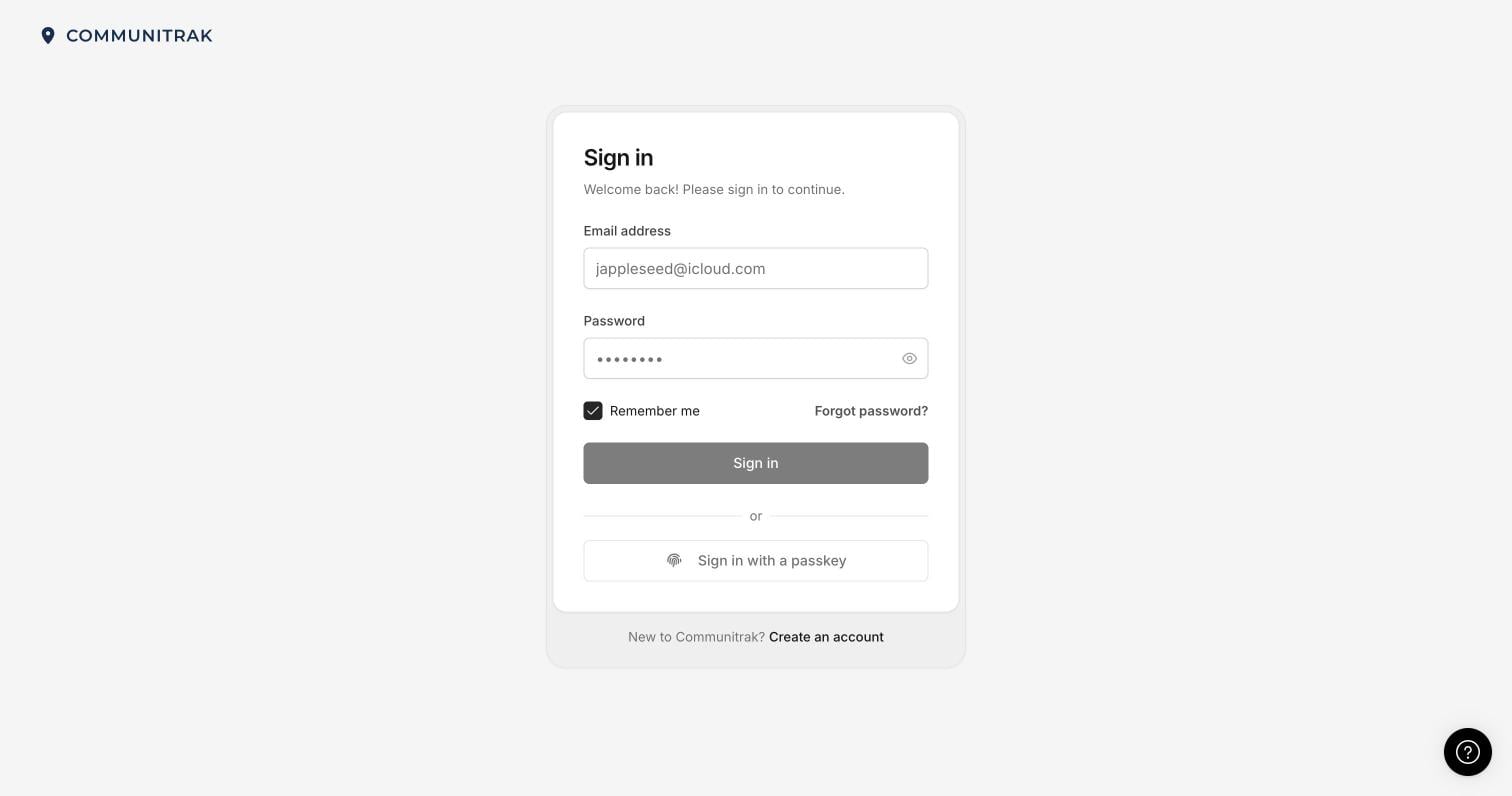
On the sign-in page, click Forgot password?. The guide below walks you through creating a new password.
Resetting Your Password
Forgot your password? Request a reset link by email, create a new password, and sign back in to Communitrak.
I cannot find my invitation email. Check your spam or junk folder for an email with your community’s name and “Communitrak” in the subject. If you cannot find it, ask a board member or community leader to resend it.
My code says “Invalid access code.” Compare what you typed with the code in your invitation. Access Codes do not use the letter O. If you see a round character, use the number 0 (zero).
My code has expired or has already been used. If you already set up your account, return to the sign-in page and use your email address and password. Otherwise, ask your community’s leaders for a new invitation.
I see “Too many attempts.” Wait a few minutes before trying again.
It says my community leaders are preparing the system for launch. Your account is set up, but your community is not open yet. You will receive an email when you can sign in.
For help with these steps, click the chat icon in the bottom-right corner of the Communitrak page to contact Communitrak Support.
